

Keepframe — YouTube Video Notes As You Watch, Tailored Summary & Transcript
9 ratings
)
Overview
Know if it's worth your time, see key ideas explained as it plays, build timestamped documents with your Snapshots.
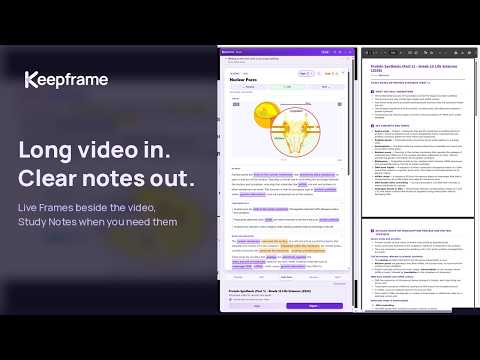
Turn long videos into usable knowledge. Keepframe is a Chrome extension that turns YouTube videos into notes. It helps you decide whether a video is worth your time, understand it while it plays, and turn it into Study Notes, a summary and a timestamped transcript. BEFORE YOU WATCH Not every long video is worth your time. Open a video and run "Should you watch this?" Keepframe reads the description and a selection of comments and gives you two concise views: why the video may be worth your time, and why you may want to skip it. It also shows the points viewers raise, information about the channel, and any chapters available for the video. You can open the original comments and judge for yourself. The pre-watch check is separate from your video analyses and never uses one of them. WHILE YOU WATCH Live Frames — concept cards that appear beside the player and explain the ideas being discussed, close to the moment they come up. They are built around the part you are watching, not from the top of the video, so the context arrives while the explanation is still unfolding. Each Live Frame offers several layers: a quick explanation, the segment's fundamentals, the wider background, why the idea matters, and — where one fits — an illustrating image with its license and author. Dig Deeper opens any concept as a fresh search in the service you choose, without losing your place in the video. Press Keep on a frame worth returning to and it is saved in Kept Frames with your own note. When the point is on the screen rather than in the words — a diagram on a slide, a table, a formula on a blackboard — Grab lets you save the relevant part as a Snapshot in Kept Frames for your own notes and personal learning. Draw a box around it, or capture the full visible frame. Each Snapshot includes a clickable timestamp that takes you back to the source video, and can go into your documents. A video analysis starts only when you press Analyze this video — or, on Power, when you switch on Auto-analyze in Settings. NOTES, SUMMARIES AND TRANSCRIPT Whenever you want to keep or review the takeaways, Keepframe turns the same video into documents tailored to different needs — a Brief for a quick overview, Study Notes for revision, a Full Summary for the whole walkthrough — each with clickable timestamps that jump back to the exact moment. Tick "Include what you saved and your notes" to bring your Kept Frames, Snapshots and notes into them. One analysis gives you the transcript and, when your plan includes them, lets you generate all three documents for that video. Analyzing it again — in another output language, for example — uses another analysis. The notes you add and the text Keepframe generates are yours to use for your own learning. AND WHEN YOU COME BACK Open the panel and Keepframe shows your recent videos with their Live Frames still loaded. Reopening one costs no analysis. Anything you press Keep on is saved locally in Kept Frames, together with your notes and Snapshots. EVERYTHING YOU GET * Should you watch this? — a read of the description and the comments, plus the channel and any chapters the video has, before you commit your time. Never uses one of your video analyses. * Live Frames — frames that explain ideas as they appear in the video, at several depths. * Kept Frames — the frames you chose to keep, with your own notes and Snapshots. * Grab — save a selected on-screen detail, or the full visible frame, as a Snapshot in Kept Frames for your own notes and personal learning, with a clickable timestamp back to the source video. * Brief — a concise overview of the core thesis, the key takeaways and the points worth revisiting. * Study Notes — structured notes built from the video's key ideas and tailored for revision, recall and exam preparation. * Full Summary — a detailed written walkthrough, section by section, with clickable timestamps. * Transcript — a timestamped transcript with clickable links back to the video. * Dig Deeper — open any concept as a fresh search in the search engine or AI assistant you choose, picked from the list in settings. * Continue where you left off — your recent videos, with their Live Frames still available in the panel. * Export — download your documents as Word or PDF files. The transcript and your Kept Frames, Snapshots included, can be exported too. * Watch in one language, read in another — choose from 95 output languages for your Live Frames and documents. * Light, dark and system themes. * Works with YouTube videos that have captions available — uploaded by the creator or auto-generated by YouTube. Use it for lecture summaries, and for notes from courses, podcasts, interviews, documentaries, tutorials and any other long-form video. PLANS Keepframe follows the same workflow on every plan. Free lets you try the full workflow during your first 7 days; Pro and Power keep it available and give it more room. * Free — $0/month. Up to 10 video analyses a month, with Live Frames while you watch, the timestamped transcript, Kept Frames with your own notes, Dig Deeper and Grab with a per-video limit on Snapshots. During your first 7 days you also get Brief, Study Notes, Full Summary and export — the complete workflow, before you decide whether to upgrade. No card required. * Pro — $4.99/month or $49/year. Everything in Free, with up to 30 video analyses a month, Live Frames that reach further ahead for talks, lectures and longer videos, continued access to Brief, Study Notes, Full Summary and export after the introductory Free period, and a higher per-video Snapshot limit. * Power — $9.99/month or $99/year. Everything in Pro, with Live Frames that keep building across the whole video, including multi-hour content, unlimited video analyses (personal use), optional Auto-analyze that starts the cards as soon as you open a video, and the highest per-video Snapshot limit. AFTER YOUR FIRST 7 DAYS ON FREE Live Frames, the transcript, Kept Frames and Dig Deeper remain available on Free. You can also continue copying available text to the clipboard. Creating new documents and exporting files require Pro or Power. Paid plans have their own one-time 7-day trial, handled at checkout. The two are separate. GOOD TO KNOW * The interface follows the output language you choose — 95 languages — and so do your Live Frames and documents. Feature names such as Live Frames, Kept Frames and Brief stay in English. * The transcript becomes available once you analyze the video, together with your Live Frames. Generation time for Brief, Study Notes and Full Summary depends on the length of the video. * The transcript stays in the language of the video. * Choose your output language before you analyze, so you don't spend a second analysis on the same video. * Your recent videos are kept temporarily in the panel. Kept Frames are stored separately, together with your own notes and Snapshots. * Your Live Frames, Kept Frames, notes, Snapshots and settings are stored in this browser, on this device. Brief, Study Notes and Full Summary are not saved: they stay open until you reload the page or move to another video. You can build them again from the same video without using an analysis — anytime on Pro and Power, and during your first week on Free. * Snapshots are intended for personal notes and learning. Rights in the source video and on-screen material remain with their respective owners. * You do not create an account or sign up, and there is no personal profile. Nothing syncs between browsers or devices, and removing the extension or clearing site data removes what it has stored. Payments are handled by Stripe.
5 out of 59 ratings
Details
- Version2.16.17
- UpdatedOctober 31, 2026
- FeaturesOffers in-app purchases
- Offered byKeepframe.One
- Size4.89MiB
- Languages52 languages
- DeveloperRobert Nowakowski
Stanisława Pyjasa 4/15 Warsaw 00-710 PLEmail
you@keepframe.onePhone
+48 503 808 183 - TraderThis developer has identified itself as a trader per the definition from the European Union and committed to only offer products or services that comply with EU laws.
Privacy

Keepframe — YouTube Video Notes As You Watch, Tailored Summary & Transcript has disclosed the following information regarding the collection and usage of your data. More detailed information can be found in the developer's privacy policy.
Keepframe — YouTube Video Notes As You Watch, Tailored Summary & Transcript handles the following:
This developer declares that your data is
- Not being sold to third parties, outside of the approved use cases
- Not being used or transferred for purposes that are unrelated to the item's core functionality
- Not being used or transferred to determine creditworthiness or for lending purposes
Support
For help with questions, suggestions, or problems, visit the developer's support site