


Overview
Format JSON right in the tab: tree view, search, diff, validator and a live WebSocket inspector. No ads, no tracking.
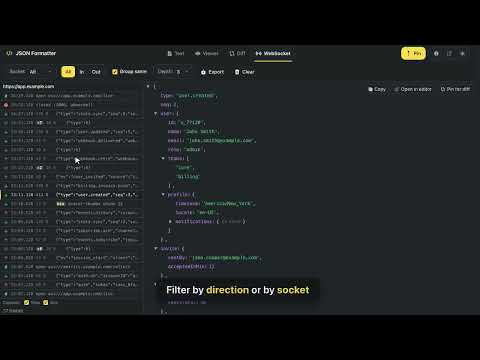
JSON Formatter & Viewer — a fast, lightweight tool for developers to format, validate, explore, transform and compare JSON data, in the popup or right in the browser tab. Handles JSON files up to ~10 MB. — JSON right in the browser tab — Open an API endpoint or a .json file and get a readable tree instead of a wall of text — no copy-paste. ✅ Click the extension icon on a JSON page, then "Format page" ✅ Optional auto-format: pick the sites, or all sites — off until you turn it on ✅ Parsed / Raw toggle, search, collapse to any depth, copy any value or its path ✅ Big numbers and trailing zeros shown exactly as the server sent them ✅ Recognizes JSON even when the server sends it as plain text or with the wrong Content-Type ✅ Works on pages with a strict Content-Security-Policy — Format & beautify — ✅ Format & beautify JSON with proper indentation ✅ Minify JSON to a single line ✅ Sort object keys alphabetically (recursive) ✅ Validate syntax in real time, with the line and column of each error ✅ Auto-format on paste or file drop ✅ NDJSON / JSON Lines: several top-level values are detected and wrapped into an array in one click — Explore — ✅ Interactive tree viewer with expand / collapse ✅ Expand to any depth level (1–10) with one click ✅ Search with live highlight, match count, and case-sensitive mode ✅ Copy any value or path from the tree — Undo & history — ✅ Undo the last Format, Minify, Sort Keys or Auto-format in one click ✅ Browse recent states and jump back to any of them (up to 30 entries, 5 MB total) ✅ History is remembered between sessions — Compare — ✅ Side-by-side JSON diff view ✅ Tree-based comparison with added / removed / changed filters ✅ Toggle unchanged keys to focus on differences — Import & export — ✅ Paste from clipboard or drag & drop a JSON file (up to ~10 MB) ✅ Load JSON from a URL, including localhost ✅ Read live JSON straight from a page's WebSocket (see below) ✅ Download as .json file ✅ Load a sample JSON to try it instantly — Live WebSocket JSON — Debugging an app that talks over a WebSocket? Instead of copying payloads out of DevTools by hand, the WebSocket tab gives you every message in the same tree viewer you already use — messages on the left, formatted JSON on the right. ✅ Incoming and outgoing messages, newest first, with timestamp and size ✅ Click a message to explore it in the tree viewer, at any depth ✅ Binary frames are decoded and marked ✅ Socket.IO and Engine.IO messages are decoded, so their JSON payload opens as a tree ✅ Filter by direction or by socket when a page opens more than one ✅ Fold repeated keepalive frames into a single row with a count ✅ See connection open, close and error events, so a dropped socket is visible ✅ Compare any two frames side by side in the diff view ✅ Copy a frame, or send it to the editor for the full toolset ✅ Export the frames you see as a JSON file ✅ Works on your own localhost dev server too How to use it: open the page you are debugging → click the extension icon → WebSocket tab → "Allow on this site" → reload the page. Capture has to start together with the page, so the reload is required. — Side panel — Pin the formatter to Chrome's side panel and it stays open while you browse — no more reopening the popup after every click. ✅ One click on Pin docks the app to the right side of the browser ✅ Keeps working while you interact with the page — perfect for watching live WebSocket traffic ✅ While pinned, the extension icon opens the side panel — even after a browser restart ✅ Unpin any time to return to the compact popup — Share — ✅ One-click share link (data lives in the URL, never hits any server) — UX — ✅ Dark & light theme with preference remembered ✅ Editor and viewer state persisted between sessions ✅ No ads, no tracking, no data collection — everything runs in your browser — Permissions & privacy — The extension asks for access to a website only when you turn a feature on for it: "Allow on this site" on the WebSocket tab, or auto-format for JSON pages. You choose the sites, or all sites. Nothing is requested at install time, and no site is touched until you approve it. "Format page" needs no site access at all — it works on the tab where you clicked the icon. The "Paste" button asks for clipboard access the first time you use it; Ctrl+V (⌘V on Mac) works without it. Each feature keeps its own list of sites: turning on auto-format for a site does not start WebSocket capture there, and the other way round. JSON pages are formatted locally, in the same tab. The extension reads only the JSON document it formats; on ordinary web pages it checks the page type and stops. WebSocket messages are read only — nothing on the page is modified, blocked or injected. Captured messages stay in the memory of that tab, capped at 500 messages, and are gone when you close or reload it. They are never uploaded anywhere: the extension has no backend and no analytics. You can turn auto-format off from the formatted page, and revoke a site at any time in chrome://extensions → JSON Formatter & Viewer → Site access. Full privacy policy: https://json.fedrr.com/privacy.html Simply click the extension icon, paste your JSON, and format it instantly. Also available as a web app at https://json.fedrr.com
5 out of 513 ratings
Details
- Version1.10.1
- UpdatedOctober 18, 2026
- Size555KiB
- Languages23 languages
- DeveloperWebsite
Email
info@fedrr.com - Non-traderThis developer has not identified itself as a trader. For consumers in the European Union, please note that consumer rights do not apply to contracts between you and this developer.
Privacy

This developer declares that your data is
- Not being sold to third parties, outside of the approved use cases
- Not being used or transferred for purposes that are unrelated to the item's core functionality
- Not being used or transferred to determine creditworthiness or for lending purposes