

Smart Blur: Blur, Redact & Screenshot

Overview
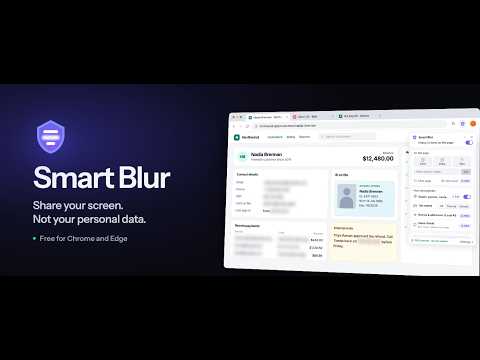
Hide personal info before you share your screen or send a screenshot. Blur emails, cards, names. No account, on-device.
Blur or redact sensitive information on any webpage — emails, credit card numbers, Social Security numbers, phone numbers, names and addresses — then take a clean screenshot to share. Everything happens on your device. No account, no cloud, nothing uploaded. Use it before a screen share, before sending a screenshot, when recording a demo or tutorial, or any time a customer record, invoice or inbox is on screen and someone else is watching. WHAT'S FREE Pattern blurring — Built-in detection for emails, Social Security numbers, credit card numbers, phone numbers (US and international), IP addresses and MAC addresses, plus API keys and IBAN bank account numbers (off until you turn them on). It works as soon as a page loads. Your own rules — Add keywords to hide on every site, or your own patterns: describe one in plain words (for example "starts with ORD- then 6 digits") or write a regular expression, and test it as you type. Restrict any rule to specific sites or URLs. Click to blur — Click any element on the page to blur it. Draw to blur — Drag a rectangle over any region to blur everything inside it. Select text to blur — Select any text on the page to blur just that part. Hide a keyword or name — Type it in the panel and every place it appears on the page is blurred. Hide tab names — Hide the titles and site icons of this tab or of all your tabs, so the tab bar gives nothing away. Undo and redo — Took off the wrong blur, or cleared the page by mistake? Undo it, with a button or Ctrl+Z (⌘Z on a Mac). Keyboard shortcuts — Turn Smart Blur on or off, open or hide the panel, and switch between Click, Draw and Text from the keyboard. Handy when you share your screen from a desktop app such as Zoom or Teams: one key turns blurring on before you share. Blur inputs — Matching text inside form fields and text areas gets blurred too. Adjustable blur strength, a simple floating panel, light or dark theme, and a short guided tour on a practice page when you install. WHAT'S IN PRO (yearly plan or one-time Lifetime purchase) Screenshot — Capture the page after blurring, without switching to another tool. Take the visible area or drag to select a region. The image is copied to your clipboard automatically, with a download option, and is named after the page you captured. The Smart Blur panel and its buttons are never in the shot. Share Shield — Auto-blur the moment you present your screen. When you share your screen from the browser (Google Meet, Microsoft Teams or Zoom on the web), Smart Blur turns blurring on in every tab by itself, hides tab names, and turns it back off when you stop sharing, so sensitive data stays hidden from your audience. Desktop apps such as the Zoom or Teams desktop client aren't covered; there, turn blurring on yourself before you share. Save per page — Save your blur choices for a specific URL, including keywords, clicked elements, drawn regions and selected text, so they come back automatically on your next visit. Import and export settings — Back up your configuration or move it to another browser. Local AI (names and addresses) — An optional on-device AI model (OpenAI Privacy Filter) that finds names, street addresses and account numbers written in ordinary text, where a fixed pattern can't find them. It runs entirely in your browser and nothing is sent anywhere. It needs a browser and graphics card that support WebGPU, and a one-time model download of about 810 MB. It works best on English text. It can still miss things or occasionally blur text that isn't sensitive, so treat it as an assist on top of the pattern rules rather than a replacement for them. A confidence setting and a "Not PII" list let you tune it. PRIVACY Smart Blur does not collect or transmit page content. There is no server, no analytics on what you browse, and no account to create. The AI model runs locally in your browser. Screenshots are created on your device and go only to your clipboard or your downloads folder — they are never uploaded. The extension makes only two kinds of network request: a one-time download of the AI model from Hugging Face if you turn on Local AI, and a request to the payment provider if you choose to buy Pro. FREQUENTLY ASKED QUESTIONS Who is Smart Blur for? Anyone who shares a screen or sends a screenshot with real data on it. Sales teams demoing a live account without exposing the customer in it. Support and success teams screenshotting a ticket or an inbox. Marketing and content teams recording tutorials, demo videos and help-doc images. Developers and designers sharing a staging environment, a dashboard, an API response or a bug report full of real records. Finance, HR, healthcare and legal staff handling client or employee details on screen. Teachers and anyone presenting from their own browser. If a customer record, invoice, email address or name is on screen while someone else is watching, Smart Blur covers it first. How do I hide personal information before a screen share? Install Smart Blur and turn on the patterns you need. With Pro, Share Shield switches blurring on automatically as soon as you start sharing your screen from the browser (Meet, Teams or Zoom on the web), so there's nothing to remember in the moment. In desktop apps, turn blurring on before you share. How do I blur a screenshot before sending it? Blur the page first, using patterns, click-to-blur or draw-to-blur, then use the Screenshot button in the Smart Blur panel (Pro). The image lands on your clipboard already blurred, ready to paste into Slack, email or a ticket. Can I blur only part of a page? Yes. Use Draw to cover any region, Click to hide a single element such as a name field or an avatar, or select text to blur just those words. Does it work on any website? Yes, Smart Blur runs on any site. Chrome does not allow extensions on a few internal pages such as the Chrome Web Store itself. Is my data sent anywhere? No. Detection, blurring and screenshots all happen in your browser, on your device. Do I need an account? No. There is no sign-up. Pro is tied to an email you enter at checkout, which you can use to restore it on another computer. WHAT'S NEW IN 1.7.2 Stop button — End Click, Draw or Text blur with the new Stop button or the Esc key, even on sites that use Esc themselves, such as Telegram Web. Keywords to hide — "Words to hide" has a clearer name, in Settings and in the panel. Tab names while sharing (Pro) — When Share Shield hides your tab names during a screen share, the Tab names switch in the panel now lets you show them again or hide only the current tab. Smart Blur works on any website. No sign-up, no server, no data leaving your device. Your privacy stays in your hands.
4.8 out of 513 ratings
Details
- Version1.7.2
- UpdatedOctober 21, 2026
- FeaturesOffers in-app purchases
- Size7.22MiB
- Languages6 languages
- DeveloperSmart Build LabsWebsite
357 Roehampton Avenue Toronto, ON M4P 1S3 CAEmail
support@smartbuildlabs.com - Non-traderThis developer has not identified itself as a trader. For consumers in the European Union, please note that consumer rights do not apply to contracts between you and this developer.
Privacy

This developer declares that your data is
- Not being sold to third parties, outside of the approved use cases
- Not being used or transferred for purposes that are unrelated to the item's core functionality
- Not being used or transferred to determine creditworthiness or for lending purposes
Support
For help with questions, suggestions, or problems, please open this page on your desktop browser