

IRIS Whiz

Overview
Enhances the HL7 V2 experience in Intersystems IRIS/Ensemble.
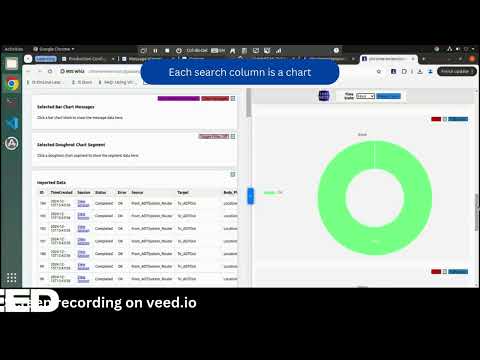
Originally created to make the differences between TEST and PRODUCTION instances more immediately obvious, features were added to enhance and make easier; message searching, message comparison and monitoring productions. This web browser extension is best suited to Interface analysts working with HL7 v2 messages in the Intersystems healthshare environment. This code is made available as is and will not be supported. Please see License.txt for full details. ## Set Up: All features require that you build out your instances of Intersystems Ensemble/Iris/Healthconnect on the Options page. Some features also require namespaces to be created. To add your instances and namespaces navigate to the extensions options page. You can do this by going into your browser's extension manager and finding the options button on this extension. OR if you have pinned the extension to your taskbar, click it and then click the Options Page button that appears in the pop-up window. Scroll down to the Instances table and add your instances. Click the namespace cell to open the pop-up namespace table. Each namespace you create will be associated with the instance that is showing in title of the namespace form. Instances and Namespaces save automatically when you click off the field being edited. You will be prompted with a permission request for the extension to work on your instances, read it and click accept if you're happy. Finally, enable your desired features using the checkbox form on the settings tab of the options page. ## Features: #### Browser Based 01. AutoTab 02. AutoTab - Namespaces 03. Instance Header Colours 15. Add Bookmarks 30. Custom Colours #### Right Click Context Menu 04. Message Search 14. Open base64 string as PDF 31. Custom Page Titles & Saved Pages #### Message Viewer Page 06. Selected Messages Tab 07. Share Link on Selected Messages Tab 16. Order by Oldest 17. Complete Date 18. Extended Criteria Search History 19. Share Search 33. ChartJS Analysis Page 38. Quick Analysis Tab #### Visual Trace Page 08. Full Trace Tab 21. Show Related Messages Button 22. Hide Unrelated Messages Button 23. FullTrace Messages Link to their SVG counterpart #### Message Content Page 09. Import HL7 Message from another Message Content Page 28. Schema Mode #### Various Pages (feature exists on more than one page) 10. Copy Raw HL7 Text 11. Expand & Search HL7 Schema (was Expand HL7 Schema) 12. Compare HL7 Message Fields 20. Multiple Message Scroll 26. Segment Search 27. Hide Iris Whiz Buttons Until Needed 29. Splitscreen Comparisons #### Home Page 13. Business Component Report #### Production Page 24. ChatGPT Powered Test Message Generator 25. Active Production Category Search 32. Production Queue Search 36. Category Dropdown Case-Insensitive Order #### Extension Pop-up 05. Extension Pop-up - Open Session 14. Open base64 string as PDF ## Feature Descriptions: #### 01. AutoTab Organises your tabs into coloured Tab Groups by Ensemble Instance for easy identification in the browser. Requires the instances object to have been built using the Instances tool in the extension options page. This feature can help you to organise Test and Production instances into groups in your browser to prevent confusion. #### 02. AutoTab - Namespaces Further organises your Tab Groups into different Namespaces. Each Namespace shares its colour with its parent Instance. Requires the instances object to have been built using the Instances tool in the extension options page. #### 03. Instance Header Colours Colours your Instance headers for easier on-page identification of Instance. (So you don't get confused and accidentally change production when you're trying to test!) Requires the instances object to have been built using the Instances tool in the extension options page. This feature can help you to easily differentiate between Test and Production instances at a glance. #### 04. Message Search Creates a context menu so you can right click on any hyperlinked message content in the Contents page in Message Viewer (Full Contents, not Raw) and create a search criterion based on that Message's schema. This works using timings so may not be useful on slower computers. Highlight the message content to search for that content. If you don't highlight any text the Add Criterion window will autofill but stop so you can add your own value to search for. Also works on the Visual Trace page in the Contents frame. Opens a new message search window and adds the criterion. Caution, the criterion from your previous Message Viewer search may automatically appear when opening Message Viewer from the Visual Trace page. #### 05. Open Session Opens the Visual Trace for the provided session ID. Found on the pop-up when you click the extension icon. *You must be on the correct namespace for the session ID you wish to search for. Helpful for sharing a particular session with a team member or saving it for later. Potential use - save the session ID in the MSH segment of a HL7 message. Use this feature to navigate to the message quickly from a third party system. #### 06. Selected Messages Tab on Message Viewer Page View the HL7 content of each selected message on the Message Viewer Page. Makes comparing similar messages easier. #### 07. Share Link on Selected Messages Tab Click the Share Link button to copy a link to your clipboard that will open all of the currently selected messages in a new window. Useful for sharing a set of messages with a team member or saving a set of messages for later. #### 08. Full Trace Tab on Visual Trace Page Shows the HL7 content for all currently visible HL7 messages in the visual trace. Useful for comparing input with output. #### 09. Import Message on HL7 Message Content Page Import a HL7 message from another open Message Content page. Useful for comparing messages across environments. E.g. Test with Production #### 10. Copy Raw HL7 Text Copies the raw HL7 text of the message to your clipboard. Saves extra navigation to the RAW version of a message. #### 11. Expand & Search HL7 Schema (was Expand HL7 Schema) Clicking on the first two columns of any HL7 message (full content view) will expand down the Segment so you can see the values next to their schema description. When clicked the Search Schema button is replaced with a search bar and all schema for currently visible messages is expanded. Use the search bar to hide schema fields that don't match the current search text. Empty the search bar and press enter to close all expanded schema. Press enter to highlight matching copy in the message. Can save you from having to navigate to the message's schema and helps search through messages. #### 12. Compare HL7 Message Fields Hover your mouse over a HL7 message's field to perform a basic comparision with the other HL7 message fields on the current page. Click the SHOW LEGEND button on the Message Content page to see more details. Helpful for checking transformations or comparing test messages with production. #### 13. Business Component Report On the %Sys namespace homepage shows all business componenets in active productions for the current instance that are not in a state of Active or Disabled. On each individual namespace homepage it shows only the business components for that particular namespace. Enable or disable as needed on the options page. Helpful for quickly checking any business components that and in error without cycling through all namespaces. *I think this only works on Ensemble and not on IRIS #### 14. Open base64 string as PDF Found on the pop-up when you click the extension icon for you to paste your base64 encode string into, or you can highlight the string with your mouse, right click and click 'Open as PDF' to convert the raw string to a PDF. Helpful for checking messages with embedded PDFs. #### 15. Bookmarks Adds a 'TIE Links' folder of bookmarks for easy navigation to your instances and namespaces. If you edit your namespaces you'll need to delete the folder and rename it in the settings to create the bookmarks again. Requires the instances object to have been built using the Instances tool in the extension options page. Helpful for speedy navigation to the correct instance/namespace. Update the folder name in the settings to recreate the bookmark folder with your desired name. I've not auto-deleted the old one in case people add other bookmarks to this folder. You have been warned. #### 16. Message Viewer Page - Order by Oldest Automatically updates the Order By option on the message viewer page to Oldest First. Enable on the options page. #### 17. Message Viewer Page - Complete Date Automatically updates the Time Format option on the message viewer page to Complete. Enable on the options page. #### 18. Message Viewer Page - Extended Criteria Search History Caches the Extended Criteria used when the Search button is clicked (up to 10 searches). Allows user to scroll through previous criteria and click them to add them back to the extended criteria section. The history will contain the full HTML element object however only VDoc Segment Field, VDoc Property Path and Header criterion will automatically be applied to the current search criteria when clicked. Clicking incompatible criteria will result in an error message. Useful if you've resubmitted a message and want to recall the criteria you used to find it in the first place. #### 19. Message Viewer Page - Share Search Creates a 'Share Search' button on the Message Viewer page. When clicked, the current search criteria is saved in the Saved Searches and the current URL with the Saved Search's name appended as a query param is copied to the clipboard. Navigate to this new URL and it will automatically open the saved search. The browser prompts you to delete the saved search - this is so your Saved Searches dropdown doesn't get filled, though you don't have to delete the Saved Search if you don't want to. Saved Searches are the current datetime prepended with zz. Useful for sharing search results with colleages. #### 20. Multiple Message Scroll When viewing any page where the extension has added multiple messages and there are horizontal scrollbars, hold CTRL and then scroll. This will scroll all message scrollbars at the same time. Useful for comparing multiple messages at the same time. #### 21. Show Related Messages Button In the visual trace tab/FullTrace tab highlights messages in red that are directly related via the start or end icons on the SVG trace window to the currently selected message Hides messages in the FullTrace tab that are not related to this message *Note this is a best estimate based on the start and end position of each message. For simple traces this will work fine, however it may fall down on more complicated traces where multiple messages are triggered from the same processor to the same operation and responses are sent back. #### 22. Hide Unrelated Messages Button When the Show Related Messages button is active this button appears. When clicked it will attempt to hide any messages in the SVG window that aren't highlighted. Intended to reduce visual clutter when viewing the SVG page. #### 23. FullTrace Messages Link to their SVG counterpart Messages in the FullTrace tab are now linked to their SVG equivalent in the Visual Trace frame. Click either and it clicks its partner. Hover over one and it and its partner will change colour slightly. This is to allow you to more easily see which message is which when there are dozens of messages. For example, an ADT feed sending to multiple systems. #### 24. ChatGPT Powered Test Message Generator Use ChatGPT to generate you a test HL7 message. The prompt will appear on the Test window on the production page as long as you have input an API Key to the ChatGPT API key setting of the Options page. You need to select a schema and a doc type and it will automatically generate you a prompt. Edit the prompt as you please and then click the Generate to call ChatGPT. #### 25. Active Production Category Search On productions a button appears next to the Category dropdown. Clicking this button loads active productions onto the page, gathers their category lists and complies them into a dropdown. Choosing a category from this dropdown will cause all productions with matching categories to show on the page with this Category filter applies to them. Any categories on the starting production page are prefixed with *. This is for ease of identification. Choosing a category that is not on the starting production page will not update the starting production page. Note it only shows ACTIVE productions. That is, productions shown as Running on your %SYS homepage. This is useful for seeing workflows for a particular category across namespaces. It's a little slow if you have a lot of productions, but it works pretty well. #### 26. Segment Search Hide segments that don't match your current search criteria. You can search specific segments by prepending your search with \SEGMENT\YOUR SEARCH HERE e.g. \OBX\151570 Bonus points if you know which Rosetta Terminology vitals that references. That example will only hide OBX segments, leaving other segments still visible. Useful for searching for specific OBX-3 values but leaving the OBR/PID/MSH etc.. segments showing. Please remember to use back slashes. This also renders back slashes useless for search purposes. Sorry. #### 27. Hide Iris Whiz Buttons Until Needed Added an IRIS WHIZ button to maximise/minimise the button bar as needed. This is the bar that appears on Full Trace tab, Message Contents Tab and Selected Messages Tab and contains Text Compare, Schema Search etc. Choose on the option page whether you want the button bar to be expanded on page load. Default is buttons are hidden. It also looks more fancy now. You're welcome. #### 28. Schema Mode Toggle the Schema Mode using the… Schema Mode button! Default behaviour for expanding schema only shows the known schema that is available in the Title of the field - the bit where you hover your mouse over the fields. Toggle the button and it will look up the schema using the link in the segment element. This is slow, especially when used in conjunction with the Searching features. Therefore I've limited it to the Contents view. WARNING! It will continue to work if you import messages to this view. Unless you like to watch the world burn, don't use the Full Schema option if you have many messages imported into your page. #### 29. Splitscreen Comparisons Click the green splitscreen button to see messages side by side. The splitscreen option is only available where the screensize can become roughly full screen. This feature makes it easier to compare longer messages on the same screen. #### 30. Custom Colours Create and apply custom header colours to Instances and Namespaces. Set the background, backup background (for use when trying to do gradient background colours and sharing instances objects across a team using different browsers), text colour and link colour. To overwrite one of the default colours create a new colour with the same name. #### 31. Custom Page Titles & Saved Pages Added a right click menu item on all pages to change the current page title. Useful if you've got several message pages open so you can differentiate easily via the tab name. Changing a page title saves the page in searchable local storage so you can open it again later. Click the extension's icon to view the saved pages section. This is useful if you have multiple message tabs open and want to easily differentiate between them. See the readme on github for more info!
0 out of 5No ratings
Details
- Version1.12.1
- UpdatedOctober 15, 2026
- Offered byRob Ellis
- Size314KiB
- LanguagesEnglish (United Kingdom)
- Developer
Email
robertellispersonal@gmail.com - Non-traderThis developer has not identified itself as a trader. For consumers in the European Union, please note that consumer rights do not apply to contracts between you and this developer.
Privacy

This developer declares that your data is
- Not being sold to third parties, outside of the approved use cases
- Not being used or transferred for purposes that are unrelated to the item's core functionality
- Not being used or transferred to determine creditworthiness or for lending purposes