

Wholeshot: Full Page Screenshot & Scrolling Screen Capture

Overview
Capture a whole web page as one image, even chats and docs that scroll inside the page, like ChatGPT. Save PNG or PDF. No account.
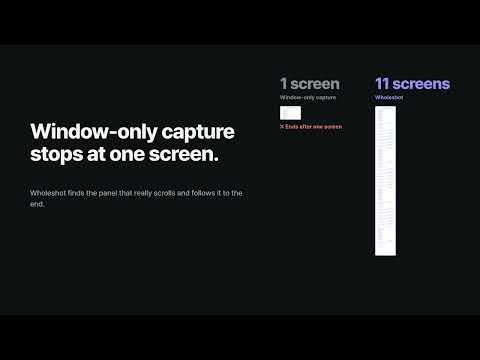
Wholeshot takes a full page screenshot of any website in one click, including the part that scrolls inside web apps: AI chat conversations such as ChatGPT, documents and inboxes. Why Wholeshot Most full page screenshot tools only scroll the browser window. In chat, docs and mail apps the window doesn't move; a panel inside the page does, so those tools save just one screen. Wholeshot finds the panel that actually scrolls and captures it from the first line to the last, as one long image. How to use 1. Click the Wholeshot icon, or press Alt+Shift+S. 2. Wholeshot scrolls to the end and stitches every screen into one image while showing the progress on the page. 3. Save it as PNG or as an image PDF, or copy it to the clipboard. Features - Scrolling screenshots of web apps: chat conversations, docs, mail threads, long reports - Regular long pages too: articles, wikis, product pages, documentation - Sticky headers and floating bars appear once, not on every screen - Waits for lazy-loaded images so nothing is left blank - Very long pages are split into several images automatically (one image can be at most 32,767 px tall) - PNG, image PDF on A4 pages, or clipboard copy - See the folder and file name before you save, then open the file in its folder with one click - Stop here or Cancel at any time; switching tabs pauses the capture so nothing else gets mixed in - Picked the wrong area? Press a number to capture another one - Available in 12 languages Privacy - No account, no sign-in, no analytics, no ads - No network requests: your screenshots never leave your computer - Access only to the tab you click it on (activeTab), never "read and change all your data on all websites" FAQ How do I take a screenshot of an entire ChatGPT conversation? Open the conversation and click Wholeshot (or press Alt+Shift+S). It finds the conversation panel and captures it down to the last message. How do I save a whole web page as a PDF? Capture the page, then click Save PDF (image). The PDF is split into A4 pages at blank rows. Its text can't be selected. Why do other tools capture only one screen of some sites? Those sites scroll a panel inside the page instead of the window. Wholeshot detects that panel and scrolls it instead. Is it free? Yes. No ads, no account, no upgrade prompts. Feedback: zeroonestudiokr@gmail.com
0 out of 5No ratings
Details
- Version1.0.1
- UpdatedOctober 29, 2026
- Size108KiB
- Languages12 languages
- DeveloperWebsite
Email
zeroonestudiokr@gmail.com - Non-traderThis developer has not identified itself as a trader. For consumers in the European Union, please note that consumer rights do not apply to contracts between you and this developer.
Privacy

This developer declares that your data is
- Not being sold to third parties, outside of the approved use cases
- Not being used or transferred for purposes that are unrelated to the item's core functionality
- Not being used or transferred to determine creditworthiness or for lending purposes
Support
For help with questions, suggestions, or problems, please open this page on your desktop browser