

Intune Enhancer

Overview
The details Intune leaves out: primary users, group sizes, setting checks and more. Read-only. Graph only, no data to developer.
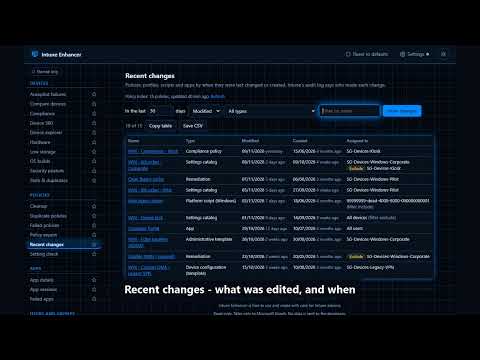
Who uses this device? What reaches it, and why? Is this setting already configured? What would break if I retire this group? Intune Enhancer answers in the admin center itself, plus a workspace of read-only tools. • In the admin center: primary user beside every device, quick facts, check-in lights, compliance shields, friendly OS versions, low storage flags, group sizes, app install and policy status, remediation script dates, filter rules on hover, Used by and Related buttons, "Set in N policies" in the settings picker, column widths that stick. • In the workspace: Device 360, Setting check, Group assignments, Compliance breakdown, Compare devices and users, User 360, Duplicate policies, Policy export, Hardware report, Security posture, Device explorer, Recent changes, Cleanup, Orphaned users, Low storage, App details, App versions, Failed apps, Failed policies, Autopilot failures, OS builds, Tenant health, ID decoder, Error code lookup, All reports, Environment overview, and stars on the tools you use most. Optional: Baseline gap and Workspace scope. • Private: read-only, talks only to Microsoft Graph, no data to the developer, no tracking, nothing to set up in your tenant. IN THE ADMIN CENTER • Primary user labels: many lists show device names but not who uses them (group members, Discovered apps device lists and others). See each device's primary user right next to its name, so you no longer have to open devices one by one. • Device quick facts: click a label for compliance, OS, last check-in, last logged-on user, enrolment date and ownership at a glance. • Last logged-on user: see when someone other than a device's primary user signed in last, including on shared devices. • Full device names: long device names wrap instead of being cut off. • Jump to Intune: group member lists link devices to Entra. A small icon takes you straight to the device's Intune record instead. • Friendly OS versions: build numbers like 10.0.26100.4349 shown as Win11 24H2 (26100.4349). • Activity light and compliance shield: a traffic light shows how recently each device checked in (green within 8 hours, yellow this week, orange this month, red longer), and a shield shows its compliance. • Low storage flag: free storage turns orange under 10 GB and red under 5 GB (adjustable). • Column widths: Device name, Policy name, App name, Group name and Add members name columns open at the width you choose, which Intune itself doesn't remember. Drag a column once and it stays that wide. • Group size hint: device and user counts beside groups in group lists and in a policy's assignments, so you can see how far a policy reaches and spot empty groups. Click a count to open the group. • Filter rule on hover: see what an assignment filter actually matches without opening it. • App install status: how many devices each app installed on and failed on, right in the app list, so failing apps stand out. • Policy status: how many devices each configuration policy succeeded and failed on, right in the Configuration list. • Remediation dates: when each remediation script was created and last changed, with a sort control. • Used by: a button on a group's page that opens everything referencing that group in the workspace. • Related: a button on a device's page showing the primary user's other devices and the device's groups. • Settings picker usage: when adding settings to a policy, "Set in N policies" beside each setting already configured, with the policy names on hover. IN THE WORKSPACE (its own browser tab) • Device 360: every policy, app and script that reaches one device, and why: which group, whether it is excluded, or depends on a filter. • Setting check: is this setting already configured? Search by name, CSP path, ADMX category or OMA-URI across all your policies, see each value and who it's assigned to, and spot policies that disagree. One click lists deprecated settings still in use. • Group assignments: thinking of retiring a group? See everything that references it (policies, apps, scripts, Conditional Access, licences, roles, nested groups) and get a clear verdict. • Compliance breakdown: which compliance setting fails on the most devices, worst first, with the devices behind each one. • Compare devices and Compare users: two devices or two users side by side: their groups, and which policies, apps and scripts reach one or both. • Duplicate policies: pairs of policies that set the same settings to the same values, which Intune doesn't flag. • Policy export: one policy's details, assignments and settings written up as Markdown or CSV for a change record. • Hardware report: memory, storage, encryption, TPM, BIOS, battery and more for every device, sortable, and saved as CSV. • Recent changes: every policy, profile, script and app by when it was last changed or created, filtered by type and date range. • Cleanup: policies, apps and scripts that do nothing: unassigned, exclude-only, or assigned to deleted or empty groups. • Low storage, Stale and duplicates, OS builds: devices short of disk space, devices that stopped checking in, leftover records from re-imaged devices, and how many devices are on each Windows, iOS, Android and macOS release. • Orphaned users: devices whose primary user is disabled or no longer exists. • Group roster: a group's members with primary user, compliance, OS and last check-in. Filter stale devices, copy as a table or save as CSV. • App versions: search the discovered apps by name to see every version out there and how many devices run each, flag versions older than one you set, and list the devices on them. • Tenant health: tokens, certificates and connectors that stop things working when they lapse, with days left. • ID decoder: paste any ID or admin center link to find out what it is. • Error code lookup: type an error code (0x80070002, AADSTS50058) or a few words to see its name, meaning and fix, from Microsoft's published Intune, Entra and Windows error tables. Works offline. • All reports: a list of Intune's own reports with links that open them in the admin center, filters by area, and a Starred filter. • Stars: star the workspace tools and reports you use most, then show "Starred only" to hide the rest of the sidebar. • Baseline gap (optional, off by default in Settings > Advanced): pick a Windows device and a Microsoft security baseline to see which recommendations your policies already set. • Workspace scope (optional, off by default in Settings > Advanced): limit the device tools to one device group. YOUR DATA STAYS BETWEEN YOU AND MICROSOFT • No data is sent to the developer, or anywhere other than Microsoft. • The extension only talks to Microsoft Graph (graph.microsoft.com), the same service the Intune admin center itself uses. Requests to any other address are blocked in the code. US Government cloud tenants can allow graph.microsoft.us or dod-graph.microsoft.us in Settings (optional, experimental). • No analytics, tracking, advertising, licensing checks or error reporting. • Your device list, policy list and any hardware report you run are stored only on your computer, and "Clear stored data" deletes them. Sign-in tokens are kept in memory and cleared when the browser closes. HOW IT WORKS • Uses the sign-in you already have in the Intune admin center. No app registration, no admin consent, nothing to set up in your tenant. • It can only see what your own Intune role can already see. • Read-only: it never changes anything in your tenant. • Nothing happens until you accept a short disclosure, which opens as soon as you install. WHAT THE LABELS MEAN • A name: the device's primary user (hover for their user principal name). • "Name +1": several Intune devices share that device name; hover to see them all. • "no primary user": a shared or userless device. • "not in Intune": no Intune managed device matches. Works in Google Chrome, Microsoft Edge and Mozilla Firefox. Not affiliated with or endorsed by Microsoft. Microsoft Intune is a trademark of the Microsoft group of companies.
0 out of 5No ratings
Details
- Version2.121.0
- UpdatedNovember 18, 2026
- Offered bysystmworks@outlook.com
- Size479KiB
- LanguagesEnglish
- Developer
Email
systmworks@outlook.com - Non-traderThis developer has not identified itself as a trader. For consumers in the European Union, please note that consumer rights do not apply to contracts between you and this developer.
Privacy

This developer declares that your data is
- Not being sold to third parties, outside of the approved use cases
- Not being used or transferred for purposes that are unrelated to the item's core functionality
- Not being used or transferred to determine creditworthiness or for lending purposes