

InkShot — Webpage Screenshot & Draw Tool

Overview
Capture any webpage as a screenshot, then draw arrows, boxes & text on it. The fastest screenshot & annotate tool for Chrome
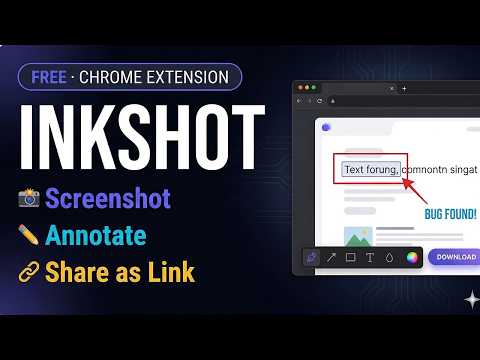
Take a screenshot of any webpage in one click, draw on it and share instantly. InkShot is a free Chrome screenshot extension — no account, no login, your data stays on your device. ━━━━━━━━━━━━━━━━━━━━━━━━━━━━━━ 🎯 What is InkShot? InkShot is a free screenshot and annotation tool for Chrome. Capture any webpage, draw arrows, add text and shapes on top, then share with one click — no extra apps needed, everything works right inside your browser. ━━━━━━━━━━━━━━━━━━━━━━━━━━━━━━ 📷 CAPTURE MODES 🔲 Select Area & Capture Drag to select any part of the page and take a screenshot instantly. 🖥️ Capture Visible Area Screenshot exactly what you see in your browser with one click. 📄 Full Page Screenshot Automatically scrolls and stitches the entire page into one image. Perfect for capturing long webpages. ⌨️ Keyboard Shortcuts → Ctrl+Shift+S — Select area screenshot → Ctrl+Shift+V — Visible area screenshot → Ctrl+Shift+F — Full page screenshot ━━━━━━━━━━━━━━━━━━━━━━━━━━━━━━ ✏️ ANNOTATION & DRAWING TOOLS Draw directly on your captured image: → ➡️ Arrow — point to specific elements → ▭ Rectangle — highlight and frame areas → ◯ Circle — mark important spots → ✏️ Freehand pen — draw and sketch freely → T️ Text — add captions and notes → 🔵 Blur — hide passwords and sensitive info → 🟡 Highlight — emphasize key areas → 🔢 Number labels — for step-by-step guides 🎨 8 preset colors, custom color picker, adjustable line thickness and opacity. ━━━━━━━━━━━━━━━━━━━━━━━━━━━━━━ 🔗 SAVE & SHARE 📥 Download as PNG — save high-quality screenshot to your device 📋 Copy to clipboard — paste directly into any app or chat 🔗 Share as link — generate a shareable link, recipients can open it without installing anything 💬 Send to Slack, WhatsApp, email or social media instantly ━━━━━━━━━━━━━━━━━━━━━━━━━━━━━━ 🔒 PRIVACY ✅ Everything runs locally on your device ✅ No screenshots are sent to any server ✅ No account or login required ✅ Works offline ✅ No personal data collected ━━━━━━━━━━━━━━━━━━━━━━━━━━━━━━ 👥 WHO USES INKSHOT? 🎓 Students — capture and annotate study materials 💼 Professionals — screenshot webpages for reports and presentations 🎨 Designers — visual feedback and markup 💻 Developers — bug reporting and issue documentation 📢 Content creators — prepare visuals for social media 🛒 Shoppers — compare prices and save product screenshots 📊 Marketers — capture competitor pages and save web content ━━━━━━━━━━━━━━━━━━━━━━━━━━━━━━ ❓ FREQUENTLY ASKED QUESTIONS Q: How do I take a full page screenshot in Chrome? A: Click the InkShot icon, select "Capture Full Page." The extension automatically scrolls and captures the entire webpage as one image. Q: How do I annotate a screenshot? A: After capturing, the editor opens automatically. Use arrows, shapes, text and blur tools to draw directly on your screenshot. Q: Is InkShot free? A: Yes, completely free. No subscription, no hidden fees, no premium limitations. Q: Do I need an account? A: No. Install and use immediately. No signup, no login, no email required. Q: Can I hide sensitive information in my screenshot? A: Yes. Use the blur tool to cover passwords, card numbers or any private content before sharing. Q: Can I share a screenshot as a link? A: Yes. After editing, click "Share Link" to generate a shareable URL. Recipients can view it in their browser without installing InkShot. ━━━━━━━━━━━━━━━━━━━━━━━━━━━━━━ 🚀 GET STARTED ① Install InkShot ② Click the icon in your Chrome toolbar ③ Choose your capture mode ④ Draw, annotate and edit ⑤ Download, copy or share as a link InkShot — Capture. Draw. Share.
5 out of 58 ratings
Details
- Version1.0.0
- UpdatedApril 8, 2026
- Size184KiB
- Languages53 languages
- DeveloperWebsite
Email
contact@addonschrome.com - Non-traderThis developer has not identified itself as a trader. For consumers in the European Union, please note that consumer rights do not apply to contracts between you and this developer.
Privacy

InkShot — Webpage Screenshot & Draw Tool has disclosed the following information regarding the collection and usage of your data. More detailed information can be found in the developer's privacy policy.
InkShot — Webpage Screenshot & Draw Tool handles the following:
This developer declares that your data is
- Not being sold to third parties, outside of the approved use cases
- Not being used or transferred for purposes that are unrelated to the item's core functionality
- Not being used or transferred to determine creditworthiness or for lending purposes
Support
For help with questions, suggestions, or problems, visit the developer's support site