

Micly - Voice Dictation & Audio Transcription

Overview
Voice dictation + audio file transcription via ChatGPT. Speak or upload, auto-copy to clipboard, paste anywhere.
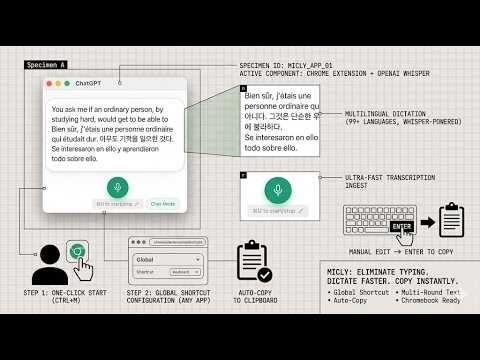
Micly transforms ChatGPT's built-in voice-to-text into a fast, focused dictation tool — and now turns any audio or video file into text, too. LEARNS YOUR WORDS Whisper mishears the same names the same way every time — "Microsoft" keeps coming back as "micro soft", "Kubernetes" as "cubernetes". Just fix it in the transcript like you always would. The second time you make the same correction, Micly remembers it and fixes it for you from then on. No settings page, no training step. A badge in the top-right shows what it has learned; click it to see the list, add your own, or delete anything you don't want. Every entry stays on your computer — the dictionary is never uploaded or synced. QUICK SETUP (2 steps) 1. Log in to your ChatGPT account (free or paid) at chatgpt.com in Chrome browser 2. Set the keyboard shortcut to 'Global' in chrome://extensions/shortcuts — this lets you trigger Micly from any app, not just Chrome HOW IT WORKS 1. Click the extension icon or press your keyboard shortcut to activate 2. Speak — or click "Transcribe audio" and pick a file 3. Text is automatically copied to your clipboard 4. Paste anywhere — emails, documents, messages, code editors KEY FEATURES - Voice Dictation: Press a shortcut, speak, get text — anywhere on your computer - Audio File Transcription: Upload an audio or video recording (up to 25 MB / 20 minutes) and Micly pipes it through ChatGPT's Whisper for accurate transcription - Quality / Speed Modes: 1x for best accuracy, 1.5x to transcribe long files in less time (~95% of Quality accuracy) - Dictation Mode: Clean, distraction-free interface — hides ChatGPT's sidebar, messages, and UI clutter - Auto-Copy: Transcribed text is automatically copied to your clipboard - Text Accumulation: Multiple recordings stack together — speak in rounds, building up longer text - Continue or Start Fresh, Your Call: Click back into the Micly window and your text is still there — keep dictating and the new speech is added to it. Trigger Micly from another app or another desktop instead, and you get a clean window for a new round (the previous text is already on your clipboard) - Enter to Copy: After editing your text, press Enter to quickly copy it to clipboard - Global Shortcut: Trigger dictation from anywhere on your computer (configurable in chrome://extensions/shortcuts) - 99 Languages: Dictate in any language supported by ChatGPT Whisper — Spanish, Chinese, Arabic, and 96 more - Chromebook Ready: The professional dictation tool ChromeOS never had — installs natively as a Chrome extension PRIVACY Micly does not collect or transmit any data. Voice and audio file transcription is handled by ChatGPT's built-in dictation (OpenAI Whisper). Files never leave your machine for our servers — they go directly from your browser to your ChatGPT session. All text stays on your device. PERFECT FOR CHROMEBOOK Need higher accuracy for accented speech, noisy environments, or technical terms? Micly brings Whisper-powered voice-to-text to your Chromebook with a simple Chrome extension — plus a multi-round dictation workflow and audio file upload for building up longer text. No sideloading, no workarounds. Just install and speak (or upload). TIPS - Use the keyboard shortcut for quick access from any app - To keep building on what you just dictated, click back into the Micly window before speaking again. To start something new, just press the shortcut from wherever you are — Micly opens fresh, right on the desktop you're working on - Click "Transcribe audio" at the bottom-left to upload a recording — meeting notes, voice memos, podcasts, lecture audio - Choose Speed mode to halve transcription time for long files - Click the shortcut hint at the bottom to customize your shortcut - Switch between Chat Mode and Dictation Mode with the toggle in the bottom-right corner - You can manually edit the transcribed text, then press Enter to copy your changes - Chrome may show a "Proceed with caution" warning during install — this is normal for all new extensions and will disappear as Micly gains more users
5 out of 52 ratings
Details
- Version1.2.14
- UpdatedSeptember 25, 2026
- Size74.45KiB
- LanguagesEnglish
- Developer
- Non-traderThis developer has not identified itself as a trader. For consumers in the European Union, please note that consumer rights do not apply to contracts between you and this developer.
Privacy

This developer declares that your data is
- Not being sold to third parties, outside of the approved use cases
- Not being used or transferred for purposes that are unrelated to the item's core functionality
- Not being used or transferred to determine creditworthiness or for lending purposes
Support
For help with questions, suggestions, or problems, please open this page on your desktop browser