


Overview
This extension is a tool for overlaying images on a page to facilitate comparison and adjustment.
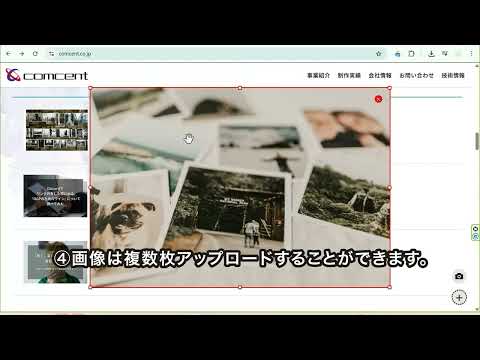
After placing an image, you can edit its position, size, and opacity, then save the current display as a screenshot.Ideal for designers and banner creators. How to Use (Basic Operations) - Upload an image Select an image file from the popup, and it will be added as an overlay on the active tab. You can also add images by clicking the + button at the bottom-right of the page or by dragging and dropping an image file. - Adjust the position You can drag the image to move it anywhere on the page. - Resize the image Click an image to select it. A bounding box appears, and you can resize it with handles. Corner handles keep the aspect ratio while resizing. - Change opacity You can set opacity for each image individually from the input fields in the popup list. - Delete unnecessary images You can remove an image either with the x button shown after selecting it on the page, or from the popup list. - Resize the window and use presets In the popup, the "Window Size" / "Resize Current Window" section contains width and height fields prefilled with the current window size. Edit these values to resize the window. Click the + button at the right side of "Resize Current Window" to save the current size as a preset. From "Preset List", you can restore a saved window size using each preset's resize button. - Save the screen Use "Take Capture" in the popup to capture the current page view and download it as an image. You can also download a screenshot from the camera button at the bottom-right of the page. In "Capture Range" in the popup, choose between "Full Page" and "Visible Area Only". Notes - Overlay images scroll together with the page. - Images placed on a tab are reset after reloading the tab or navigating to another page. - The “Read and change all your data on all websites” permission displayed during installation or updates is used to capture screenshots on all pages.
0 out of 5No ratings
Details
- Version0.0.3
- UpdatedApril 14, 2026
- Size80.98KiB
- Languages2 languages
- DeveloperWebsite
Email
info2@comcent.co.jp - Non-traderThis developer has not identified itself as a trader. For consumers in the European Union, please note that consumer rights do not apply to contracts between you and this developer.
Privacy

This developer declares that your data is
- Not being sold to third parties, outside of the approved use cases
- Not being used or transferred for purposes that are unrelated to the item's core functionality
- Not being used or transferred to determine creditworthiness or for lending purposes