


Overview
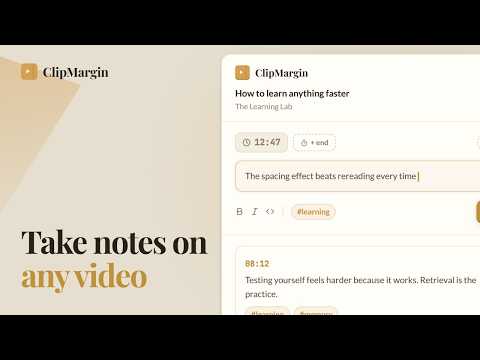
Take notes on any video, course, or lecture. Search across everything you've watched. Export to Markdown, anywhere.
Video notes with timestamps, taken without leaving the page. Search them all later. Export anywhere. ClipMargin opens a clean sidebar next to any video so you can take notes without leaving the page. Popular video and course sites are detected automatically. On any other site, right click the video and choose "Take notes on this video". Each note is anchored to the exact second you wrote it, so click any timestamp to jump back. Your notes sync to your account and become a searchable library you can return to forever. Capture as you watch • Sidebar opens automatically on supported sites like YouTube and Udemy, no tab switching • Works everywhere else too: right click any video and choose "Take notes on this video" • Type a note and save, the exact timestamp attaches itself, no copying links • Capture a screenshot of the current frame with any note • Save with empty text to drop a silent bookmark • Auto pause while you type and auto resume when you save, adjustable right in the sidebar • Course platforms keep their structure: sections, lessons, and chapters stay with your notes • Reels follow as you swipe, every note lands on the one that was on screen Search everything you've noted • Full text search across every note from every video • Tag notes to filter by topic, project, or theme • Curate specific notes into collections • Click any result to jump back to the exact second in the video • Video thumbnails in your library so you can spot everything at a glance Export wherever you think • Download clean Markdown files of every note • Per video, per collection, or your entire library at once • Open them in any editor or knowledge tool you already use Made for: 📚 Students reviewing lectures and course material 🎓 Researchers gathering insights from talks and interviews 💻 Developers following tutorials and conference talks 🎬 Coaches and players reviewing recorded matches 🧠 Anyone building a second brain from what they learn online How to use: Click the ClipMargin icon while watching any video The sidebar opens next to the video On sites without automatic detection, right click the video and choose "Take notes on this video" Type your note and click save, or press Ctrl+Enter, it saves with the current timestamp Click any timestamp later to jump right back to that moment Sign in with Google to sync across devices. All notes are private by default. See how it works on your platform: https://clipmargin.com/notes-for Full guide with visuals: https://clipmargin.com/guide Questions or feedback? support@clipmargin.com Privacy policy: https://clipmargin.com/privacy
5 out of 51 rating
Details
- Version1.4.5
- UpdatedOctober 14, 2026
- Size522KiB
- LanguagesEnglish
- DeveloperWebsite
Email
support@clipmargin.com - Non-traderThis developer has not identified itself as a trader. For consumers in the European Union, please note that consumer rights do not apply to contracts between you and this developer.
Privacy

ClipMargin: Take notes on any video has disclosed the following information regarding the collection and usage of your data. More detailed information can be found in the developer's privacy policy.
ClipMargin: Take notes on any video handles the following:
This developer declares that your data is
- Not being sold to third parties, outside of the approved use cases
- Not being used or transferred for purposes that are unrelated to the item's core functionality
- Not being used or transferred to determine creditworthiness or for lending purposes
Support
For help with questions, suggestions, or problems, visit the developer's support site