

HopVisor: Whop Content Rewards Clipping Campaign Finder

Overview
Find the best Whop Content Rewards campaigns in one click. Filter by required audience, burn rate, budget, and more.
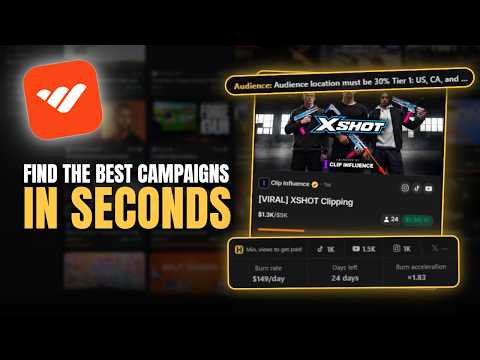
Find the best Whop Content Rewards clipping & UGC campaigns in seconds. HopVisor lets you filter the whole page with 23 filters: required audience, account requirements, burn rate, reward rate per 1K views for each platform, budget left, days left and more. It also shows the key numbers and the social media of the creator or brand behind each campaign right on the card, so you stop opening campaigns one by one just to find out whether they are worth clipping. WHY YOU NEED IT The Whop Content Rewards page shows you hundreds of campaigns and one big rate on each card. That rate is the best case, not your case. Most campaigns only pay for views from certain countries, like the US, the UK or Tier 1 countries. The card never tells you. That rule is hidden in the campaign's requirements or in its reference documents, so the only way to find it is to open the campaign, open every document and read them all. If your audience is in the wrong country, your clips earn nothing. The card hides more than that. About 4 in 10 campaigns pay a different price per 1K views on each platform, and the card only shows the highest one. If you post to TikTok and the campaign's top rate is for YouTube, you earn less than the card promised. The minimum views you need before it pays anything, and the most one clip can earn, are not on the card either. Many campaigns also ask for a brand new account or a page made only for their brand, and that is buried in the brief too. The card also never tells you who you would be clipping. A campaign for a creator with millions of followers is far easier to get views with than one for a brand nobody has heard of, but finding that out means searching for them on YouTube, TikTok and Instagram yourself. Checking all of this by hand, across 650+ listings, takes an evening. HopVisor does that reading for you. It goes through each campaign's requirements and reference documents, finds the audience and the account it asks for, and shows them right on the card. Then you filter the whole page by audience and 22 other filters in seconds. No more opening campaigns one by one, and no more making clips for campaigns that were never going to pay you. WHAT YOU SEE ON EVERY CARD • Required audience: the countries the campaign wants views from, shown right on the card. No more clipping for a campaign that only pays for US views when your audience is somewhere else. • Info banner under the card: the minimum views a clip needs to get paid on each platform, plus burn rate, days left and burn acceleration at a glance. See if a campaign is alive, how fast it pays out and how long its money will last. • Full details on hover: move your mouse over a card to see budget left, burn last 24h, new clips in the last 7 days, earnings per creator, earnings left per creator, the maximum payout per clip on each platform, and the account the campaign asks for (new account, dedicated page or existing audience), quoted from its brief. • Social media of who the campaign is about: in the same hover popup, see the YouTube, TikTok and Instagram accounts of the creator, brand or show the campaign promotes. You get subscribers, followers, likes, number of posts, median views per YouTube video, and how many views videos about them got in the last 6 months. Click any account to open it. A popular subject is much easier to get views with than an unknown one. WHAT YOU CAN FILTER BY (23 FILTERS) Audience and access • Required audience: set how much of your audience is in each country. Campaigns that ask for more than you have are hidden. • Requires application: hide campaigns you have to apply to before you can post. • Platforms: keep only campaigns that accept where you actually post. • Verified brand: show only verified brands, or hide them. Account requirements • Requires dedicated page: hide campaigns that want a page made only for their brand. • Requires new account: hide campaigns that only accept a brand new account. • Requires established account: hide campaigns that want an account that already has an audience. Pay • Rate per 1K views: set your own minimum, separately for each platform. This is the number the page will not show you honestly. • Minimum views to get paid: how many views a clip must reach before it pays anything, for each platform. • Maximum payout: the most one clip can earn, for each platform. • Earnings per creator: average dollars each creator has earned so far. • Earnings left per creator: the budget left split across the creators already in the campaign. Budget • Total budget: find campaigns with real money behind them. • Budget left: dollars the campaign still has to pay out. • Budget spent: how much of the budget is already gone. Avoid campaigns that are nearly finished. • Views left: how many views the leftover budget can still pay for. • Days left: how many days the budget lasts at last week's pace. Activity • Burn rate: average dollars a campaign spends per day, from its real spending history. Set a range to skip slow campaigns and ones burning too fast to be worth joining. • Burn last 24h: dollars the campaign actually spent in the last 24 hours. Shows what it is paying right now, not its average. • Burn acceleration: how much faster the campaign is paying now than its own daily average. 2 means it spent twice its usual day. • Inactive campaigns: hide campaigns with no new clips in the last 7 days. Campaigns less than 7 days old are always shown. • Creators: how many creators are already competing for that budget. • Campaign age: how many days a campaign has been running. HOW IT WORKS Open the Whop Content Rewards page Click the HopVisor icon to open the panel Pick your filters and click Filter. Every campaign that does not match disappears from the page
5 out of 53 ratings
Details
- Version1.2.8
- UpdatedOctober 25, 2026
- Size1.03MiB
- LanguagesEnglish (United States)
- DeveloperWebsite
Email
hopvisor@gmail.com - Non-traderThis developer has not identified itself as a trader. For consumers in the European Union, please note that consumer rights do not apply to contracts between you and this developer.
Privacy

HopVisor: Whop Content Rewards Clipping Campaign Finder has disclosed the following information regarding the collection and usage of your data. More detailed information can be found in the developer's privacy policy.
HopVisor: Whop Content Rewards Clipping Campaign Finder handles the following:
This developer declares that your data is
- Not being sold to third parties, outside of the approved use cases
- Not being used or transferred for purposes that are unrelated to the item's core functionality
- Not being used or transferred to determine creditworthiness or for lending purposes
Support
For help with questions, suggestions, or problems, visit the developer's support site