

HMJ SMS Desktop Sync

Overview
Zero-server, end-to-end encrypted real-time SMS & OTP notifications synced from your Android phone with 1-click clipboard copy.
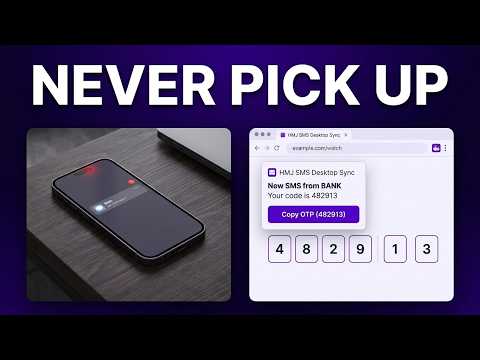
See the SMS messages and OTP codes your Android phone receives as desktop notifications, end-to-end encrypted, and copy a code with one click. HMJ SMS Desktop Sync is a lightweight, open-source extension that pairs with the HMJ SMS app on your Android phone. When a message arrives on your phone, it appears on your desktop within moments, so you can copy a sign-in code without picking up the phone. Messages travel straight from your phone to your browser through the browser's own push service, encrypted for this browser alone. There is no server in between, and the push service cannot read them. Tip: pin the extension in Chrome's Extensions menu (the puzzle-piece icon) to keep its icon on the toolbar. KEY FEATURES • Desktop notifications for every SMS your phone receives • Copy OTP and Copy Message buttons on each notification; clicking the notification copies the OTP, or the message when it has none • Recent messages in the toolbar popup, with one-click copy • Shows which phone and which SIM received each message, such as SIM 2: Jio • Pair several phones; unlink one from the popup, or all at once with a new pairing code • Pair with one QR code scan, with no account or sign-in • End-to-end encrypted with standard Web Push (RFC 8291 and RFC 8292) • Works from the keyboard and with screen readers, and follows dark mode and high-contrast colours • No server, analytics, or tracking PAIR YOUR PHONE 1. Click the HMJ SMS Desktop Sync icon in the toolbar to show the pairing QR code. 2. On your phone, open the HMJ SMS app, open its menu, and choose Desktop Sync. 3. Tap Scan QR Code and scan the code on your screen. A test notification appears on your desktop to confirm the connection. To pair another phone, click Pair Another in the popup. The pairing code holds the key your phones use to reach this browser. Show or paste it only on your own phone, and keep it away from clipboard sync and screen sharing. COPY A CODE When a message with a code arrives, click Copy OTP on the notification, or click the notification itself, and paste the code where you need it. An OTP delivered more than 10 minutes late is marked as expired, and only its message can be copied. LINKED PHONES Click the phone's name under the popup's toolbar to list your linked phones, with when each was last active, and unlink one. Its messages are then ignored here, and a quiet notice counts any it still sends. The menu (⋮) in the popup has Unlink All Phones, which makes a new pairing code so no phone can reach this browser any more and removes all stored messages, and Clear Messages. If the browser ends the connection the phones send to, such as after months without a message, the popup says so and shows a new QR code to scan on each phone. PRIVACY • No server: messages go from your phone to your browser through the browser's push service, encrypted so only this browser can read them • No analytics or tracking • No remote code or external JavaScript • Messages, phone names and the pairing key are stored only in your browser • Messages older than 24 hours are removed automatically, and at most 100 messages are kept • Clear Messages in the popup's menu removes all stored messages at once, and so does Unlink All Phones PERMISSIONS • Notifications: shows each incoming message as a desktop notification • Clipboard: copies an OTP or a message when you click a notification or a copy button • Storage: keeps the linked phones and recent messages locally in your browser • Offscreen document: writes to the clipboard, which the background service worker cannot do itself LIMITATIONS • Requires the HMJ SMS app on an Android phone. • Unlinking one phone ignores its messages here, but only the phone can stop sending them: unlink this computer in the HMJ SMS app too, or use Unlink All Phones, after which the phones you keep must scan the new code. OPEN SOURCE HMJ SMS Desktop Sync is open source and licensed under the MIT License. View the source code, report issues, or contribute on GitHub: https://github.com/himanshu-mahendra-jain/web-extensions
0 out of 5No ratings
Details
- Version1.0.1
- UpdatedOctober 26, 2026
- Offered byHimanshu Mahendra Jain
- Size194KiB
- Languages52 languages
- DeveloperHimanshu Mahendra Jain
D-1509/1510, Vardhman Kings Court, Gandhi Path West, Vaishali Nagar Jaipur, Rajasthan 302021 INEmail
himchi@proton.mePhone
+91 97027 18302 - TraderThis developer has identified itself as a trader per the definition from the European Union and committed to only offer products or services that comply with EU laws.
Privacy

This developer declares that your data is
- Not being sold to third parties, outside of the approved use cases
- Not being used or transferred for purposes that are unrelated to the item's core functionality
- Not being used or transferred to determine creditworthiness or for lending purposes
Support
For help with questions, suggestions, or problems, please open this page on your desktop browser