


Overview
Take a full page screenshot of any website in one click. Scrolling capture, annotate, then save as PNG, JPEG or PDF. No sign-up.
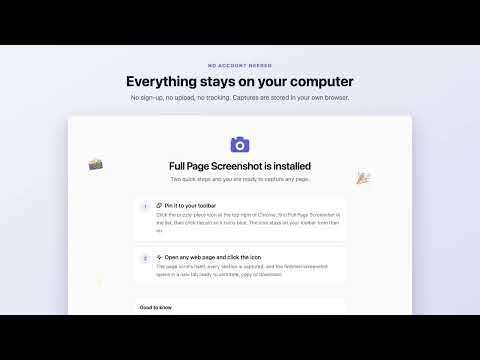
Capture complete webpages in one click with FullPage Screenshot. FullPage Screenshot automatically scrolls through the current webpage, captures every visible section, and combines everything into one clean, high-quality image. After capture, a simple editing workspace opens where you can review, edit, copy, save, or export your screenshot. KEY FEATURES • Capture an entire webpage with one click • Automatic scrolling and precise screenshot stitching • Clean handling of fixed and sticky page elements • Crop, rotate, flip, and zoom screenshots • Add text directly to screenshots • Draw rectangles, ovals, lines, and arrows • Blur sensitive information • Move, edit, format, or delete annotations • Undo and redo editing changes • Export screenshots as PNG, JPEG, or PDF • Copy PNG screenshots to the clipboard • Save captures in a local screenshot library • Retake the original webpage • Configure image quality, PDF size, orientation, and download preferences • Use Alt+Shift+P to start a capture quickly HOW IT WORKS 1. Open the webpage you want to capture. 2. Click the FullPage Screenshot extension icon. 3. Keep the webpage visible while the capture is in progress. 4. Review and edit the completed screenshot. 5. Download it as PNG, JPEG, or PDF. PRIVACY Screenshot processing happens locally on your device. Captures and preferences are stored inside the extension’s local browser storage. FullPage Screenshot does not upload your screenshots to an external server. IMPORTANT Keep the webpage tab visible until the capture finishes. Chrome does not allow extensions to capture certain protected pages, including chrome:// pages and the Chrome Web Store. FullPage Screenshot is useful for saving articles, reports, documentation, designs, dashboards, receipts, research, and other long webpages as a single image.
5 out of 57 ratings
Details
- Version2.2.0
- UpdatedSeptember 30, 2026
- Size488KiB
- LanguagesEnglish
- DeveloperWebsite
Email
mrrightrk111@gmail.com - Non-traderThis developer has not identified itself as a trader. For consumers in the European Union, please note that consumer rights do not apply to contracts between you and this developer.
Privacy

This developer declares that your data is
- Not being sold to third parties, outside of the approved use cases
- Not being used or transferred for purposes that are unrelated to the item's core functionality
- Not being used or transferred to determine creditworthiness or for lending purposes
Support
For help with questions, suggestions, or problems, visit the developer's support site