

FLOW PAGE
2 個評分
)
總覽
Text reading (automatic reading & scrolling)
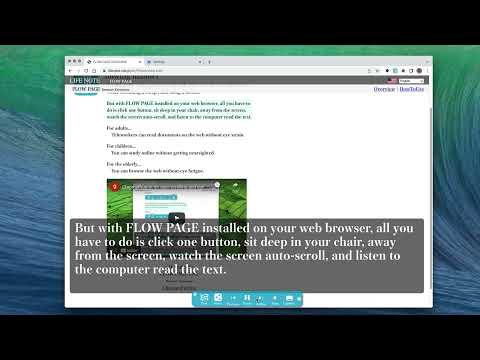
One click on a text portion of a web page and it will start reading out loud. There is no need to cut and paste text or set language settings. The text will automatically scroll as it is read. You can pause, stop, fast forward, rewind, and display captions using the control bar that appears at the bottom of the screen when you click on text. You can also register multiple voice settings of your choice. Even if the control bar is hidden by advertisements, a shortcut (CTRL+J or CTRL+0) will jump the control bar to the top. The jumped state is saved for each site, so you do not need to do that operation for the next time you visit the same site. <FLOW PAGE version 1.1.4~1.1.6 Release Notes -Bug fix Fixed a bug in version 1.1.5 that caused the first phrase to be read twice when fast-forwarding or rewinding -Specification changes Preventing unintentional startup by the user. Improved the situation in which a text selection is used to start the application. The number of characters required to prevent activation by text such as buttons has been changed from 24 characters or less to 35 characters or less. <Caution for use When used on login screens or transaction pages of financial institutions, etc., the software may be mistakenly identified as an abnormal program in rare cases. (For stronger deactivation, press the deep close button in the lower left corner of the control panel, and it will not be activated even if you click on the text at that site in the future.) <Basic Functions 1. Speech (text to speech) Clicking on a text portion of the site will start reading the text out loud (selected text is also read out loud). (Selected text is also read out.) 2. Control panel Settings, Share, Rewind, Speech/Pause, Fast Forward, Stop, Caption Volume, Mute, Close, Deep Close 3. Share SNS & QR Code 4. Settings 1. Site readout settings (individual site readout settings) 2. Tone and speed adjustment (settings are automatically saved when changed) 3. Reading mode (default reading mode setting) 5. Captions Enlarged display of text being read 6. Extended function icon Launch button for this software <How to operate 1. Start reading out the text portion of the page with a single click. If the text is written in HTML body tags, it will be automatically selected and start speaking when clicked. (If you do not want automatic selection, refer to "ClickText Mode" in 3.) Note: If the page was read out in an unknown language... The language specification of the page could not be read correctly or is absent, or the language specification itself is wrong. In that case, refer to "Manually set the site language" in 3. Pref. 2.Share (SNS, QR Code) The Share button allows you to share the page you are reading via Twitter, Facebook, or QR Code. (Since version 1.1.0, share screens for China (weibo, weChat) and Korea (LINE, kakao) have been added.) 3. Pref (Voice Settings) 3-1. voice (voice setting) □ClickText Mode (set for each site individually) For sites that do not require text-to-speech (shopping sites, video sites, financial institutions, translations, documents, etc.), uncheck this checkbox to set a setting that does not automatically select text so that this software will not function. □Set site language manually Check to display a pull-down menu to manually set the normal language setting when speaking in an unintelligible language. Speed,Tone You can adjust the reading speed, tone height, and other settings. When you have made the adjustments you like, press "new", enter your name, and press "ok" button. Start after reading out the site (function for smart phones) This mode forces the interface to be displayed each time a site is loaded. This is a function for smartphones, so it is not used on PCs. □ClickStart + Speech Check: Control panel display and speech (default setting) Unchecked: Control panel display only 3-2.key (shortcut key & ad jump function) When the control panel of this software is hidden by advertisements, pressing the shortcut key CTRL+J will jump to the control panel and allow you to operate it. To use the shortcut function, press the key button at the top of the settings screen to display a list of shortcuts and to specify the height of the jump. 4. Triangle button on the far right (compact screen display) When the control bar is in the way on the screen, press the rightmost triangle button, and it will become an icon button on the right edge. 5. Control Panel Clear button Press the X button on the left end to completely discard the interface screen of this software. 6. Deep close button (power button icon at the bottom left of the control panel) This button is used when you do not want to use this software at that site. This button closes the control panel with a single push and turns off text-click activation. Once pressed, it will be recorded, so the second time you press it, the software will not be activated by clicking on the text at that site. To restore this setting, start the browser with the application button for this extension in the upper right corner of the browser, and press the red Deep close button in the displayed control buttons. 7. Caption (Enlarged text display) The rightmost caption button magnifies the text being read out.
4.5 分 (滿分 5 分)2 個評分
詳細資料
- 版本1.1.6
- 已更新2024年1月28日
- 提供者Blacknoracat
- 大小156KiB
- 語言4 種語言
- 開發人員
電子郵件
blacknoracat@gmail.com - 非交易商這位開發人員並未表明自己是交易商。歐盟地區的消費者請注意,消費者權利不適用於你和這位開發人員之間簽訂的合約。
隱私權

這位開發者就你的資料做出下列聲明:
- 除經核准的用途外,不會將你的資料販售給第三方
- 不會基於與商品核心功能無關的目的,使用或轉移資料
- 不會為了確認信用度或基於貸款目的,使用或轉移資料
支援
如有疑問或建議,請前往開發人員的支援網站