


Overview
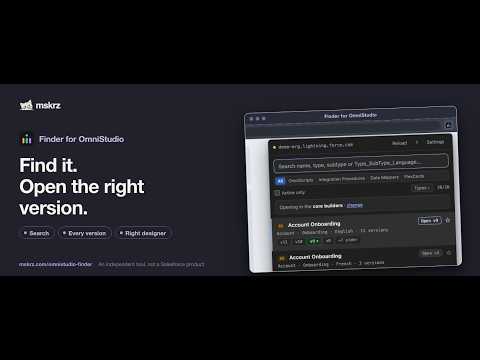
Find OmniScripts, Integration Procedures, Data Mappers and FlexCards in your Salesforce org. See their versions, open the right one.
🔍 Find an OmniStudio component. Open the right version. mskrz Finder for OmniStudio is a toolbar popup that lists the OmniScripts, Integration Procedures, Data Mappers (DataRaptor) and FlexCards in the Salesforce org you are on, with their versions, and opens the one you pick in the correct designer. To open an OmniScript, you may need to filter a list and check which version is active. Finder lists your components from whatever Salesforce tab you are on: type a few letters, press Enter, and the active version opens in its designer. Unofficial developer tool. This extension is independently developed and is not affiliated with, sponsored by, or endorsed by Salesforce, Inc. References to Salesforce identify the platform with which the extension works. FIND IT ⌨️ Alt+O (Cmd+Shift+O on macOS) opens the popup; start typing straight away. 🔎 Filter on name, type, subtype, language or author. Every word has to match, in any order, so "case create" finds "Create Case". 🔑 Paste an OmniScript or Integration Procedure key, Type_SubType_Language or Type_SubType, as it appears in logs and element names, and that OmniScript or Integration Procedure comes first. The run-together LWC spelling (caseCreateEnglish) works too. ⭐ Pin the components you use most with the star beside them, or Alt+P (Option+P on a Mac). Pinned components stay at the top of the list, and each org keeps its own. 🗂️ Narrow to OmniScripts, Integration Procedures, Data Mappers or FlexCards, or tick Active only. 🧮 Tick Expression Sets and Decision Matrices under Types, or in Settings, to list them too (core OmniStudio), with the version in effect today marked. Expression Set versions open in the Rule Builder. 🌗 Follows your light or dark theme, and works from the keyboard: arrow keys to move, Enter to open. 🔄 Finder refreshes the list each time you open it, so a newly activated version appears as active. OPEN THE RIGHT ONE ✅ Each version has its own chip, and the active one is marked. 🚪 Open the active version with one click or Enter, or click any chip to open exactly that version. ⇧ Shift-click for the plain record page; Ctrl/Cmd-click to flip your new-tab / same-tab setting just once. 🧭 Choose an app in Settings, so record pages open with its navigation bar. BOTH FLAVOURS OF OMNISTUDIO 🏗️ Opens the right designer whether your org runs core OmniStudio or a managed package (vlocity_cmt, vlocity_ins and others). Nothing to configure. 🔍 Where an org keeps its records and which designer it opens are detected separately, and the popup tells you which designer it is about to use. Settings let you force either, or override any designer link. 🔁 Managed-package Integration Procedure and DataRaptor designers open on the first click, as pages of their own or, if you prefer, inside Salesforce with your app's navigation bar. PRIVACY To query your org as you, the extension reads the Salesforce session cookie for the org in your current tab (cookies permission) and uses it for API calls to that org. The cookie is not stored. Its host access is limited to *.salesforce.com, *.force.com, *.salesforce-setup.com and *.cloudforce.com. Settings are kept in Chrome's sync storage, a note of what the last org looked like (the org's host, object and app names, no records) and the names of the components you pin, for each org, in local storage, and a short-lived navigation hand-off in session storage. Asset lists are not cached. Privacy policy: https://mskrz.com/omnistudio-finder/privacy.html SUPPORT ☕ If it saves you an afternoon you can buy me a coffee: https://buycoffee.to/mskrz YOUR RESPONSIBILITY The popup lists the names of the components in whatever org you are signed in to, and those names can be commercially sensitive. Take the same care with it as with any Salesforce window before screen-sharing or taking screenshots, and follow your organisation's policies. LICENSE Proprietary software. Installing or using the extension means you accept its license agreement: https://mskrz.com/omnistudio-finder/license.html
0 out of 5No ratings
Details
- Version1.5.0
- UpdatedNovember 5, 2026
- Size98.81KiB
- LanguagesEnglish
- DeveloperWebsite
Email
mskrz@proton.me - Non-traderThis developer has not identified itself as a trader. For consumers in the European Union, please note that consumer rights do not apply to contracts between you and this developer.
Privacy

mskrz Finder for OmniStudio has disclosed the following information regarding the collection and usage of your data. More detailed information can be found in the developer's privacy policy.
mskrz Finder for OmniStudio handles the following:
This developer declares that your data is
- Not being sold to third parties, outside of the approved use cases
- Not being used or transferred for purposes that are unrelated to the item's core functionality
- Not being used or transferred to determine creditworthiness or for lending purposes
Support
For help with questions, suggestions, or problems, visit the developer's support site