

Fiverr Chat Extractor
1 rating
)
Overview
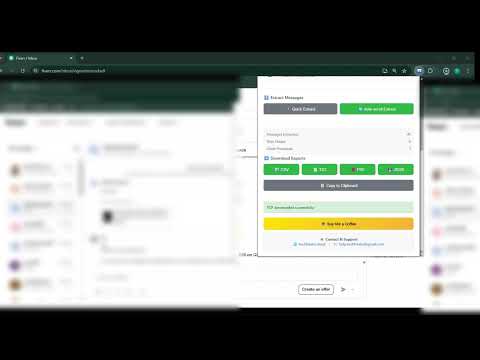
Extract Fiverr conversations with multi-format export (CSV, TXT, JSON, PDF). Optimized for Fiverr, may work on other platforms.
# 💬 Fiverr Chat Extractor v2.0 **Export your Fiverr conversations to CSV, TXT, JSON, and PDF with ease!** A powerful Chrome extension designed to help Fiverr users extract and archive their chat conversations for record-keeping, analysis, and backup purposes. --- ## 🌟 Key Features ### 📥 **Multi-Format Export** - **CSV** - Spreadsheet-friendly format with structured data columns - **TXT** - Clean, readable transcript with timestamps - **JSON** - Structured data for developers and advanced users - **PDF** - Professional document format for sharing and archiving ### 🎯 **Smart Extraction** - **Auto-Scroll** - Automatically scrolls through entire chat history - **Smart Direction Detection** - Adapts to chat apps (scroll up) or feeds (scroll down) - **Multi-Chat Support** - Detects and separates multiple conversations in one container - **Manual Selection** - Click to select specific chat containers - **Pause/Resume** - Control extraction process in real-time ### 🔒 **Privacy First** - **100% Local Processing** - All data stays on your device - **Zero Data Collection** - No tracking, analytics, or external servers - **No Account Required** - Works completely offline - **Secure** - Content Security Policy (CSP) compliant ### ✨ **User-Friendly Interface** - Clean, intuitive popup design - Real-time progress tracking - Friendly element names (no technical jargon) - Visual selection overlay - Status notifications --- ## 🚀 How to Use ### Basic Usage (3 Simple Steps) 1. **Open Fiverr Chat** - Navigate to your Fiverr inbox/conversation - Open the chat you want to extract 2. **Launch Extension** - Click the Fiverr Chat Extractor icon in Chrome toolbar - Extension will automatically detect the platform 3. **Extract & Download** - Click **"Quick Extract"** for visible messages - OR click **"Auto-scroll Extract"** for full chat history - Choose your preferred format (CSV, TXT, JSON, or PDF) - File downloads automatically to your Downloads folder ### Advanced Usage #### Manual Container Selection 1. Click **"Select Chat Box"** 2. Hover over chat container (highlighted in blue) 3. Click to select 4. Extension shows container info (name, size, scrollability) 5. Extract as usual #### Multi-Chat Detection - If you select a container with multiple conversations - Extension automatically detects: "💬 **X separate chats detected!**" - Each chat is exported separately with its own name - All exports include chat name/identifier #### Pause & Resume - During auto-scroll, click **"Pause"** to stop - Review current progress - Click **"Resume"** to continue extraction --- ## 📊 Export Formats ### CSV (Spreadsheet) **Columns:** Chat Name, Contact Name, Chat ID, Message ID, Timestamp, Formatted Time, Sender, Sender Type, Message Type, Text Content, Media URLs, Media Thumbnails **Use Cases:** Data analysis, filtering, sorting, import into databases ### TXT (Plain Text)
5 out of 51 rating
Details
- Version2.0
- UpdatedJanuary 30, 2026
- Offered byTech Freaks
- Size171KiB
- LanguagesEnglish (United States)
- Developer
Email
help.techfreaks@gmail.com - Non-traderThis developer has not identified itself as a trader. For consumers in the European Union, please note that consumer rights do not apply to contracts between you and this developer.
Privacy

This developer declares that your data is
- Not being sold to third parties, outside of the approved use cases
- Not being used or transferred for purposes that are unrelated to the item's core functionality
- Not being used or transferred to determine creditworthiness or for lending purposes
Support
For help with questions, suggestions, or problems, please open this page on your desktop browser