


Overview
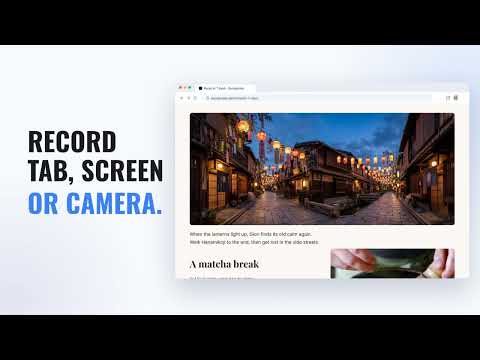
Screen recorder, screenshot and annotation tool. Record tab, desktop or camera. Export as MP4 or GIF. Draw, blur and highlight.
FastCapture - Screen Recorder & Screenshot Tool Record your screen, capture screenshots, annotate, and share them instantly. FastCapture is a lightweight, all-in-one Chrome extension for video recording, image capture, and annotation - no upload to external servers. Everything is processed locally in your browser. 🎬 VIDEO RECORDING Record anything on your screen with multiple source options: - Tab - Record the current browser tab with audio - Desktop - Record your entire screen or a specific window - Region - Draw a custom rectangle to record only a specific area - Camera - Record from your webcam Export your recordings in WebM (VP8/VP9) format. Pro users can also export in MP4 (H.264) or GIF (animated clips). Recording controls: - Pause & Resume - Take a break and continue recording later - Discard - Delete the recording without saving - Configurable countdown - 3s, 5s, or 10s delay before recording starts - Customizable keyboard shortcuts to start and stop recording instantly 📸 SCREENSHOT CAPTURE Capture any part of any webpage with four powerful modes: - Visible Area - Capture exactly what you see on screen - Full Page - Automatically scroll and stitch the entire webpage into a single image - Region - Draw a rectangle to capture a specific area - All Tabs - Capture every open tab in the current window at once Save your screenshots as PNG (lossless), JPG, WebP (Pro), or PDF. Full-page and multi-tab captures work seamlessly with all formats, including multi-page PDFs. ✏️ ANNOTATION TOOLS Draw, write, and highlight directly on any webpage: - Freehand drawing with adjustable brush size and color - Text, sticky notes, arrows, and shapes - Blur tool to hide sensitive information before capturing - Laser pointer for live presentations - Image insertion for logos, diagrams, and references - Three modes: edit (draw), display (view annotations), hidden (clean page) - Side panel mode: annotation controls stay invisible to screen recordings Annotate before or after your capture. Everything is rendered as a transparent overlay - the page itself is never modified. 🎥 CAMERA OVERLAY Add a floating webcam overlay to your recordings. Perfect for tutorials, presentations, and product demos. Choose from multiple shapes, resize and reposition freely, and toggle visibility during recording. ⚡ QUICK CAPTURE Enable Quick Capture in settings to instantly capture a region the moment you release the mouse - no need to click Confirm. Ideal for rapid-fire screenshots when you need to capture multiple areas quickly. 📁 AUTO-SAVE Set up automatic saving to organize your captures effortlessly: - Auto-save videos to a custom folder (default: FastCapture/Videos) - Auto-save images to a custom folder (default: FastCapture/Images) - Smart filename templates with page title, date, time, and counters Combined with the "Download" after-capture option, you can capture and save in a single click - no preview window, no interruption. 🔍 PREVIEW & SHARE After each capture, preview your recording or screenshot before saving: - Video player for recordings - Image viewer for screenshots with zoom - Gallery view for multi-tab captures - Download as file - Copy to clipboard (images) - Send via Gmail - attach your screenshot to an email draft directly from FastCapture - Print - send screenshots directly to your printer - Download as ZIP - bundle all tab captures into a single archive ⌨️ KEYBOARD SHORTCUTS Work faster with built-in keyboard shortcuts for recording, visible area, full page, and region capture. All shortcuts are fully customizable via chrome://extensions/shortcuts. 🖱️ RIGHT-CLICK MENU Access all capture options from the right-click context menu on any webpage. The context menu can be enabled or disabled in settings. 🎨 THEMES Choose between Light, Dark, or Auto theme. Auto mode follows your system preference, so FastCapture always matches your environment. 🌍 14 LANGUAGES FastCapture speaks your language: English, Français, Español, Português, Deutsch, Italiano, Nederlands, Polski, Türkçe, Русский, العربية, 日本語, 한국어, 中文 The interface language can be set to Auto (follows Chrome) or manually selected. 🔒 PRIVACY & SECURITY - 100% local processing - No data is uploaded to external servers - No tracking, no analytics - Your captures stay on your device - Minimal permissions - Only requests what is strictly necessary - Gmail integration uses OAuth2 - Your credentials are never stored 👑 PRO FEATURES FastCapture is free to use for core features. An optional Pro plan unlocks: - MP4 video export - GIF export for animated clips - WebP screenshot format - Unlimited recording duration (free: 5 minutes) - 60 FPS recording (free: 30 FPS) - Full annotation tools with blur and image insert - Circle webcam shape - Extended capture history (30 days or unlimited) ⚙️ SETTINGS FastCapture adapts to your workflow: - After capture behavior: Preview, Download, or Nothing - Countdown timer: Off, 3 seconds, 5 seconds, or 10 seconds - Quick Capture: Auto-confirm region on mouse release - Auto-save videos and images with custom folder paths - Context menu: Enable or disable right-click options - Theme: Light, Dark, or Auto - Language: Auto or manual selection - Reset all settings to defaults with one click 💡 USE CASES - Create tutorials and product demos with screen + camera recording - Annotate and highlight key areas before capturing - Blur sensitive data in screenshots before sharing - Capture bug reports with full-page screenshots - Save receipts and confirmations as PDF - Record meetings and presentations - Capture all open tabs at once for research or documentation - Quick region screenshots for chat and email 📋 TECHNICAL DETAILS - Chrome Extension Manifest V3 - Video codecs: VP8, VP9, H.264 (Pro) - Audio codec: Opus - Image formats: PNG, JPG, WebP (Pro), PDF - Video formats: WebM, MP4 (Pro), GIF (Pro) - Works on all websites (except Chrome system pages) - Lightweight - No background processes when not in use FastCapture is free to use, fast, and respects your privacy. Install it now and start capturing.
5 out of 53 ratings
Details
- Version1.2.0
- UpdatedSeptember 28, 2026
- FeaturesOffers in-app purchases
- Size2.56MiB
- Languages14 languages
- DeveloperDavid GaudinWebsite
7 Route du Puy des Fourches Marcolès 15220 FREmail
contact@fastcapture.coPhone
+33 7 67 28 07 85 - TraderThis developer has identified itself as a trader per the definition from the European Union and committed to only offer products or services that comply with EU laws.
Privacy

This developer declares that your data is
- Not being sold to third parties, outside of the approved use cases
- Not being used or transferred for purposes that are unrelated to the item's core functionality
- Not being used or transferred to determine creditworthiness or for lending purposes
Support
For help with questions, suggestions, or problems, visit the developer's support site