


Overview
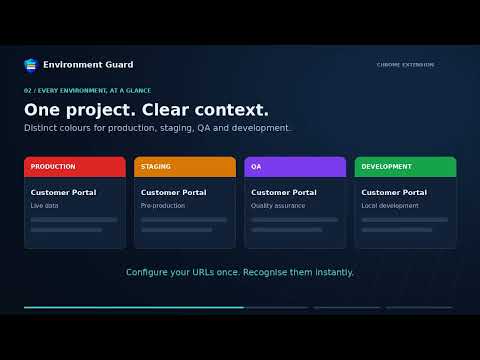
Visual indicators that instantly distinguish production, staging, QA, and development environments across all your projects.
Environment Guard adds clear visual indicators to your web apps so you always know whether you’re working in production, staging, QA, or development before you act. Recognize your environment at a glance, switch between environments, and keep production clearly marked. Add your project URLs once in Settings , then every matching page shows the indicator automatically. WHAT IT DOES • Coloured border Add a configurable frame, 1–4 px wide, around your browser’s viewport in the environment’s colour. It stays visible as you navigate through the app. • Environment banner Display a full-width strip or compact floating badge with your project name, environment tier, and a context hint such as “Changes here affect live data.” • Tab title prefix Identify environments directly from your browser tabs with prefixes such as “[PRODUCTION] Orders”. The prefix stays in place even when a single-page app updates its title. • Environment switcher Jump between production, staging, QA, and development while preserving your current path. Switching to production always requires confirmation. CUSTOMISABLE COLOURS Default environment colours include: • Production — Red • Staging — Amber • QA — Purple Customise every environment’s colour with the built-in colour picker. QUICK SETUP 1. Open your web app. 2. Click the Environment Guard icon. 3. Enter a project name, choose an environment type, and confirm the base URL. Configure your environment directly in the popup—no separate settings window required. Working across multiple environments? Add staging, QA, and development under the same project in Settings. Use the popup switcher to move between them. IMPORT AND EXPORT Back up or share your configuration as JSON. • Export your full configuration. • Import projects by merging with or replacing your existing configuration. • Download an example file to see the supported format. PRIVACY Environment Guard makes no network requests and does not transmit your URLs, configuration, or browsing history. All configuration is stored locally in your browser using chrome.storage.local and is removed when you uninstall the extension. PERMISSIONS EXPLAINED • storage — Saves your project configuration locally across sessions. • activeTab — Reads the current tab’s URL when you open the popup to detect the environment and pre-fill the quick-add form. • scripting — Adds the border, banner, and tab title prefix to matching pages. • tabs — Detects tab navigation to keep indicators up to date and enables navigation through the environment switcher. LEARN MORE [https://apps.agaur.dev/apps/environment-guard/](https://apps.agaur.dev/apps/environment-guard/)
0 out of 5No ratings
Details
- Version1.0.3
- UpdatedOctober 9, 2026
- Size100KiB
- LanguagesEnglish
- DeveloperWebsite
Email
lucamit@gmail.com - Non-traderThis developer has not identified itself as a trader. For consumers in the European Union, please note that consumer rights do not apply to contracts between you and this developer.
Privacy

Environment Guard has disclosed the following information regarding the collection and usage of your data. More detailed information can be found in the developer's privacy policy.
Environment Guard handles the following:
This developer declares that your data is
- Not being sold to third parties, outside of the approved use cases
- Not being used or transferred for purposes that are unrelated to the item's core functionality
- Not being used or transferred to determine creditworthiness or for lending purposes
Support
For help with questions, suggestions, or problems, please open this page on your desktop browser