


Overview
Invoice date keeps changing in QuickBooks Online? EntryCatch flags dates that aren't today and fixes them before you save.
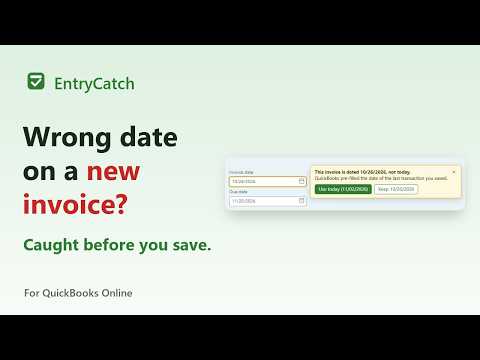
Invoice date keeps changing in QuickBooks Online? It isn't random. QuickBooks Online fills every new invoice, payment, bill and expense with the date of the last transaction you saved, not today. Record a payment from last week, and your next invoice is dated last week too. Its due date is counted from that wrong date, and the sale can land in the wrong month. There is no setting in QuickBooks Online to make new transactions default to today's date. EntryCatch catches the wrong date before you save. WHAT IT DOES • Flags the date when a new form opens. If a new invoice, estimate, sales receipt, customer payment, bank deposit, expense, check, bill or journal entry isn't dated today, EntryCatch outlines the date and tells you where it came from. Use today or keep the date with one click. • Or fixes it automatically, with Undo. Set a transaction type to "Change to today". A short note shows the date QuickBooks had filled in, with an Undo button in case you meant it. • Asks before you save. If a date that isn't today is about to be saved and you haven't confirmed it, EntryCatch asks first: switch to today and save, save it as is, or go back. • Warns about dates far from today. A mistyped year, like 2028 instead of 2026, gets flagged even when you typed it yourself. • Your rules for each transaction type. Payments, expenses and journal entries are often dated in the past on purpose, so choose Warn me, Change to today or Do nothing for each type. Pause EntryCatch with the switch at the top while you catch up on old entries. • Stays out of your way. Dates you type or pick yourself are never changed, and neither are existing transactions you open to edit. More than dates. EntryCatch also asks before you save: • A placeholder category. Uncategorized Expense, Ask My Accountant or Opening Balance Equity on an expense, bill or deposit line. You can edit the list. • An income account on an expense. Easy to pick by mistake from the category list. • A customer payment that leaves money unapplied. QuickBooks turns the rest into a customer credit and only mentions it in small print. • Fields your team must fill in. Class, Location, Payee or a custom field such as PO number, set separately for sales forms and for expenses, checks and bills. Off until you turn them on. "Go back" takes you to the field; "Save anyway" saves as it is. Working for a company in another time zone? Pick the company's time zone so "today" is the company's today. WHY IT HAPPENS We reproduced it step by step in QuickBooks Online's demo company. Any new transaction you save sets the date for the next one, even when the save fails. The Pre-fill setting doesn't control the date, and refreshing the page doesn't clear it. QuickBooks Desktop lets you choose "Use today's date as default". QuickBooks Online doesn't, so EntryCatch adds it back. PRIVATE BY DESIGN • Runs only on QuickBooks Online (qbo.intuit.com). • One permission: storage, to save your EntryCatch settings. • Reads only the form you have open, inside your browser. Nothing is sent anywhere. • No account, no analytics, no tracking. Privacy policy: https://entrycatch.com/privacy/ GROWS WITH YOUR TEAM Dates are just the start. Every mistake a member reports becomes a safeguard for everyone. Tell us what your team keeps getting wrong in QuickBooks Online. If it can be spotted on screen before it's saved, we'll teach EntryCatch to catch it. Founding members get every new safeguard as it ships and a vote on what gets built next: https://entrycatch.com/#founding Questions or requests: hello@entrycatch.com EntryCatch is an independent product and is not affiliated with, endorsed by or sponsored by Intuit Inc. QuickBooks and QuickBooks Online are trademarks of Intuit Inc.
0 out of 5No ratings
Details
- Version0.4.0
- UpdatedNovember 6, 2026
- Size40.82KiB
- LanguagesEnglish (United States)
- Developer
- TraderThis developer has identified itself as a trader per the definition from the European Union and committed to only offer products or services that comply with EU laws.
Privacy

This developer declares that your data is
- Not being sold to third parties, outside of the approved use cases
- Not being used or transferred for purposes that are unrelated to the item's core functionality
- Not being used or transferred to determine creditworthiness or for lending purposes
Support
For help with questions, suggestions, or problems, visit the developer's support site