


總覽
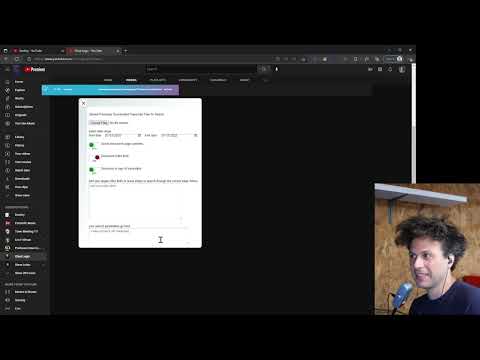
Download YT transcripts and search through all at once to find timestamps
Version 1.16 update (1 July 2023) 1) Fixed issue with downloading videos and livestream transcripts 2) Added donation link Version 1.15 update (4 Nov 2022) 1) Added ability to download/search from within live videos tab or a specific playlist. Version 1.14 update (29 Oct 2022) 1) Fixed issue with video extraction caused by the recent change to the user interface on YouTube. Current version bypasses the need for scrolling within a channel's videos page, but not within search results. Version 1.13 update 1) fixed some minor duplication issue. 2) fixed issue where uploaded files were not cleared out upon new uploads and the duplication of the search button. Version 1.12 Update 1) fixed issue where the initial transcript download did not keep the full list in memory if it exceeded 300mb. This issue made it so users had to reupload the transcripts which is mentioned at 8:58 in the demo video. 2) cleaned up the UI a bit. Removed some non-functional components. 3) added the ability to loop through search results and search those transcripts. This tool allows a user to search YouTube transcripts at scale. Running the tool on a channel's video tab will loop through the videos and extract the transcripts. Once the transcripts are loaded, a user can search through the transcripts to identify the timestamp associated with the match. Transcripts are downloaded as JSON files for later use. The max file size is about 300MB, so it may download multiple files and you will need to allow YouTube to allow multiple files. Previously downloaded transcripts can be uploaded to save time for future searches. Due to the size of files, the tool may hang up if you are uploading multiple transcript files. Just wait for the page to finish what it is doing. Do not click around as it will only cause more delays. The search can look for words near other words by using the tilde symbol, e.g., word~other stuff Double quotes create a word boundary. The default searches within 29 characters. You can adjust that by adding a custom number variance, e.g., word~245 other stuff No quotes assumes a wildcard on either side of the word. OR statements are allowed, e.g., (this OR that OR the other thing). Spaces are converted to 0-3 of any character, so "web store" would match "webstore" or "webed store". If you search for something really simple like, "the," you are going to have a bad time. Once the search is complete, you can download the results as a TSV (tab separated values) file which can be opened in google sheets or excel. To open in Excel, you will need to open a blank workbook and then open the file from the file menu. Be sure to change the file format to "all files" and select "tab separated."
3.4 分 (滿分 5 分)38 個評分
詳細資料
- 版本1.16
- 已更新2023年7月2日
- 提供者Andre Bradshaw
- 大小48.05KiB
- 語言English (United States)
- 開發人員
電子郵件
andre@quickli.io - 非交易商這位開發人員並未表明自己是交易商。歐盟地區的消費者請注意,消費者權利不適用於你和這位開發人員之間簽訂的合約。
隱私權

這位開發者就你的資料做出下列聲明:
- 除經核准的用途外,不會將你的資料販售給第三方
- 不會基於與商品核心功能無關的目的,使用或轉移資料
- 不會為了確認信用度或基於貸款目的,使用或轉移資料