

Flow for LinkedIn by NeverZero - Feed Filter: Hide Posts by Keyword

Overview
Hide or highlight feed posts already on screen with your own keyword rules. Test each rule, pause all at once, export.
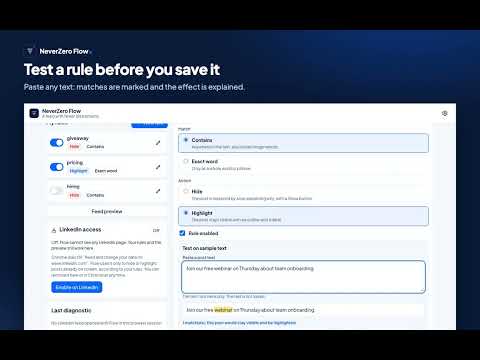
Choose the words that matter in your feed. NeverZero Flow applies your own keyword rules to posts already loaded in your LinkedIn feed: a matching post is hidden behind a bar that says why, with a Show button, or stays visible with a highlight. WHAT YOU CAN DO • Create a rule with a word or a phrase, choose “Contains” or “Exact word”, and choose “Hide” or “Highlight” • Paste any text into “Test on sample text” to see which words match and what the rule would do • Open “Feed preview” to run your rules on three sample posts, with the reason for each effect • Turn a rule on or off with its switch, edit it or delete it • Use “Pause all” to suspend every rule at once: the page goes back to how it was • Click “Show” on a hidden post to read it, and “Hide again” to put the bar back • Read the last diagnostic: posts checked, hidden and highlighted in this browser session • Export your rules as JSON and import them after a review step HOW TO START Click the NeverZero Flow icon to open the side panel, then “Create your first rule”. To apply rules on LinkedIn, click “Enable on LinkedIn” and accept Chrome’s prompt. No account and no sign-in are needed. LOCAL DATA AND CONTROL Rules are stored in your browser on this device. NeverZero Flow has no server, no analytics and no cloud sync, and it makes no network request. On LinkedIn it only changes how posts already on screen are displayed: it does not record their text or authors, and the counters are cleared when the browser closes. “Disable on LinkedIn” removes the access and every change on the page. Exported files are not encrypted. Settings include a button to delete all local data. IMPORTANT LIMITS Matching is literal text, with accents and case ignored; there are no regular expressions. Flow only acts on the main feed page. If it does not recognize the page layout, it shows “Page not recognized, filters suspended” and hides nothing. Flow does not load more posts, reorder the feed, like, comment or send anything. Interface available in English and French. NeverZero is independent and is not affiliated with or endorsed by LinkedIn.
0 out of 5No ratings
Details
- Version1.0.0
- UpdatedOctober 7, 2026
- Size152KiB
- Languages2 languages
- Developer
- Non-traderThis developer has not identified itself as a trader. For consumers in the European Union, please note that consumer rights do not apply to contracts between you and this developer.
Privacy

This developer declares that your data is
- Not being sold to third parties, outside of the approved use cases
- Not being used or transferred for purposes that are unrelated to the item's core functionality
- Not being used or transferred to determine creditworthiness or for lending purposes
Support
For help with questions, suggestions, or problems, please open this page on your desktop browser