Dogear

Overview
Select text anywhere, attach a query to each selection, then batch-submit them all to ChatGPT or Claude as one prompt.
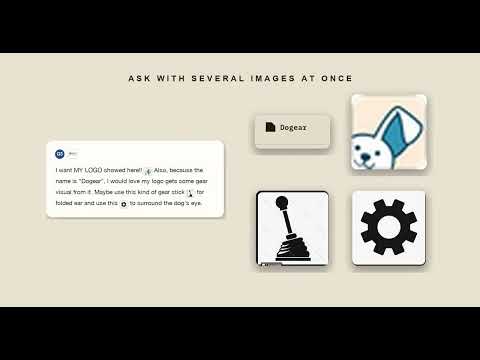
When reading a webpage or an AI agent’s response, you’ll often come across sections that raise questions or need changes. You may want to highlight those parts and add a question, comment, or edit request. Some web-based tools and coding agent chatbots already let you select text and ask about it directly. But each time you send a request, the model’s response interrupts your reading flow. When you have several questions, you usually have to submit them one by one. Dogear solves this problem. You can mark every section you want to revisit, write your questions or edit requests alongside them, and send everything to the model at once. There’s no need to manually copy the selected text, keep track of where it came from, or submit each request separately. This makes it easier to stay focused and work with AI more efficiently. ## HOW IT WORKS 1. Select any text — on a web page, in a PDF, even inside a text field like a GitHub code view. Press the hotkey (⌃Q on Mac, Alt+Q on Windows/Linux) or right-click → "Dogear: ask about selection." 2. Type your question and hit Enter. The selection gets a numbered highlight, and the question is added to your queue. 3. Keep reading. Repeat across as many pages and tabs as you like — the queue is global and follows you around the browser. 4. Open the Dogear side panel to review your queue: edit any question, drag to reorder, group by source, or delete what you don't need. 5. Send the whole batch as one composed prompt — insert it directly into an open ChatGPT or Claude tab, or copy it to your clipboard for anywhere else (Claude Code, Gemini, a desktop app, you name it). The composed prompt keeps every question anchored to its source and selected text, with surrounding context included, so the AI sees exactly what you were looking at when you ask. ## WHY BATCH YOUR QUESTIONS? Asking one question at a time breaks your reading flow and scatters the conversation. Dogear lets you collect every question that occurs to you while you read, then hand them all to the AI at once — you get one coherent set of answers instead of a dozen fragmented exchanges. ## PDF SUPPORT Chrome's built-in PDF viewer doesn't expose its content to extensions, so Dogear ships its own PDF viewer (built on Mozilla's PDF.js) with full selection-and-ask support, including page-number tracking for every question. Reopen any PDF tab in the Dogear viewer from the side panel, or right-click a PDF link to open it there directly. Local PDF files are supported too. ## MULTI-LANGUAGE PROMPTS Choose the language your composed prompt is written in — currently English and Traditional Chinese — independent of your browser's language. ## PRIVACY Dogear stores your queue locally in your browser (chrome.storage). Nothing is sent anywhere except the prompt text you explicitly choose to insert into a chat or copy to your clipboard. Dogear does not run any server and does not collect analytics. ## OPEN SOURCE Dogear is free and open source (MIT license). A companion VS Code extension is also available, bringing the same select-and-queue workflow to Claude Code and Codex right inside your editor. ## CURRENT LIMITATIONS - Dogear can't run on chrome:// pages, the Chrome Web Store, or other extensions' pages — no extension can. - Chat insertion into ChatGPT/Claude is best-effort; if either site changes its layout, Dogear falls back to copying the prompt to your clipboard. - Answers aren't yet mapped back to your highlights — that's planned for a future update. —————————————————————— 在閱讀網頁內容或 AI Agent 的回覆時,我們常常會對某些段落產生疑問,想把它們標記下來,順手寫上問題或修改要求。 目前有些網頁版工具和 Coding Agent 的 Chatbot 已經支援選取內容後直接提問,但每送出一次,模型的新回覆就會插進來,打斷原本的閱讀和思考節奏。當你有好幾個地方想問時,往往只能一個一個處理。 Dogear 解決的就是這個問題。你可以先把所有有疑問的地方標記起來,分別寫好問題或修改要求,最後再一次送給模型。過程中不需要手動複製原文或整理位置,也不用反覆送出請求,讓你可以更順暢、更有效率地和 AI 互動。 ## 運作方式 1. 選取任何文字 無論是網頁、PDF,還是 GitHub 程式碼檢視器等介面中的內容,都可以直接選取。接著按下快捷鍵(Mac 為 ⌃Q,Windows/Linux 為 Alt+Q),或從右鍵選單中選擇「Dogear: Ask about selection」。 2. 輸入問題並按下 Enter Dogear 會在選取的文字旁加上編號標記,並將你的問題加入佇列。 3. 繼續閱讀並收集更多問題 你可以在不同頁面或分頁中重複這個動作,數量不限。Dogear 的佇列是全域共用的,因此即使切換分頁,已收集的問題也會保留下來。 4. 在側邊面板中整理佇列 開啟 Dogear 側邊面板後,你可以編輯問題、拖曳調整順序、依來源分組,或刪除不需要的項目。 5. 一次送出整批問題 Dogear 會將佇列中的內容整理成一則完整的組合提示詞。你可以直接將它插入已開啟的 ChatGPT 或 Claude 分頁,也可以複製到剪貼簿,再貼到 Claude Code、Gemini、桌面應用程式或任何其他工具中。 組合後的提示詞會保留每個問題與其來源、選取文字之間的對應關係,並附上必要的前後文,讓 AI 能更準確地理解你當時看到的內容。 ## 為什麼要批次提問? 一個一個送出問題,不但會打斷閱讀節奏,也容易讓對話變得零碎。 Dogear 讓你先專心閱讀,把過程中浮現的問題逐一收集起來,最後再一次交給 AI。這樣你得到的會是一份完整、連貫的回答,而不是散落在多輪對話中的片段資訊。 ## PDF 支援 Chrome 內建的 PDF 檢視器不會將頁面內容開放給擴充功能存取,因此 Dogear 內建了自己的 PDF 檢視器,並以 Mozilla PDF.js 為基礎。 透過 Dogear 的 PDF 檢視器,你可以完整使用文字選取與提問功能,系統也會自動記錄每個問題所在的頁碼。 你可以從側邊面板將目前開啟的 PDF 分頁重新載入到 Dogear 檢視器中,也可以直接在 PDF 連結上按右鍵開啟。Dogear 同樣支援本機 PDF 檔案。 ## 多語言提示詞 你可以自行選擇組合提示詞所使用的語言。目前支援英文與繁體中文,且這項設定不受瀏覽器介面語言影響。 ## 隱私權 Dogear 只會將佇列資料儲存在你的瀏覽器本機,並使用 `chrome.storage` 保存。 除了你主動選擇插入聊天視窗或複製到剪貼簿的提示詞內容之外,Dogear 不會將任何資料傳送到其他地方。 Dogear 沒有後端伺服器,也不會收集使用情況、分析數據或其他追蹤資訊。 ## 開放原始碼 Dogear 是一個免費的開放原始碼專案,採用 MIT 授權。 我們也提供配套的 VS Code 擴充功能,將同樣的「選取、提問、加入佇列」工作流程帶進程式碼編輯器,並可直接搭配 Claude Code 與 Codex 使用。 ## 目前限制 - Dogear 無法在 `chrome://` 頁面、Chrome 線上應用程式商店,以及其他擴充功能的頁面中運作。這是 Chrome 對所有擴充功能施加的共同限制。 - 將提示詞直接插入 ChatGPT 或 Claude 對話框的功能屬於盡力支援。若網站介面更新而導致插入失敗,Dogear 會自動改為將提示詞複製到剪貼簿。 - 目前尚未支援將 AI 的回答重新對應到頁面上的原始標記。這項功能已列入未來版本的開發規劃。
0 out of 5No ratings
Details
- Version0.1.0
- UpdatedJuly 26, 2026
- Offered bycorumlouis123
- Size8.26MiB
- LanguagesEnglish (United States)
- Developer
Email
yilinsung0307@gmail.com - Non-traderThis developer has not identified itself as a trader. For consumers in the European Union, please note that consumer rights do not apply to contracts between you and this developer.
Privacy

This developer declares that your data is
- Not being sold to third parties, outside of the approved use cases
- Not being used or transferred for purposes that are unrelated to the item's core functionality
- Not being used or transferred to determine creditworthiness or for lending purposes