


概述
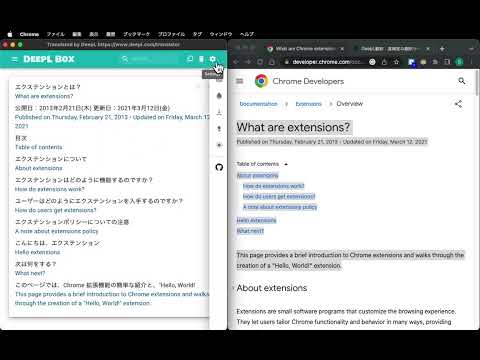
Save previous translations, show index, compare one by one, search by keyword, copy to clipboard and provide keyboard shortcut.
This extension provides the translation history management which saves all of the previous translations, shows index of the translations, compares the source and translation sentences one by one, searches by keyword, copies to clipboard and prepares keyboard shortcut `Command-b` (macOS) or `Alt-b` (other OS) to translate. ## Usage - Select text by mouse or keyboard. - Press `Command-b` (macOS) or `Alt-b` (other OS). - Or right click to open context menu and choose `DeepL Translate`. − Translation window will open. ## Settings ### Change keyboard shortcuts - Open extensions setting page `chrome://extensions`. - Open menu by clicking `hamburger button` "☰" (triple bar icon) on the left of `Extensions`. - Click `Keyboard shortcuts`. - Click the pencil icon on the right of `Open DeepL page and send selected text`. - Input key stroke. Default is `Command-b` (macOS) or `Alt-b` (other OS). ### Change settings by popup dialog You can change source/translation language and split on punctuation option by extension popup dialog. - Click the DeepL Box icon `D` (if you "pinned" icon). - Change settings by selections and buttons. - `Source Language` specify the language of the text to be translated. > **_Note:_** in most cases, DeepL automatically detects source language. - `Target Language` specify the language into which the text should be translated. - `Splits on punctuation` may improve the readability of long text without newlines, such as PDF. ## Limitations - Keyboard shortcut does not work for local PDF files. In that case, use context menu instead. - When you use context menu, Chrome removes newlines from selected text because `info.selectionText` removes newlines. See [Linebreaks/newlines missing from chrome.contextMenus selectionText](https://bugs.chromium.org/p/chromium/issues/detail?id=116429) ## TODO - Support keyboard shortcut for local PDF files. ## Source code https://github.com/susumuota/deeplbox ## Author Susumu OTA
0 星(5 星制)无评分
详情
- 版本3.7.11
- 上次更新日期2025年1月13日
- 提供方Susumu OTA
- 大小433KiB
- 语言2 种语言
- 开发者
邮箱
ota.s.apps@gmail.com - 非交易者该开发者尚未将自己标识为交易者。欧盟地区消费者须知:消费者权利可能不适用于您与该开发者达成的合约。
隐私权

该开发者已声明,您的数据:
- 不会因未获批准的用途出售给第三方
- 不会为实现与产品核心功能无关的目的而使用或转移
- 不会为确定信用度或放贷目的而使用或转移
支持
若有任何疑问、建议或问题,请在桌面浏览器中打开此页面