


Vista geral
Thoughtful dark mode for Google™ Docs — theme presets, focus mode, and auto-schedule.
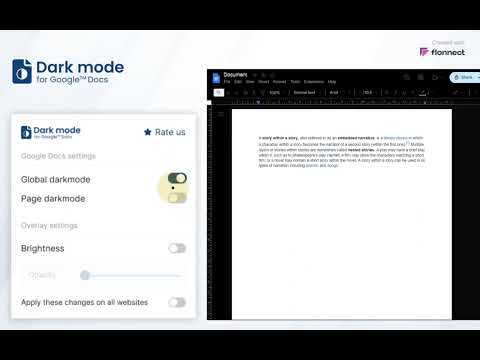
In 2026, long hours on Google Docs don’t have to mean strained eyes. Quickly turn on Dark mode for Google Docs to minimize eye fatigue and improve your overall productivity in low-light conditions while working on documents. This extension replaces the current bright white background of Google Docs with a more calming dark background, offering an effective bid to combat the blue light reduction effect. It also applies dark mode styling across all websites, including Google Docs, Gmail, Medium, GitHub, and more. Key Features of Dark Mode for Google Docs Reduce Eye Strain: The primary benefit of Dark mode for Google Docs is that it reduces the production of blue light, thus reducing eye strain on Google Docs and preventing inadvertent eye fatigue for users. Comfortable Long-Term Use: Especially useful for those who spend many hours at work in Google Docs and do not want to strain their vision during extended sessions, offering comfortable document editing. Simple & User-Friendly: Enabling the Google Docs dark theme is easy as it is located in the settings bar on the user interface and browser, making it a convenient dark theme for Chrome extensions. How to Use Dark Mode for Google Docs Install the Extension: To install Dark mode for Google Docs, simply click on the button labeled “Add to Chrome” above. Open Google Docs: Go to any file in Google Docs that you want to make the appearance of the interface as dark as possible. Activate Dark Mode: Navigate to the user icon on the upper right of the browser, and you’ll find the option to enable dark mode Google Docs beside the switch. Enjoy a Comfortable Workspace: Enjoy greatly reduced eye strain, and the overall comfort provided in an environment optimized for successful work, thanks to the Google Docs dark theme FAQs 1. What does Dark Mode on Google Docs do? Dark Mode transforms the background of Google Docs from bright white to a dark gray or black tone, reducing screen glare and blue light exposure, which can help ease eye strain. 2. How can I enable Dark Mode on Google Docs? To enable Dark Mode, simply install the extension, open Google Docs, click the extension icon in your browser, and toggle Dark Mode on. 3. Does Dark Mode affect my document’s formatting? No, Dark Mode only changes the background for your viewing comfort. It does not alter your document’s formatting, colors, or content when shared or printed.
3,6 de 5158 classificações
Detalhes
- Versão1.3.4
- Atualizado23 de abril de 2026
- Disponibilizado porGoogle Doc Darkmode
- Tamanho20.19KiB
- IdiomasEnglish
- Programador
Email
docsdarkmode@gmail.com - Não comercianteEste programador não se identificou como comerciante. Para os consumidores na União Europeia, tenha em atenção que os direitos dos consumidores não se aplicam aos contratos entre si e este programador.
Privacidade

Este programador declara que os seus dados
- Não estão a ser vendidos a terceiros, além dos exemplos de utilização aprovados
- Não estão a ser utilizados ou transferidos para fins que não estão relacionados com a funcionalidade principal do item.
- Não estão a ser utilizados ou transferidos para determinar a credibilidade de crédito ou para fins de empréstimo.