


Overview
AI bookmark manager, tab organizer, and browser history search. Save pages, capture screenshots, and manage todos with Cosearch.
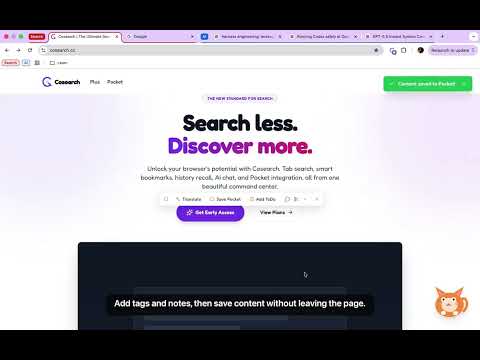
Cosearch is an AI-powered browser companion built around two everyday workflows: organizing bookmarks and saving useful content to Cosearch Pocket. Use Cosearch to save pages, selected text, screenshots, and ideas; find them later from one keyboard-first overlay; and keep your browser workspace easier to manage. CORE FEATURES Bookmark Management - Search your Chrome bookmarks from the Cosearch overlay. - Save the current page as a bookmark from the floating companion. - Get AI-powered folder suggestions when you add a bookmark. - Reorganize bookmarks with AI-assisted classification. - Sync bookmark structure to your Cosearch account when you are signed in, so supported Cosearch apps can access the same saved knowledge. Cosearch Pocket - Save the current webpage to your personal Cosearch Pocket with title, URL, page metadata, and a searchable content excerpt. - Save selected text from any page, then add your own description and tags. - Save cropped screenshots or page captures to Cosearch Pocket when you want to keep visual context. - Search and filter Cosearch Pocket items by keyword and tags from PowerSearch. - Use Cosearch Pocket as a lightweight reading list, research inbox, and personal knowledge collection. Animated Browser Companion - Wake Cosearch by clicking the animated companion, using Command+Shift+P on Mac or Alt+P on Windows/Linux, or pressing Shift+Space on the page. - Hover over the companion for quick actions such as adding a bookmark, saving to Cosearch Pocket, creating a todo, or taking a screenshot. - Choose between the animated companion and a compact button in settings. - Receive friendly visual feedback for actions, reminders, and extension state. PowerSearch - Open one overlay to switch between AI Search, Bookmarks, Pocket, History, Tabs, Translation, Quick Search, Clipboard, and ToDo tools. - Use Tab or arrow keys to move between tools quickly. - Search saved content, browser data, and tasks without leaving the page you are reading. - Reopen results, focus tabs, or continue working from the same overlay. Selection Menu - Select text on a webpage to open a quick action menu. - Translate, summarize, rewrite, explain, save to Cosearch Pocket, create a todo, or ask AI about selected content. - Pin favorite actions and add custom commands for repeated writing or research tasks. Tabs and History - Search open tabs and switch back to the one you need. - Group tabs by domain or category. - Use AI tab grouping on supported plans. - Detect and close duplicate tabs with user confirmation. - Search recent browsing history locally in the extension. Screenshots - Capture the visible area of the active tab. - Crop the screenshot before using it. - Download, copy, share, or save screenshots to Cosearch Pocket. Todos and Reminders - Create tasks from the overlay, the companion, or selected webpage text. - Add priorities, deadlines, tags, and reminders. - Receive desktop notifications for due reminders. - Review task lists and daily summaries from inside Cosearch. AI Chat and Translation - Chat with AI from the extension overlay. - Attach selected text or screenshots as context. - Translate selected text from the page or translate directly inside PowerSearch. - Save AI conversation history to your Cosearch account when you are signed in. PRIVACY AND SECURITY - Browser history is processed locally in the extension and is not sent to Cosearch servers. - Tab metadata and page preview snippets are cached locally for search and preview features. - Bookmark, Cosearch Pocket, translation, screenshot, todo, and AI chat content is sent to the Cosearch API only when needed to provide the feature you choose to use. - Cosearch uses secure session cookies for authentication. - Product analytics help improve reliability and usability. Session recording and automatic event capture are disabled. - Cosearch does not sell user data or share user data for advertising. - You can manage or delete account data through Cosearch account settings or support. GETTING STARTED 1. Install Cosearch and open the welcome guide. 2. Click the animated companion or press Command+Shift+P on Mac or Alt+P on Windows/Linux. 3. Save a bookmark and review the AI folder suggestion. 4. Save a webpage or selected text to Cosearch Pocket and add tags. 5. Use PowerSearch to find bookmarks, Pocket items, tabs, history, todos, and AI tools from one place. Cosearch is free to use with daily limits. Supported plans unlock higher AI usage limits and advanced features.
0 out of 5No ratings
Details
- Version1.0.2
- UpdatedMay 23, 2026
- Size1.69MiB
- LanguagesEnglish
- DeveloperWebsite
Email
support@cosearch.cc - Non-traderThis developer has not identified itself as a trader. For consumers in the European Union, please note that consumer rights do not apply to contracts between you and this developer.
Privacy

Cosearch - Search Tabs, Bookmarks & History has disclosed the following information regarding the collection and usage of your data. More detailed information can be found in the developer's privacy policy.
Cosearch - Search Tabs, Bookmarks & History handles the following:
This developer declares that your data is
- Not being sold to third parties, outside of the approved use cases
- Not being used or transferred for purposes that are unrelated to the item's core functionality
- Not being used or transferred to determine creditworthiness or for lending purposes
Support
For help with questions, suggestions, or problems, visit the developer's support site