

ClickSay - AI Feedback for Vibe Coders

Overview
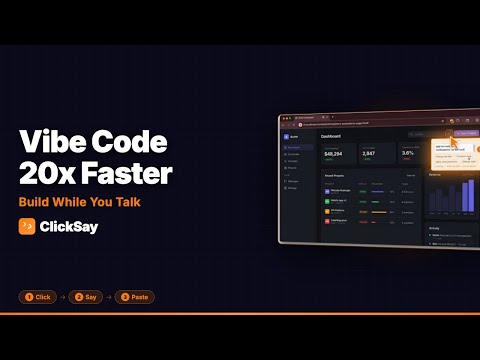
Click any element, say your fix in 20 languages, paste AI-ready context into any coding tool. Three seconds from thought to code.
Click any element, say your fix in 20 languages, paste into AI. Full context - selector, styles, screenshot, component. ClickSay is the fastest way to turn UI feedback into working code. Click any element on a web page, say what you want changed in any of 20 supported languages, and paste the structured prompt into Claude Code, Cursor, Windsurf, Lovable, Bolt, or Replit. Three seconds from thought to code. If you have ever tried to describe a UI problem to an AI and gotten a vague, unhelpful response, ClickSay fixes that. Instead of writing "make the button bigger" and hoping the AI guesses which button you mean, ClickSay captures everything the AI needs to act precisely: the CSS selector, the element's HTML, its computed styles, a screenshot with the element highlighted, and even the React or Vue component name. Your voice feedback gets paired with all of that context, so the AI gets it right the first time. HOW IT WORKS Step 1 - Click: Press Cmd+Shift+K (or Ctrl+Shift+K on Windows/Linux) or click the toolbar icon to activate capture mode. Hover over any element on the page and click it. Step 2 - Say: The microphone starts automatically. Say what you want changed - "increase the font size", "fix the spacing between these cards", "align these vertically instead." Step 3 - Paste: Your spoken feedback and all captured element context are combined into a structured prompt and copied to your clipboard. Paste into your AI assistant and get back precise, actionable code. That is it. Three seconds from thought to prompt. 20 LANGUAGES Speak your feedback in whichever language feels natural. ClickSay supports voice input in English, Spanish, French, Portuguese, German, Italian, Dutch, Russian, Japanese, Korean, Chinese (Simplified), Chinese (Traditional), Hindi, Arabic, Turkish, Polish, Swedish, Thai, Vietnamese, and Indonesian. Switch languages right from the feedback popup - no digging through settings. WHAT GETS CAPTURED When you click an element, ClickSay collects rich technical context so the AI can act on your feedback without guessing: - CSS selector and XPath for precise element identification - Computed styles including colors, spacing, fonts, and layout properties - Element HTML so the AI sees exactly what is rendered - Parent context (three levels up) for understanding layout relationships - Screenshot with a colored highlight overlay showing exactly what you clicked - Framework component name and path for React, Next.js, Vue, Svelte, and Angular projects - Accessibility audit results including contrast ratios, missing alt text, ARIA issues, and touch target sizes - Page URL and optionally the resolved source file path You control exactly what gets included. Choose from four output presets - Simple, Standard, Detailed, or Full - or toggle individual data pills on and off. Need just the selector and URL? Use Simple. Working on a complex layout bug and want everything? Switch to Full. SWEEP MODE Sometimes feedback applies to multiple elements at once. Hold Shift and click several elements in a row. ClickSay captures all of them, and you give one piece of voice feedback that applies to the whole group. The generated prompt references every selected element so the AI understands the full picture. TOOLBAR POPUP Click the ClickSay icon in your toolbar to see two options: Capture Element to start feedback mode, or Open Side Panel to view your history, settings, and output configuration. The keyboard shortcut Cmd+Shift+K activates capture mode directly. FRAMEWORK DETECTION ClickSay automatically detects what frontend framework the page is built with. For React, Next.js, Vue, Svelte, and Angular applications, it identifies the component name and component hierarchy path. This means your AI assistant can find the exact source component to modify rather than searching through your codebase. DIRECT SEND TO CLAUDE CODE For developers using Claude Code in the terminal, ClickSay includes an optional local relay server. Run npx clicksay-relay and enable auto-send in the side panel. Your feedback prompts are sent directly to your Claude Code session - no clipboard paste needed. The relay runs entirely on localhost. FEEDBACK HISTORY Every piece of feedback you capture is saved to a persistent timeline, grouped by date. Revisit past feedback, recopy any prompt, or delete entries you no longer need. History is stored entirely in your browser using Chrome's local storage. SUGGESTION CHIPS After selecting an element, ClickSay shows context-aware quick-feedback chips based on the element type. Clicked a button? You might see suggestions like "change the text" or "fix hover state." These chips speed up common feedback and can be tapped instead of speaking. PRIVACY AND DATA ClickSay is built on a strict local-only architecture. All data - your feedback, screenshots, history, and settings - is stored in your browser using Chrome's local storage API. Nothing is sent to any external server. There are no user accounts. There is no analytics or telemetry. There are no cookies or tracking. The only way data leaves your browser is when you explicitly copy a prompt to your clipboard or when you choose to enable the optional localhost relay. Your data stays on your device, under your control, always. FREE AND PRO ClickSay is free to use with 20 captures per month, Simple and Standard output presets, and 7 days of history retention. Upgrade to Pro for unlimited captures, all output presets, Screenshot/Component/A11y pills, and unlimited history.
5 out of 55 ratings
Details
- Version1.2.6
- UpdatedAugust 14, 2026
- Size90.52KiB
- LanguagesEnglish
- DeveloperLUMIERE MEDIA, INCWebsite
120 S Main St Doylestown, PA 18901-4843 USEmail
frederic@lumieremedia.comPhone
+1 310-880-6690 - TraderThis developer has identified itself as a trader per the definition from the European Union and committed to only offer products or services that comply with EU laws.
- D-U-N-S040126495
Privacy

This developer declares that your data is
- Not being sold to third parties, outside of the approved use cases
- Not being used or transferred for purposes that are unrelated to the item's core functionality
- Not being used or transferred to determine creditworthiness or for lending purposes
Support
For help with questions, suggestions, or problems, please open this page on your desktop browser