

Clarishot: ChatGPT to PDF & Screenshot, Export Claude & Gemini Chats

Overview
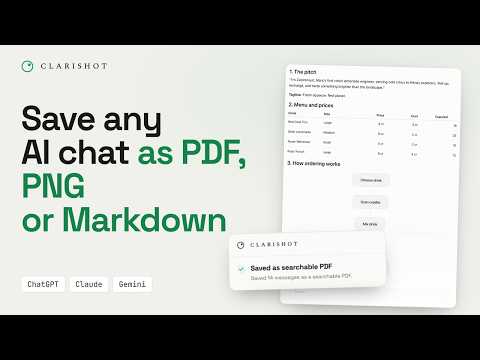
Save ChatGPT, Claude and Gemini chats as PNG, searchable PDF or Markdown. Capture any web page, edit, record. Nothing is uploaded.
Export your ChatGPT, Claude, and Gemini chats: the whole conversation or just the messages you pick, as a pixel-perfect PNG, a searchable PDF, Markdown, JSON, or plain text. Clarishot also captures any other web page, lets you edit the picture in Studio, and records video. A camera button appears beside Copy on every message. Click it, and a pixel-perfect capture lands on your clipboard, ready to paste anywhere. The camera's menu also copies the message as rich text, Markdown, or JSON, or saves it as a PDF. Export the whole conversation, even a very long one. Clarishot loads every message itself, from the first to the last, before it saves, so you don't have to scroll up first. If a message can't be loaded, it tells you instead of saving a file that is quietly missing part of your chat. Capture exactly what you need: - One message, even one that's ten screens tall. - A prompt + response pair with a single Option/Alt-click. - A hand-picked set or a range. Skipped stretches are labeled ("N messages omitted"), never hidden. - The entire conversation from the toolbar, in your choice of PDF, image, Markdown, JSON, or plain text: every message, in order, even ones scrolled far out of view. Long chats save as one clean multi-page PDF, or as a ZIP of page images if you asked for an image. Take it where you work: rich text pastes into Google Docs with its tables and math, Markdown goes into Obsidian, Notion, or any notes app (with the chat's pictures in a ZIP), and JSON feeds your own tools. Every PDF is searchable. Find, copy, and screen readers work in nearly every language: Latin, Greek, Cyrillic, Hebrew, Arabic, Chinese, Japanese, Korean, Hindi, Thai, and many more, plus math and symbols. PDFs come on A4 or Letter pages with page numbers and a bookmark for every prompt, or as one long page. Built for the hard parts of AI chat interfaces: wide code blocks, tables, canvases, diagrams, and math render pixel-perfect, with real fonts and real syntax highlighting, exactly as the platform drew them. Clarishot doesn't rebuild your chat in a template of its own. It captures what was actually rendered. Full page screenshots of any website (beta). From the Clarishot icon, take a full page screenshot, also called a scrolling screenshot: the entire webpage from top to bottom as one picture. Or capture just the part you see. Alt+Shift+C (Option+Shift+C on a Mac) takes the whole page in one step. Made for real websites, not just simple pages: - Cookie banners are left out. - Headers and bars that stay on screen as you scroll show once, not over and over down the picture. Floating chat bubbles and "back to top" buttons are left out. - Pictures that load as you scroll are loaded before the capture. - Sections that animate as you scroll come out finished, and scroll stories come out one frame per step. - A video that floats into a corner as you scroll stays in its place. - Endless feeds end on a whole post, and Stop and save ends the capture wherever you want. - Hover effects under your mouse stay out of the picture. - A very tall page saves as a PDF or a ZIP of images, cut between lines of text. Edit in Studio. A web page capture opens in Studio, and a chat capture can too. - Hide what others shouldn't see: blur it, or cover it with a solid box. - Hide private info in one click. It finds e-mail addresses, phone numbers, card numbers, IBANs, IP addresses, ID numbers, keys and tokens, and names, and you choose which. Add your own words to always hide, kept on your computer only. - Draw and point: pen, highlighter, arrows (straight, curved, big head, both ends, or a plain line), shapes (box, ellipse, triangle, star), text, numbered steps, callouts, and sticky notes, in the color you pick. - Change your mind: move or delete any mark, undo and redo, zoom in and out, and use keyboard shortcuts for the main tools. - Crop. - Browser frame: a Mac or Windows window, or an address bar on top or at the bottom, with or without the page's address, and padding in the size and color you like. - Watermark: your own words, your logo, or one click on CONFIDENTIAL, DRAFT, or DO NOT SHARE. Put it in a corner, in the middle, or tiled all over the picture, at any angle, size, and opacity. - The page's own words stay in the picture as real text, so you can select, copy, and search them, Google Docs included. - Save as PNG or a searchable PDF, or copy the picture or its words. A very tall picture can save as a ZIP of images. Record what a screenshot can't show. Interactive artifacts, code previews, and Canvas apps are things you use, so Clarishot records them, and any other page too. - Start from the Clarishot icon, a camera button's menu, or Alt+Shift+R (Option+Shift+R on a Mac). - Record a box on the page (Shift-click to add more boxes) or the whole tab. - A 3-second countdown (press Enter to start at once), then a small bar with Stop, Pause, Restart, and Delete. The bar floats above your windows and never appears in the video, and neither do Clarishot's own buttons. - Every click shows as a ripple, so viewers see where you clicked. - Add the tab's sound (you still hear it), your voice, or your camera in a rounded bubble in the corner, with a live preview you can hide. Each one is off until you turn it on. - Choose a framed look (soft background, rounded corners, a shadow) or just the area itself. - Keeps recording when you switch chats or reload the page on the same site. - You get an MP4, saved on your computer, up to an hour long. Private by design: - Runs in your browser. No servers of our own, no account, no analytics, no uploads. Text exports read your conversation from the AI platform you're signed in to, the way the page itself does; images and PDFs are composed from what's on screen. For a Google Doc, Studio reads the doc's own PDF from Google to give you its words. Nothing is sent to us or to anyone else. - Captures happen only when you click a Clarishot control, and recordings only when you start one. On other websites, Clarishot does nothing until you click. - Videos are recorded and saved on your computer. Your microphone and camera are used only while you record, and only if you turn them on. Free. No account, no quota. Privacy policy: https://clarishot.ai/privacy · Changelog: https://clarishot.ai/changelog · Support: support@clarishot.ai
5 out of 57 ratings
Details
- Version0.11.9
- UpdatedNovember 4, 2026
- Size2.38MiB
- Languages10 languages
- DeveloperWebsite
Email
support@clarishot.ai - Non-traderThis developer has not identified itself as a trader. For consumers in the European Union, please note that consumer rights do not apply to contracts between you and this developer.
Privacy

This developer declares that your data is
- Not being sold to third parties, outside of the approved use cases
- Not being used or transferred for purposes that are unrelated to the item's core functionality
- Not being used or transferred to determine creditworthiness or for lending purposes
Support
For help with questions, suggestions, or problems, visit the developer's support site