


Overview
AI help for tasks, tests, translation and OCR: capture a Chrome tab on demand and get answers on your phone.
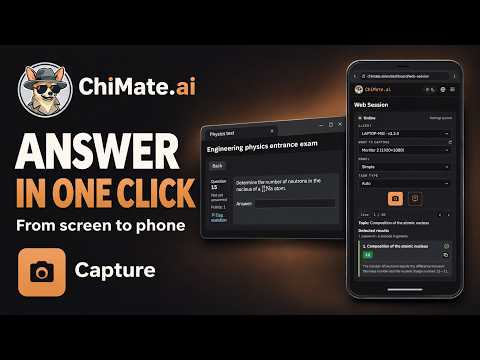
ChiMate.AI helps you solve questions, practice tests, and analyzes images and text in Chrome tabs. On your phone, open Remote control on the ChiMate website and tap Capture and analyze, the button with the camera icon. The extension captures the visible part of the tab on your computer and sends it for AI analysis. The answer appears in the same section on your phone. Keep the task on your computer and receive the answer on another device. There is no need to copy the question and its images manually or open a separate chat for every question. WHAT YOU CAN USE IT FOR • Work through practice tests, homework and questions for self-study. • Analyze questions with formulas, illustrations, tables, diagrams and graphs. • Translate text visible on a page. • Review code snippets and programming tasks. • Extract text from a screenshot with OCR. GET STARTED 1. Install the extension. On the setup page, click Allow tab capture and approve Chrome's permission request. 2. Sign in to your ChiMate account. Choose an available method: QR code, Numeric code or Email. Email sign-in uses your account's email address and password. 3. Open the ChiMate website on your phone, tablet or another computer using the same account. After you approve QR or numeric-code sign-in, the control page opens automatically. You can also find it under Dashboard → Desktop control. 4. Select Chrome in the Client list. For the extension, the page is titled Remote control. Under What to capture, Active tab is selected by default; you can also choose a specific Chrome window. 5. On your computer, open the tab containing your task. On your phone, in Remote control, tap Capture and analyze — the button with the camera icon. It takes a screenshot of the tab on your computer. The result appears below when processing is complete. CHIMATE FEATURES Questions and images together ChiMate analyzes a screenshot containing the question, answer choices and related images. It works with material that is difficult to copy by selecting text alone. Answers with explanations Analysis results can include answers and explanations for detected tasks. If a screenshot contains several tasks, the results may appear in separate cards. You can revisit previous analyses in History. Task type, model and language In Remote control, set Task type to Auto, Test, Translation, Code or OCR. The Model field offers Simple, Advanced and Top tiers. Language sets the answer language. Model availability depends on your plan and account credits. Control from another device Use the ChiMate website on your phone to select the capture source, adjust analysis settings and view the result. Stop pauses new captures; Start resumes them. These controls are also available in the extension on your computer. A request already accepted for processing may finish after new captures are paused. One ChiMate account The extension uses your existing ChiMate balance and history. The separate ChiMate app for Windows is not required to use the extension. CAPTURE AND DATA PROCESSING Each screenshot is taken on your command. The image is sent to ChiMate and the AI providers used by the service for analysis. Active tab titles and window information are used to select the capture source. Answers are displayed in Remote control. You can revoke capture permission in Chrome. For details about data processing and retention, see the privacy policy: https://chimate.ai/en/privacy-policy#chrome-extension REQUIREMENTS AND ACCESS A ChiMate account, an internet connection and available credits are required. The extension is free to install; AI analysis uses account credits. Free-access terms, paid plans and credit packs: https://chimate.ai/en/pricing Google Chrome 120 or later is supported. The extension captures the visible area of ordinary HTTP/HTTPS pages in a browser window that is not minimized. Browser system pages, local files and incognito mode are not supported. The extension does not capture the desktop or automatically scroll pages. Your computer and Chrome must be running. Processing time depends on the task and the selected model. AI can make mistakes: check the answers and use the explanations to understand the material. Website: https://chimate.ai/ Support: https://chimate.ai/support
0 out of 5No ratings
Details
- Version0.1.4
- UpdatedNovember 18, 2026
- FeaturesOffers in-app purchases
- Size156KiB
- Languages23 languages
- DeveloperWebsite
Email
support@chimate.ai - Non-traderThis developer has not identified itself as a trader. For consumers in the European Union, please note that consumer rights do not apply to contracts between you and this developer.
Privacy

ChiMate.AI – AI assistant for tests, tasks, and exam preparation has disclosed the following information regarding the collection and usage of your data. More detailed information can be found in the developer's privacy policy.
ChiMate.AI – AI assistant for tests, tasks, and exam preparation handles the following:
This developer declares that your data is
- Not being sold to third parties, outside of the approved use cases
- Not being used or transferred for purposes that are unrelated to the item's core functionality
- Not being used or transferred to determine creditworthiness or for lending purposes
Support
For help with questions, suggestions, or problems, visit the developer's support site