

Chegg Expert Question Alert
6 ratings
)
Overview
Get instant sound alerts for new Chegg questions! Auto-refresh and multitask without constantly monitoring the Q&A page.
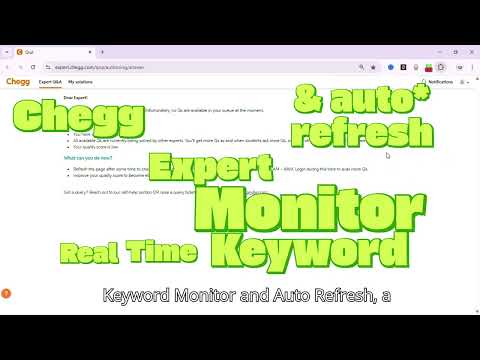
Chegg Expert Monitor – Real-Time Keyword Monitor Overview Chegg Expert Question Alert is a simple, lightweight Chrome extension designed for Chegg Experts. It helps you stay notified of new questions on the Expert Q&A page without needing to constantly check the screen. Who is it for? * Chegg Experts who don’t want to miss new questions while multitasking. * Users who find it difficult to monitor Chegg Q&A continuously, especially during late hours. What it does * Monitors the Chegg Expert Q&A page while it is open in your browser. * Lets you set a custom keyword in the popup (e.g., “Exit”, “Expert Q&A Notification”). * When the keyword appears on the page, the extension: * Highlights the keyword. * Plays a sound to notify that the keyword is found. * Includes an ON/OFF toggle to quickly enable or disable monitoring. * Refresh interval customization: you can set the refresh time (e.g., 5 or 10 seconds). 5 seconds is recommended for the fastest alerts without missing new questions. How to Use 1. Open the Chegg Expert Q&A page in your Chrome browser. 2. Click the extension icon in the toolbar to open the popup. 3. Enter a keyword (e.g., “Exit” or “Left”) that appears when a new question is listed. 4. Enter the time in seconds (e.g., "5" or "10") to refresh the page after every x seconds. 5. Turn the ON/OFF toggle to enable monitoring. 6. Keep the Chegg page open in a tab. 7. When the keyword appears: A sound will be made to alert the expert. 8. You can update the keyword or toggle anytime. Note: After entering the keyword and setting the auto-refresh, first manually refresh the page once and click anywhere on the Expert Q&A page. After that, the extension will work automatically. What problem it solves On Chegg, questions stay on the Expert Q&A page for only a limited time. Many experts miss them because they can’t keep checking the page every minute. This extension solves that problem by: * Sending a real-time alert sound when a question appears. * Allowing experts to multitask without worrying about missing questions. * Helping experts respond on time and make better use of their available work hours. * Ensuring safety: This extension does not interfere with Chegg’s system in any way, so no revocation of your Chegg Expert account will happen because of using it.
5 out of 56 ratings
Details
- Version1.0.1
- UpdatedSeptember 19, 2025
- Offered bysinghdeepank9
- Size68.52KiB
- LanguagesEnglish (United States)
- DeveloperDeepank Singh
143 MDDA Colony Tyagiroad Dehradun Dehradun, Uttarakhand 248001 INEmail
singhdeepank9@gmail.comPhone
+91 78189 20767 - TraderThis developer has identified itself as a trader per the definition from the European Union and committed to only offer products or services that comply with EU laws.
Privacy

This developer declares that your data is
- Not being sold to third parties, outside of the approved use cases
- Not being used or transferred for purposes that are unrelated to the item's core functionality
- Not being used or transferred to determine creditworthiness or for lending purposes
Support
For help with questions, suggestions, or problems, please open this page on your desktop browser