


Overview
Adds a compact second bookmark row with search, save, and adaptive folders.
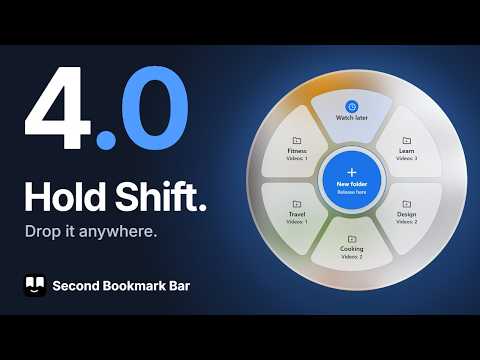
Second Bookmark Bar is a fresh take on Chrome's bookmark bar. It adds a compact second row above web pages, so the folders and links you return to all day stay in view while you browse. It is a new way to use your bookmarks: quicker, simpler, and easier on the eyes, with fewer clicks and less searching. Chrome's own bar has been a dependable part of browsing for years, and this extension builds on it. The second row gives the places you use every day room of their own. There is no sidebar, so the page you are reading keeps its shape. A row is easy to scan, easy to ignore, and fast to use. We made it to keep everyday browsing easy and to bring some new energy to your browser. Main features: - Two modes: Classic, which works like the browser's own bar, and Advanced, with more tools. - Up to seven folder slots that you switch between with one click. - Search and save pages from the bar without leaving the page you are on. - Video libraries with thumbnails and a panel of large cards. - Optional paid plans that add password-locked folders, sync, and team sharing. Two ways to use the bar: Classic and Advanced Pick a mode in Settings, under Bar setup, Bar mode. You can switch at any time. Classic works like the bar you already know. It shows one folder you choose, with site icons and names, menus with nested submenus, an overflow menu for items that do not fit, and familiar right-click menus. Drag and drop works as you expect: reorder items, move them into folders, or drop a link from a web page onto the bar. There is nothing to configure. Use a folder you already have, or create a new empty one called Second bar. Advanced is the full version, described in the rest of this page. Each mode keeps its own look and behaviour settings, such as theme, colors, and how links open. Switching never changes the other mode, and everything you set up in Advanced stays saved while Classic is on. Right-click menus in Advanced now share the cleaner Classic look. Folder slots In Advanced mode the row shows one folder at a time, and up to seven slot buttons let you switch between them with one click. Each slot can carry its own icon, so you can tell them apart at a glance. Add any folder from a picker with a preview. The bar can run left to right, right to left, or follow your language. The + button and Discover A + button at the end of the slot switcher lets you add a folder, save the current page, save all open tabs, or open Discover, a list of useful sites you can add in one click. New installs start with an empty My sites folder, so the bar holds only what you choose. Video folders Any slot can become a video library with the Video switch in Settings. Its items appear on the bar as small thumbnails that show their length. Hover it and the Spotlight panel opens with your videos as large cards. If you prefer the older hover strip, choose Legacy under Settings, Folders, Video panel, where you can also set the panel size. A click plays the video in the current tab, or in a new tab if you set it that way. You can add your own tags and playlists, including Watch later. To save a video, drag its thumbnail, its link, or the player toward the bar and drop it on the strip that appears. The extension keeps the picture, title, and length when the page provides them, and creates your first video folder if you do not have one yet. You can drop between two cards, and dragging cards also reorders the saved items underneath. YouTube thumbnails come from the link itself; on other sites the extension uses the picture found on the page when you save. Hold Shift while you drag and a wheel of your video folders opens around the pointer. Drop on one of them, on Watch later, or in the middle to start a new one. In the video panel, select videos and press M to move them with the same wheel. The wheel runs on your device and reads only what you have saved. Categories and tags A folder says where an item lives. A category says what kind of item it is, one per item within its folder. Tags are free labels, and an item can have as many as you like. Manage both in Settings, under Categories & Tags. Private folders (Plus) Lock a folder with a password you choose. Its contents are encrypted on this computer and taken out of Chrome's bookmark list; when unlocked, they show only inside the extension, and the folder locks again after the idle time you set. Chrome keeps one placeholder item that holds the encrypted data and syncs like any other. On another computer, a private folder that arrives through Chrome Sync shows as locked, and you can unlock it, open it, turn the lock off, or download a backup without Plus. Plus is only needed to make new ones. Pages you open still appear in your browser history, and if you lose both your password and your recovery key, the contents cannot be recovered. Start page and New Tab The extension has its own Start page, a full page with your bar and your folders. You can set it as your Home page or startup page; the link is in Settings, under Basics. It reads your data on your device and nothing leaves it. The extension does not replace the New Tab page, so Ctrl+T stays as it is. Extensions cannot draw on the New Tab page itself. If you want your folders there too, Bookmark New Tab by Second Bookmark Bar is a separate, free, optional extension that shows them. This extension works fully without it. Private folders never appear on the Start page or in the companion. Keyboard shortcuts Alt+1, Alt+2, and Alt+3 open your first three slots. Ctrl+Shift+A (Cmd+Shift+A on Mac) saves every open tab in the window into the active folder. You can also assign keys to focus search, quick-save the current page, show or hide the bar, and lock your private folders at chrome://extensions/shortcuts. A quick-hide shortcut can be set inside Settings, with separate Windows and Mac choices. Folders that follow the site You can set rules so the bar switches to a matching folder when you visit a certain site, for example your design folder when you open your design tool. A small star on the slot switcher shows when a site rule is active. Excluded sites You can hide the bar on sites where it does not belong, for example pages that are sensitive or already crowded. New installs come with a few common examples already on the list. Search from the bar Search your saved pages from the bar without opening Bookmark Manager. Results show the folder and the site each one belongs to. An unfinished search is remembered for a few minutes, so reopening search picks up where you left off. Saving pages When you save the current page, a compact folder picker opens first, so you choose the destination before the save completes. It can list the current one first and put your most frequent destinations near the top. Saving stays fast and leaves less to clean up later. If a page is already saved, the extension tells you, so you do not save it twice by accident. The save area then turns into a small memory strip where you can remove the item or rank it Low, Mid, or Top. Search uses these ranks, so the pages that matter most stand out. Menus and drag and drop Reorder items on the row with drag and drop. Right-click a folder to sort it by date or by name, undo the last sort, open everything in a new window, edit, or delete. Right-click a saved page to copy its address, open it in a new tab or an incognito window, set its rank, edit it, or delete it. Top-level folders open nested menus from the bar. When the row does not fit the window, optional scroll arrows move through it and show how many items are hidden. In narrow windows, search and save shrink to icons so the bar stays on one line. Cleanup, restore points, and backups Duplicate detection lets you choose which copy to keep before the others are removed, so nothing is removed blindly. Restore points let you roll back riskier actions such as imports and cleanup. An action history and sync warnings help you trace changes when items seem to come back. You can export and import your settings as one backup file, and shared spaces as a separate file. You can also import an export from another browser or bookmark manager, or any standard bookmarks HTML file, into one new folder. Plans: Free, Plus, and Pro Free needs no account. It includes everything on this page except the Pro cloud features and making new private folders, and a few features have lower limits. Free includes 1 video folder and 30 videos with every feature. Videos past 30 still save, open, and play; editing their tags, playlists, notes, and reminders needs Plus. If you already had more than 30, you keep that many. Plus is €9 a year, cancel any time, with a full refund within 14 days of each payment. It keeps all 7 video folders on and gives every video every feature. It also lets you lock new folders and raises the limits for tags, playlists, schedules, and link checks. It does not include cloud sync. Pro is €2.99 a month or €24 a year and includes everything in Plus, plus the cloud features described below. Checkout is handled by Stripe in a new browser tab; the extension never sees your card details. You can also leave a donation of any amount from Settings. Cloud features (optional, Pro) Cloud sync uses Google sign-in. When it is on, the folders on your bar, your extension settings, and your shared spaces are backed up and kept in sync across your browsers. Version history keeps earlier versions of a synced folder, so you can preview one, restore it, or add it back as a copy. Reads from the cloud happen only when you ask, while your changes are uploaded automatically. You can erase your cloud data at any time with Delete my cloud data in Settings, and the items in your browser stay. If your subscription lapses, you keep read-only access during a grace period and can always export locally. With Pro you can also create shared spaces, invite team members, and manage pooled seats as your team grows, so everyone works from the same set of links. Setup, languages, and appearance A short welcome tour helps you set up the bar on first run, and Restart onboarding at the bottom of the Settings sidebar opens it again at any time. The interface is available in 13 languages. You can pick a light or dark theme or follow the system, set custom text and background colors, change the text size, and turn compact tools on or off. How it works Extensions cannot add a native second row inside the browser itself. This extension draws a compact bar above normal web pages, using an isolated frame for the bar and a separate layer for menus and popups. It reserves its space carefully, so controls at the bottom of modern web apps stay clickable. Extensions cannot run on the browser's own pages, such as Settings and the New Tab page, so the bar does not appear there. Privacy No analytics. No remote code. No bookmark data is sent to the developer. Your data and settings stay in the browser's own bookmarks and storage by default. The cloud features are opt-in, and they send data to our Supabase-hosted backend only after you sign in with Google and start a paid subscription. Locked folders are encrypted on your computer, and your password never leaves it. Two narrow exceptions apply even before sign-in: a single anonymous alert, with no bookmark or browsing data, if the extension detects tampering with its own license data; and, for video items from sites other than YouTube, a request to that page's own host (not ours) to check that the thumbnail loads. In short Another row above your pages, with a clear purpose: Classic when you want it simple, Advanced when you want more. Save time. Enjoy the click.
3.7 out of 53 ratings
Details
- Version4.1.1
- UpdatedOctober 30, 2026
- FeaturesOffers in-app purchases
- Size7.21MiB
- Languages13 languages
- DeveloperFIRAT ÖNDER MUTLUERWebsite
Fasanenstraße 67/3 Floor 1 Unterhaching, MUNCHEN 82008 DEEmail
onder@ondermutluer.comPhone
+49 170 9758732 - TraderThis developer has identified itself as a trader per the definition from the European Union and committed to only offer products or services that comply with EU laws.
Privacy

Second Bookmark Bar has disclosed the following information regarding the collection and usage of your data. More detailed information can be found in the developer's privacy policy.
Second Bookmark Bar handles the following:
This developer declares that your data is
- Not being sold to third parties, outside of the approved use cases
- Not being used or transferred for purposes that are unrelated to the item's core functionality
- Not being used or transferred to determine creditworthiness or for lending purposes
Support
For help with questions, suggestions, or problems, please open this page on your desktop browser