


Overview
Color-code Google Calendar with unlimited colors that sync to your phone, group your labels, dim the noise, and focus with a timer.
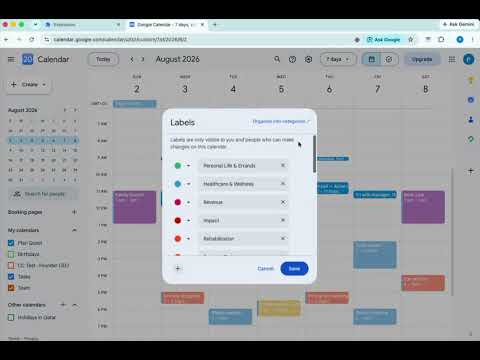
Calm a cluttered Google Calendar. Give every color a name and a purpose, dim the events that don't matter, reshape your week without dragging events around, and drop into a focus session — all without leaving Google Calendar. Your colors live as native Google labels, so they follow you to the Google Calendar app on your phone. KEY FEATURES 🎨 Colors That Sync to Your Phone: Color-code your week with named, grouped categories. Because your colors are saved as native Google labels, they show up in the Google Calendar mobile app and on every device — not just your browser. To add a color, open an event in Google Calendar, click its color, and choose “Edit labels” — create any color there (pick one, use the eyedropper, or paste a hex code), then name and group it here so it's always one click away in the event menu. 🗂️ Group & Order Your Colors: Organize your labels into meaningful groups — Work, Personal, Health, whatever fits your life — so the right color is always at hand. Reorder your groups, and reorder the colors inside each group, so the colors you reach for most sit first — in the popup and in the right-click color menu on your calendar. Prefer more room to work? Open the same editor as a full page in its own tab. ✨ Clean Color Blocks: Give an event a color of its own and Google draws a strip of the calendar's color down its left edge. Calendar Clarity hides that strip, so a colored event reads as one solid block. It's a setting in the Colors tab you can switch off whenever you like, and it changes nothing about your saved colors. 📚 Built for Several Calendars: Personal, work, family — Calendar Clarity keeps the colors from each of your calendars, tells you which calendar each one came from, and lets you narrow the list to one calendar at a time. 🃏 Details on Hover (optional): Hover an event to see its category name and who's attending — at a glance, without opening it. 🗓️ Event Actions — your own one-click shortcuts (optional): Set up a change once — how far to postpone, how much to extend by, where a copy lands — and from then on it's a right-click away, with your settings remembered. No dragging, no re-typing, no dialog to fill in each time. Some of these Google Calendar can't do at all: Split breaks a long block into focused sessions that tile the original time exactly, Spread distributes a backlog across the open time in your week, and Extend can push out the meetings that get in the way. Postpone, Reschedule and Duplicate are the everyday ones, just faster. Event Actions make real changes to your Google Calendar and run only when you trigger them. The first time you use one, you'll sign in with Google to grant calendar access — requests go straight from your browser to Google. 🌫️ Event Visibility: Dim the events that don't matter — declined meetings, all-day clutter, low-priority blocks — so the day you actually care about stands out at a glance. ✅ Check Things Off (optional): Turn your events into things you can tick. Hover any event, click the circle that appears, and it's marked done with a check and a strikethrough — in Day, Week and Month view alike. It stays your own private note: nothing is sent to Google, and no one else ever sees it. Off until you switch it on under Visibility. 🧘 Focus Sessions: Start a focus timer from any event, then settle in with a guided breathing pacer (Box, Coherent, Calm, and 4·7·8), a guided meditation that scales to your session, and calming ambient soundscapes (Rain, Ocean, Café, Pink noise, Brown noise) — or bring your own Spotify playlist. Includes focus-mode dimming, gentle completion chimes, optional break suggestions, and session history. ⚠️🚨 GOOD TO KNOW 🚨⚠️ 📱 Colors sync through Google: Calendar Clarity runs in Chrome on your computer, but because your colors become native Google labels, they appear in the Google Calendar apps on your phone and tablet automatically. 🎨 How to add a color: Colors are created in Google Calendar's own “Labels” dialog. Open any event, click its color, and choose “Edit labels” — pick a color, use the eyedropper, or paste a hex code, then Save. Your color then shows up in Calendar Clarity, where you name it and sort it into a group. Because it's a real Google label, it syncs to your phone automatically. 🖍️ About the line on colored events: When an event's color is different from its calendar's color, Google draws a thin strip of the calendar color down the event's left edge. That's Google's own rendering, not something the extension adds. Calendar Clarity hides it by default; turn it off in the Colors tab to put it back. This changes only how your calendar looks in this browser — your colors are real Google labels and are never altered. 📚 Labels belong to a calendar, not to you: That's Google's own rule — a label created on your work calendar exists only there, which is why the same name can appear under two different calendars. Calendar Clarity shows you which is which. To pick up a calendar's colors, open the color menu on one of its events once. 🔐 Event Actions use your Google Calendar (optional): These features are off until you turn them on. The first time you use one, you sign in with Google to grant calendar access, and it asks only for what it needs — permission to act on your events. Those requests go directly from your browser to Google and never pass through our servers. You can revoke access anytime at myaccount.google.com/permissions. 🛠️ Works alongside Google Calendar's layout: This extension works with Google Calendar's current design. If Google changes something and a feature looks off, reach out at ali@humanquest.net or visit https://humanquest.net and we'll fix it fast. 🖌️ Changes apply to existing events: An event needs to be saved before colors can be applied to it. 🙏 We're here to help: Run into a problem or have a request? Reach out at ali@humanquest.net — we read every message and fix things quickly. 📋 VERSION UPDATES 📋 v1.6.2 — Clean color blocks, and check-offs in Month view • That line down the side of your colored events is gone. Color an event and Google paints a strip of the calendar's color along its left edge — the reason a lot of people never warmed to Google's own colors. Calendar Clarity now hides it, so a colored event is one clean block. It's a setting in the Colors tab, on by default, and switching it off brings Google's line straight back. Your saved colors are never touched; this only changes how the calendar looks in this browser. • Check an event off without leaving Month view. With Tickable tasks on, hover any event in Month view and its color dot turns into a check circle in that same color. One click marks it done, another undoes it. This works on meetings you were invited to as well, not only ones you organized, and you can still open an event and choose “Mark as done” instead. Until now you had to switch to Day or Week to check anything off. • A checked-off event keeps its color. Marking something done used to gray the whole block out, so a productive day ended up looking like an empty one. A finished event now reads the way Google's own finished tasks do: the outline keeps its color, only the fill is muted, and the title is struck through. • All-day events can be checked off too. Their circle sat slightly out of line with the events below it, and clicking it opened the event instead of ticking it. Both fixed, so an all-day event checks off exactly like any other. • The check-off action follows the event you're actually looking at. Opening one event after another could leave it pointing at the one before. Turning Tickable tasks off now also removes the action from event details, not just the ticks on your calendar. • Note: checking an event off here is Calendar Clarity's own mark, stored on this computer. It is not the same thing as completing a Google Task, and it isn't sent to Google. v1.6.1 — Event Actions that get out of your way, on every calendar you own • Event Actions ask one thing. Each dialog now leads with the single thing you came to change — where the copy lands, how much longer — and folds the rest away. Duplicating an event is a moment's work instead of a form to fill in. You can also just type the copy's name now, rather than choosing "add text before" or "add text after". • Your colors, called what you call them. Wherever the extension names a color it now uses your name for it, lays them out in your own groups, and offers only real Google colors — the kind that reach your phone. Colors you'd carefully named were showing up as "Grape". • It understands you have more than one calendar. Duplicating an event on a second calendar used to open blank — no title, no date, the wrong color. The color editor mixed every calendar together and could show you colors you never made. Name suggestions could even reach into another calendar's labels. All fixed. • Somewhere to start. If you've never made a color group, the Colors tab now offers a suggested set — Work, Personal, Health, Projects — created empty, for you to fill with your own colors, rename or delete. • Smaller things: Focus now survives a Calendar refresh, feedback can carry a screenshot or a recording, a copy that Google hasn't drawn yet no longer looks like it failed, and Google Calendar has stopped logging an error on every page load. v1.6.0 — Every calendar you manage, and check-offs that stick • Fixed: checking off an event no longer un-checks an older one. If you use Tickable tasks to mark work done, there was a hidden ceiling — around 42 checked events on a shared calendar — and past it every new check silently deleted the oldest one for good, in front of you. That ceiling is gone: your history now holds thousands and simply ages out after 90 days. If you mark jobs done day after day, this is the fix. • Fixed: checked-off events stay checked in Month view. The tick and strikethrough used to appear only in Day and Week, so switching to Month made a whole month of work look untouched. Nothing was ever lost — it just wasn't being drawn. • Fixed: if you manage more than one Google Calendar, Calendar Clarity now keeps the colors from all of them. Until now, opening the color menu on one calendar quietly discarded everything it had learned about the others — so your groups only ever held the last calendar you touched. This is the fix if Calendar Clarity has only ever seemed to work with one of your calendars. • Fixed: “Create a new color in Google…” is always reachable. It used to sit at the very bottom of a list containing every ungrouped label, below the edge of the window on a busy account, with no way to scroll down to it. It's now the first item in the menu, and the list scrolls. • Two colors with the same name are no longer a guessing game. Google stores labels per calendar, so the same name can honestly appear more than once — three labels called “Learning” is normal. When a name shows up more than once, Calendar Clarity now tells you which calendar each one comes from. • Moving a color between groups keeps it tied to the right label. If two of your calendars use the same shade, a moved color could quietly start claiming the other calendar's label too. It now stays attached to the exact label you picked. • Organize your colors on a full page instead of the small popup — click the ⧉ button in the Colors tab, or right-click the Calendar Clarity icon and choose Options. Same groups, same colors, just room to work. • See which calendar each color belongs to, and narrow the list to one calendar at a time. Calendars are named the way Google names them in your sidebar. • After updating, a calendar's groups may look empty until you open the color menu on one of its events once — that's Calendar Clarity relearning the labels it had been discarding. It only needs to happen once per calendar. • Note: check-offs are stored on the computer you're using, so they don't travel between devices. Your colors still sync everywhere through Google. v1.5.0 — Rename or recolor a label in Google and your groups just follow • Your color groups now track Google's own labels directly, so renaming a label, changing its color, or doing both at once no longer disturbs your groups — the name and shade simply update in place, wherever you look. • Fixes groups that were stuck showing old names, and colors that reappeared as "ungrouped" after you changed their shade in Google. Existing groups repair themselves the next time you open Custom Colors — nothing to redo by hand. • If you updated to 1.4.1 and your color names still looked wrong, this is the release that actually fixes it. Sorry about that one. v1.4.1 — Color names read from Google • Rename a color label in Google Calendar and the new name now shows up everywhere in Calendar Clarity. Previously the Custom Colors manager kept displaying the name a color had when you first grouped it, while the right-click color menu on your calendar showed the current one — the same color, under two different names. • Your groups, order and colors are left exactly as you arranged them — only the names and shades catch up with Google. • Changes made in Google show up even if the Custom Colors window is already open. v1.4.0 — Put your colors in the order you use them • Reorder the colors inside a group, not just the groups — click the ‹ › arrows on any color to move it earlier or later, so the colors you reach for most sit first. The order carries over to the right-click color menu on your calendar. • Remove any color from a group — including built-in Google colors that previously had no way to be taken out. • A tidier right-click menu — Event Actions now live under a single “Event Actions” entry that opens the full list (Postpone, Reschedule, Extend, Duplicate, Split, Auto-arrange), so your calendar's right-click menu stays clean. Turn grouping off anytime from the Actions tab. • Fixed a freeze when coloring a repeating event — the “this event or all events?” prompt was hiding behind its own dimmed backdrop, leaving the screen blurred and unclickable. It now appears properly and takes your choice. v1.3.1 — Custom colors apply reliably from the color menu • Custom colors now apply reliably from the right-click color menu — picking your color always sticks to the event (fixes cases where the color menu opened but the color wouldn't apply). v1.3.0 — Cleaner colors + reliable calendar access • Your colors stay exactly as you set them — colors that used to snap to the nearest default, or disappear when two looked alike, now keep their true shade. • Colors come straight from Google — create any color in Google Calendar's own color labels (open an event's color → “Edit labels”), then group, name, and reorder it here. Every color is a real Google label that syncs to your phone and can't go missing. • Event Actions connect reliably — turn on calendar access once, then reschedule, postpone, extend, duplicate, split, or spread any event. • A calmer popup — the Actions tab opens instantly and shows clear progress while it connects. v1.2.0 — Reshape your week without the drag-and-drop • Event Actions — right-click any event to reschedule, postpone, extend, duplicate, split a long block into focused sessions, or spread a backlog across the open time in your week. • Event Actions are optional and make real changes to your Google Calendar; you grant calendar access with Google's own sign-in the first time you use one, and requests go straight from your browser to Google. • Hover an event to see its category and attendees at a glance. • Cleaner disconnect — turning Event Actions off now fully revokes calendar access and updates every open tab instantly. v1.1.0 — Colors that sync to your phone • Your colors now live as native Google labels — unlimited exact colors that show in the Google Calendar mobile app and on every device. • All your colors stay in the menu — categories with many similar shades no longer collapse; every color is selectable again. • Gr
4.1 out of 559 ratings
Details
- Version1.6.2
- UpdatedSeptember 21, 2026
- Size1.48MiB
- LanguagesEnglish
- DeveloperHuman Quest LLCWebsite
6475 NE 183rd St Kenmore, WA 98028 USEmail
info@humanquest.netPhone
+1 425-614-9119 - TraderThis developer has identified itself as a trader per the definition from the European Union and committed to only offer products or services that comply with EU laws.
- D-U-N-S117595690
Privacy

This developer declares that your data is
- Not being sold to third parties, outside of the approved use cases
- Not being used or transferred for purposes that are unrelated to the item's core functionality
- Not being used or transferred to determine creditworthiness or for lending purposes
Support
For help with questions, suggestions, or problems, please open this page on your desktop browser