

BrowseAI

Overview
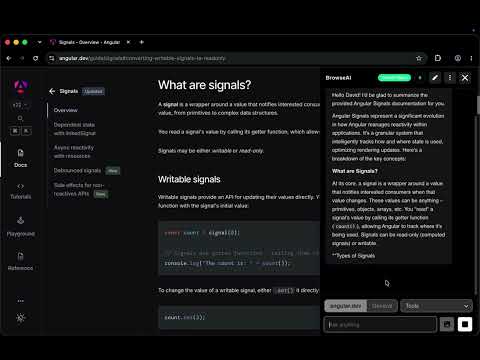
On-device AI chat for any web page via Chrome's Gemini Nano. No cloud calls, no tracking — fully private and offline-capable.
Chat with any web page using Chrome's built-in Gemini Nano. Everything runs on your device. No cloud, no tracking, and it works offline. BrowseAI - AI Help on Any Page BrowseAI puts Google's Gemini Nano model right in your browser. Ask questions about the page you're on, or just chat without any page context. The model runs on your computer, so it works offline and nothing gets sent anywhere. Your chats, browsing data, and prompts stay on your machine. You can summarize a page, ask follow-up questions, or switch to general chat mode at any time. ⚠️ SYSTEM REQUIREMENTS You need Google Chrome 151 or newer with built-in AI turned on. The first time you open BrowseAI, click "Download Model" to get Gemini Nano (about 2-4 GB). Make sure you have enough free disk space. ■ FEATURES (TOOLS) All tools are in the "Tools" menu under the chat box. They are grouped into Forms, Read & understand, Write, Save & extract, Safety, and Developer. When you pick a tool, a green box shows the steps to use it. → Form Filler - Paste in plain text, like your resume, and BrowseAI suggests what to put in each form field on the page. How to use Form Filler: 1. Open the "Tools" menu and pick "Form Filler". 2. Paste your text, press Enter, and wait while it fills in the form. 3. Check each suggestion and accept or dismiss it, or use "Accept All" or "Dismiss All". → Form Validator - Checks a form before you send it. Fields with problems are marked on the page with a short note on what's wrong. The mark goes away when you fix the field. → Summarizer - Paste text and get a short summary. → Translator - Pick a language, paste text, and get it translated. → Argument Mapper - Shows the main point of an article with the points for and against it. Click "Show on page" to see where each point is in the text. → Review Summarizer - Reads the reviews on a product page and gives you the pros, the cons, common complaints, and how many people gave each star rating. → Subject Finder - Describe what you're looking for, and the page scrolls to it. → Link Inspector - Lists every link on the page in groups: same site, other sites, downloads, email and phone, and links that look suspicious. Or ask for one, like "where is the pricing page?". → Writer - Describe what you need, like "an email asking for a day off", and it writes it. → Rewriter - Paste text and get it rewritten. → Proofreader - Paste text and get it back with grammar and spelling fixed. → Reply Drafter - Writes a reply for a comment box, a message, or an email on the page. How to use Reply Drafter: 1. Click the box on the page where the reply should go. 2. Open the "Tools" menu, pick "Reply Drafter", and choose the tone and length. 3. Press Enter. Add a note if you want, like "say thanks and say no". 4. Check the reply and click "Insert" to put it in the box. → Dictation - Speak, and BrowseAI types what you said into a text box on the page. How to use Dictation: 1. Click the text box on the page where the text should go. 2. Open the "Tools" menu and pick "Dictation". 3. Click the microphone, speak, and click "Stop". You can type something like "make it formal" first if you want the text changed. → Notes - Makes short notes about the whole page and saves them, so you can come back to them later. → Research Notes - Collect pages about one topic, then ask questions across all of them. Answers show which pages they came from. How to use Research Notes: 1. Open the "Tools" menu, pick "Research Notes", and make a new topic. 2. On each page you read, press Enter to add it to the topic. 3. Type a question to get an answer from all the saved pages. → Tables Extractor - Finds all the tables on the current page and gets them ready to download. How to use Tables Extractor: 1. Open the "Tools" menu and pick "Tables Extractor". 2. Press Enter. You can add a prompt if you want, but you don't have to. 3. Use the download menu in the chat box to get CSV, Excel, JSON, or Markdown files in one zip. → Image Downloader - Describe what you want, like "pictures of the beach", and it finds the matching images on the screen and downloads them as a zip. → Scam Check - Looks for signs that the page is a scam or a fake login page, and tells you if the risk is low, medium, or high and why. → Dark Pattern Detector - Finds tricks that push you into things you didn't ask for: boxes that are already checked, countdown timers, "only 2 left" messages, and "no" buttons that are hard to see. Each one is marked on the page, and you can uncheck those boxes from the chat. → Performance Explainer - Shows how fast the page is with charts that update every second while you use the page, and explains what slows it down. Summarizer, Translator, Writer, Rewriter, and Proofreader use Chrome's own models for these tasks. Each one asks you to download its model the first time. ■ FEATURES (MIX) → AI Bookmarks - Sorts the pages you visit into groups on its own. You can browse, open, and delete them right from the chat panel. How to use AI Bookmarks: 1. Open Settings and leave "AI Bookmarks" turned on. 2. Browse like normal. BrowseAI sorts pages into groups and saves them on your device. 3. Open the menu at the top of the chat, pick "AI Bookmarks", then open a group to view, open, or delete pages. → Notes and Highlights - Select text on any page and click "Save note" to keep it with a short note about it. The text stays highlighted when you come back to the page. How to use Notes: 1. Select text on a page and click "Save note". 2. Open the menu at the top of the chat and pick "Notes". 3. Pick a website, then a page, to see its notes. Click the link at the top to go back to that page. You can also copy, delete, or export notes. → Voice Input - Click the microphone next to the send button and say your question instead of typing it. The text shows up in the chat box so you can fix it before sending. → Quick Actions on Selected Text - Select text on a page and a small bar shows up next to it with Summarize, Translate, Write, Rewrite, Proofread, and Save note. → Multimodal Support (Images & Audio) - Add images or audio files to your question. Ask about diagrams, charts, or pictures, or add a recording to get a transcript or ask about what's said. → Capture Visible Area - Take a screenshot of what you can see on the page and add it to your question. → Snip & Capture - Drag to select part of the page and add just that part to your question. → Selection Highlighting - The text you selected shows up in the chat, so you know what BrowseAI is looking at. → Context Mode Toggle - Switch between page mode (BrowseAI reads the whole page) and general mode (plain chat, no page) with one click. → Real-time Streaming (Live Responses) - Answers show up word by word as they're written, so you can start reading right away. → Context Window Usage - Shows how much of Gemini Nano's memory for the current chat is used up. → Themes and Personalization - Pick light, dark, or system mode and one of 10 color palettes. Add a nickname and custom instructions so answers fit how you like to work. → Out of the Way - The BrowseAI button is half see-through so it doesn't cover the page, and turns solid when you move your mouse over it. ■ HOW TO GET STARTED Install BrowseAI and click the floating BrowseAI button to open the chat. When asked, click "Download Model" to get Gemini Nano. Once it's ready, you're good to go. Select some text and ask about it, or just ask for a summary of the page. Use the toggle at the bottom of the chat to switch between page mode and general mode. To use a tool, pick it in the "Tools" menu and follow the steps in the green box. ■ GOOD FOR Writers who need to summarize research. Students trying to understand hard topics or docs. Developers reading code and API docs, or checking why a page is slow. Researchers pulling info from several pages. Shoppers who want a quick look at reviews or a check that a site is safe. Anyone who has to get through long reports. ⚠️ IMPORTANT DISCLAIMER BrowseAI can make mistakes. Its answers and tool results may be wrong, incomplete, misleading, or out of date. Always check the results before you rely on them, especially for legal, money, medical, security, or other important decisions. Scam Check and Dark Pattern Detector are quick checks, not a guarantee that a page is safe. Don't use BrowseAI for anything illegal, harmful, or deceptive, or to misuse other people's content or services. The developer is not responsible for misuse of the extension or for problems caused by mistakes in its answers or tool results.
0 out of 5No ratings
Details
- Version1.5.0
- UpdatedNovember 12, 2026
- Offered bydavidmarjanidze
- Size230KiB
- LanguagesEnglish (United States)
- Developer
Email
davidmarjanidze5@gmail.com - Non-traderThis developer has not identified itself as a trader. For consumers in the European Union, please note that consumer rights do not apply to contracts between you and this developer.
Privacy

This developer declares that your data is
- Not being sold to third parties, outside of the approved use cases
- Not being used or transferred for purposes that are unrelated to the item's core functionality
- Not being used or transferred to determine creditworthiness or for lending purposes