


Overzicht
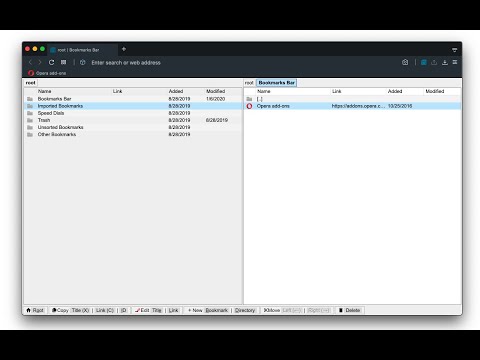
Een bladwijzerbeheerder met twee deelvensters die sorteren, een donker thema, zoeken en duplicaatdetectie ondersteunt
This is a two-panel bookmarks manager for your browser. It works similar to the famous Total Commander. You can move items between the panels or view two different directories simultaneously. Instruction: Click on the toolbar button once to open the commander in a new browser tab. By default the left panel has focus. Use arrow up and arrow down keys to navigate. Use Enter to move to a directory. To move the other panel simply press The left or right arrow key. Shortcuts: [open links]: Press Enter key to open on the same tab. Press Ctrl + Enter or Command + Enter to open in a background tab or use double-click to open on the same tab. Press Ctrl/Command while double-clicking to open in a background tab. [select multiple bookmarks]: Ctrl/Command with left-click to select more items. [copy links to the clipboard]: Ctrl + C or Command + C to copy selected links to the clipboard. [copy titles to the clipboard]: Ctrl + X or Command + X to copy selected titles to the clipboard. [directly navigate to a bookmark]: Press the first character of the title multiple times to navigate between items starting with this particular character [move one step up]: Use backspace to navigate to the parent directory [move between left and right panels]: use Tab key to toggle between panels. Use Ctrl + 1 or Command + 1 to move to the left tab. Use Ctrl + 2 or Command + 2 to move to the right tab. You can alternatively use arrow left and right to move between panels. [move selected bookmarks and folders to the other panel]: Use Ctrl/Command + right arrow key to move selected items to the right panel when the left panel is focused. Use Ctrl/Command + left arrow key to move selected items to the left panel when the right panel is focused. [sort items]: Ctrl/Command + J for A-Z and Ctrl/Command + Shift + J for Z-A [find duplicated bookmarks]: Ctrl/Command + Shift + F Notes: 1. When an operation is not allowed, the button is disabled. 2. You can see all the shortcuts by placing your mouse over the buttons. 3. You can change font-size and font-family of the interface. Press Ctrl/Command + S to configure
4,5 van 566 beoordelingen
Details
- Versie0.5.0
- Geüpdatet29 april 2024
- Aangeboden doorbrian.girko
- Grootte98.41KiB
- Talen12 talen
- Ontwikkelaar
E-mail
brian.girko@gmail.com - Geen handelaarDeze ontwikkelaar heeft zichzelf niet geïdentificeerd als handelaar. Voor consumenten in de Europese Unie geldt dat consumentenrechten niet van toepassing zijn op contracten tussen jou en deze ontwikkelaar.
Privacy

Deze ontwikkelaar verklaart dat je gegevens:
- Niet worden verkocht aan derden, behalve voor de goedgekeurde toepassingen
- Niet worden gebruikt of overgedragen voor doeleinden die niet zijn gerelateerd aan de kernfunctionaliteit van het item
- Niet worden gebruikt of overgedragen om de kredietwaardigheid te bepalen of voor doeleinden met betrekking tot leningen