

Tab Organizer
5 ratings
)
Overview
Chrome extension that sorts and organizes your browser tabs.
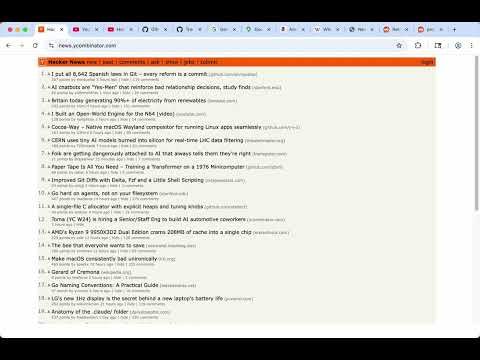
THE CODE IS 100% PUBLIC — CHECK IT YOURSELF All of Tab Organizer's source code is public: https://github.com/thilllon/tab-organizer You don't have to trust us. Read the code and see for yourself: no data collection, no tracking, no network requests, and no malware. The code on GitHub is the code that runs in your browser. Too many messy tabs? Tab Organizer sorts and groups all your tabs with one click. No setup, no account, and no data ever leaves your browser. Pin the icon to your toolbar and click it. That's it — your tabs are organized. HOW IT WORKS Click the Tab Organizer icon. Every tab in the current window is sorted right away — no popup, no menus, no extra steps. Tab Organizer handles three kinds of tabs separately: • Pinned tabs — not moved by default (sorting is optional) • Tab groups — sorted by group name, then the tabs inside each group are sorted • Ungrouped tabs — sorted, and grouped by website if you want After sorting, duplicate tabs are handled the way you choose. FEATURES ▸ One-Click Sorting No menus, no popups. One click sorts every tab in the window. ▸ Three Sort Modes • By URL — sorts tabs A to Z by web address. Tabs from the same website end up next to each other. • By Title — sorts tabs A to Z by page title. • Custom Grouping — puts tabs from the same website into one group. Groups keep the order you first visited each site. ▸ Smart Tab Grouping Custom Grouping has two levels: • Subdomain mode — mail.google.com, drive.google.com, and docs.google.com become separate groups. • Domain mode — all Google sites go into one google.com group. Special endings like .co.uk, .com.au, and .ac.kr work correctly too. ▸ Works With Chrome Tab Groups Your existing tab groups are sorted A to Z by name, and the tabs inside each group are sorted too. Add numbers to group names ("1-Work", "2-Personal") to set your own order. ▸ Handle Duplicate Tabs Opened the same page many times? Choose what happens to duplicates: • Do nothing — leave them as they are. • Close duplicates — keep one (the active tab, or the first one) and close the rest. • Group duplicates — put them in a labeled tab group so you can check them before closing. ▸ Pinned Tab Sorting By default, pinned tabs stay where they are. Turn on pinned tab sorting in settings if you want them sorted too. ▸ Suspended Tab Support If you use "The Marvellous Suspender" extension to save memory, Tab Organizer can find those suspended tabs and either: • Sort them by their original URL, like normal tabs • Group them all together at the start, so they are easy to find ▸ Grouping Direction • Left to Right — groups appear in the order you first opened each website. • Right to Left — the newest websites come first. ▸ Keep Tab Order Inside Groups You can keep the original tab order inside each group. This helps when order matters — for example, reading articles in order. SETTINGS Right-click the Tab Organizer icon and choose "Options". You can set: • Tab grouping mode — Subdomain (mail.google.com and drive.google.com stay separate) or Domain (all google.com tabs together) • Duplicate tab handling — do nothing, keep one and close the rest, or group them for review • Also: pinned tab sorting, suspended tab handling, grouping direction, and keeping tab order inside groups PRIVACY & SECURITY Privacy comes first — and you can check every claim below in the source code: • All code is public — https://github.com/thilllon/tab-organizer • No data collection — no analytics, no tracking, no telemetry. • No network requests — the extension never connects to the internet. Everything works offline. • Few permissions — only the three it really needs: - "tabs" — to read tab URLs and titles for sorting - "tabGroups" — to create and manage Chrome tab groups - "storage" — to save your settings with Chrome's built-in sync storage • No content scripts — it never adds any code to the web pages you visit. • No background activity — the extension only runs when you click the icon. Your browsing data stays on your device. Always. USE CASES • Research — 30+ tabs from Google Scholar, Wikipedia, and journals? One click groups them by site. • Work vs. personal — keep work tabs (Slack, Jira, GitHub) apart from personal tabs (YouTube, Reddit, news). • Shopping — 15 product tabs from Amazon, eBay, and other stores? Sort them by store to compare easily. • Duplicate cleanup — keep opening the same Stack Overflow answer? Find the duplicates and close them. • Messy tab groups — already use Chrome tab groups? Sort the groups and the tabs inside them at the same time. FAQ Q: Does it work in more than one window? A: It sorts the window you are looking at. Click the icon in each window you want to sort. Q: Will it mess up my pinned tabs? A: No. Pinned tabs stay where they are by default. You can turn on sorting for them in settings. Q: Does it work with Chrome tab groups? A: Yes. Groups are sorted by name, and the tabs inside each group are sorted too. Q: Does it send my browsing data anywhere? A: No. Tab Organizer makes no network requests — everything happens on your computer. And because the code is public, you can check this yourself. Q: What if I don't like the result? A: Sorting cannot be undone, so try it first in a window where tab order doesn't matter much. If duplicate tabs were closed, bring them back with Chrome's "Reopen closed tab" shortcut (Ctrl+Shift+T, or Cmd+Shift+T on Mac). Q: Does it work in other browsers? A: It should work in any Chromium-based browser that supports Manifest V3 and tab groups, including Microsoft Edge and Brave. TIPS • Pin the icon to your toolbar so it's always one click away. • Add numbers to tab group names ("1-Priority", "2-Reference") to control their order. • Use many Google or Microsoft services? Use Domain mode to keep them together. • Want separate groups for each service (like Gmail vs. Drive)? Use Subdomain mode. • Try "Group duplicates" before "Close duplicates" — you can see which tabs will be affected before closing anything. SUPPORT Found a bug? Have an idea? Open an issue on GitHub: https://github.com/thilllon/tab-organizer/issues We read every report. Contributions are welcome too.
5 out of 55 ratings
Details
- Version6.0.0
- UpdatedJuly 23, 2026
- Offered bythilllon970
- Size170KiB
- LanguagesEnglish
- Developer
Email
thilllon970@gmail.com - Non-traderThis developer has not identified itself as a trader. For consumers in the European Union, please note that consumer rights do not apply to contracts between you and this developer.
Privacy

This developer declares that your data is
- Not being sold to third parties, outside of the approved use cases
- Not being used or transferred for purposes that are unrelated to the item's core functionality
- Not being used or transferred to determine creditworthiness or for lending purposes
Support
For help with questions, suggestions, or problems, please open this page on your desktop browser