


개요
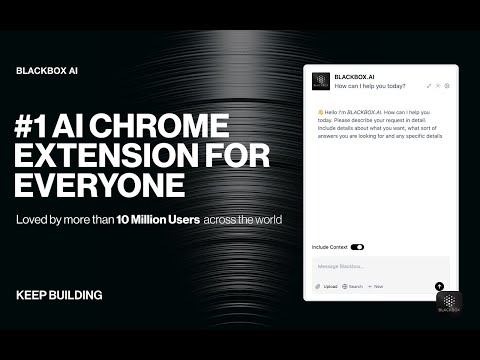
Getting Started with BLACKBOX AI Extension Seamlessly integrate BLACKBOX AI into your existing workflow to supercharge your…
Getting Started with BLACKBOX AI Extension Seamlessly integrate BLACKBOX AI into your existing workflow to supercharge your navigation experience. ### Code Chat: This is a walkthrough for using Code Chat to get answers to your coding questions: 1. Click on the Blackbox AI icon on the top right of your browser or click on "Manage Extension" then "Keyboard Shortcut" to assign a shortcut for opening the app. 2. Ask your coding question. 3. Get answers and suggestions in real-time. ### Add current page as context: To add the current page as context: 1. Click on the Blackbox AI icon on the top right of your browser or click on "Manage Extension" then "Keyboard Shortcut" to assign a shortcut for opening the app. 2. 1. Ensure "Include Context" option is activated. 3. Ask your question about page content. 4. Get answers and suggestions in real-time. ### Github Integration This is walkthrough for Github Integration : 1. When you view code on Github, you'll see a new button called "Code Chat" appear at the top of the code. 2. Ask your question about the code. 3. Get answers and suggestions in real-time. ### Image-To-Text This is walkthrough for OCR integration : 1. Press CTRL+E (Windows) or CMD+E (Mac) to activate OCR. 2. Select the zone. 3. Paste the result where you want.
5점 만점에 2.7점평점 1.2천개
세부정보
개인정보 보호

개발자가 사용자 데이터에 관해 다음과 같이 선언했습니다
- 승인된 사용 사례를 제외하고 서드 파티에 판매하지 않음
- 항목의 핵심 기능과 관련 없는 목적으로 사용하거나 전송하지 않음
- 신용도 판단 또는 대출 목적으로 사용하거나 전송하지 않음
지원
질문, 제안 또는 문제와 관련하여 도움이 필요하시면 개발자의 지원 사이트를 방문하세요.