


總覽
Get out of calls by simulating a bad connection
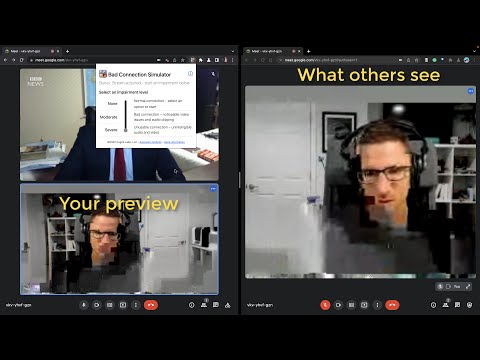
The perfect excuse to off of video calls Stuck on a video call you want to get out and need a good excuse? The Bad Connection Simulator Chrome Extension simulates a bad connection with just a click! → Works with any web-based video calling app → Easy to use - just install the extension, no other installations required → 3 levels of impairment - none, moderate, and severe → Evades low bandwidth adaptation used by video calling apps HOW TO USE 🍰 1. Install the extension from the Chrome WebStore 2. Join your video call 3. Click the Bad Connection Simulator icon and select your impairment level 4. Adjust as needed throughout your call Verified with Zoom, Google Meet, Microsoft Teams, Facebook Messenger, Google Duo, Jitsi Meet, Whereby. Make sure to use the web-version of your video calling app. Bad Connection Simulator also needs to run inside a tab. THREE LEVELS OF IMPAIRMENT Adjust your impairment depending on your needs: 1️⃣ NONE - Normal connectivity 2️⃣ MODERATE - will show some visual impairments and audibly degrade your audio quality. Others will notice you are having some connection issues. 3️⃣ SEVERE - unusable connection with obvious visual artifacts and unusable audio. Now it is safe to drop off Star with moderate to signal you may have connection issues then switch to severe when you’re ready to drop. Decrease or stop the impairment at any time. FOR BEST RESULTS You have to join from Chrome or Edge! Bad Connection Simulator only works on Chromium-based Desktop browsers like Chrome or Edge. Also note, many web calling apps prefer to send you to their native desktop application instead of taking the call from the browser. Make sure you do not click through to the Desktop app. Turn off virtual backgrounds Don't use the virtual background feature. Usually this will not be altered, so your video will look impaired but the virtual background won't be. How it works ℹ️️ Bad Connection Simulator extension inserts itself after your webcam and microphone streams. Unlike other impairment simulators, everything is contained in the browser and controlled by the extension. * No installing fake device drivers * No need to select a special device * No need to load any external apps Modern video calling systems are designed to deal with bad connections and will try to adapt to reduce any impairments. Bad Connection Simulator applies realistic impairments directly to the source video stream before it is transmitted. Video conferencing systems see a normal stream, so they do not make any adjustments while your video and audio come through like garbage! Explanation for Nerds 🤓 Bad Connection Simulator makes use of WebRTC Insertable Streams. After a getUserMedia call, the source streams are routed through WebCodecs where the stream is re-encoded with simulated packet loss and latency. Then the stream is passed to the video calling app where it is displayed and can be passed to a RTCPeerConnection.
4.5 分 (滿分 5 分)6 個評分
詳細資料
隱私權

這位開發者就你的資料做出下列聲明:
- 除經核准的用途外,不會將你的資料販售給第三方
- 不會基於與商品核心功能無關的目的,使用或轉移資料
- 不會為了確認信用度或基於貸款目的,使用或轉移資料