

Contact Clipper — Signatures to Google & Outlook Contacts

Overview
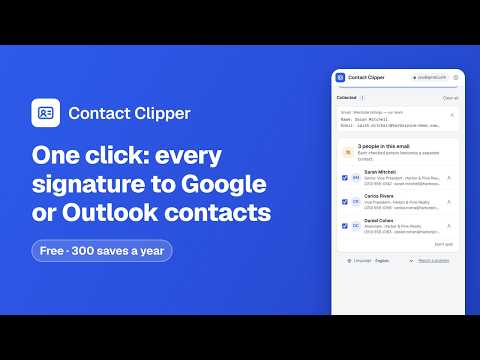
Save everyone in an email to Google or Outlook contacts in one click. Paste a signature, it sorts itself. Logs to Sheets and CRM.
Everyone in an email goes into Outlook or Google Contacts in one click — each with their own phone, title and company. Anyone you already have is updated, not saved twice. Anything you copy and paste sorts itself into the right fields. In our tests, 95.9% of signatures were read with every field right, and any field it is not sure about is marked for you to check before you save. Made for real estate agents, loan officers, recruiters, sales reps and consultants — anyone who gets contact details by email all day and is tired of retyping them. GOOD TO KNOW • A signature saved as a picture cannot be read. Only text you can select and copy. • A complicated signature (several company names, a department that looks like a company) can put a value in another field. You can edit anything before you save. Send us the text (with private details changed) at support@contactclipper.app, in any language, and we fix what we can. ONE CLICK IN OUTLOOK AND GMAIL (free) • Open an email in Outlook on the web or Gmail and click "Add to Contacts". Take the sender, or everyone: sender, To, Cc and every person listed in the message, such as the agents on a listing announcement. • Contact Clipper works with one account: connect your Microsoft account to save to Outlook contacts (with the Outlook button), or your Google account to save to Google Contacts (with the Gmail button). Everything you paste goes to that account, and you can change the account in Settings. • Each person becomes a separate contact. Save them all at once. • No setup, no special format: signatures from Outlook, iPhone, newsletters and e-blasts are read as they are. • Earlier messages quoted in the thread are left out, so nothing old sneaks in. PASTE FROM ANYWHERE (free) • A website, a flyer, a PDF, a text message, a LinkedIn profile: copy the details and paste them into the side panel. Or right-click "Add to Contact Clipper", or press Alt+Shift+C. • Name, company, title, phones, email, address and website each land in their own field. What fits no field goes to Notes as written, so nothing is lost. • Paste again to add to the same contact. Several people in one text become separate contacts. NO DUPLICATES (free) • Someone you already have is updated: new phones, emails, title or company are added, and what is there stays. • Saving one person, you see the match first and choose. Saving several, anyone with the same email or phone is updated automatically. LOG TO EXCEL OR GOOGLE SHEETS (Pro) • Flip a switch, and each contact you choose is added as a row in your own sheet: name, company, phone, email, date, source, plus the columns you add. • Your follow-up list fills itself. Contacts saved to Outlook go to an Excel file in your own OneDrive; contacts saved to Google, to a sheet in your own Drive. SEND TO YOUR CRM (Pro) • Follow Up Boss and HubSpot have the contact the moment you save it. • Zapier and Make (webhook) pass it on to thousands of other apps. 10 LANGUAGES, NAMES THE LOCAL WAY • Reads signatures in English, Korean, Japanese, Chinese, Spanish, Portuguese, French, German, Italian and Vietnamese — addresses, titles and phone labels the way each country writes them. English covers US, UK, Canadian, Australian, Irish and Indian addresses. • Korean and Chinese names stay whole in the First name field (홍길동, 王小明), as people there usually keep them. Japanese names are split into family name and given name. One tick in Settings changes either. • The panel itself comes in 11 languages. FREE AND PRO Free: the Outlook and Gmail buttons, pasting, the duplicate check, labels, vCard export, and 300 saves a year for each Microsoft or Google account, counted from its first save (a new contact or an update is one save). Pro: unlimited saves, the sheet log with your own columns, the CRM connections, and several labels on one contact. A one-time Lifetime plan is available at the launch price. PRIVACY Contact Clipper reads only the text you paste, or the email on your screen when you click the button. Contacts are saved to your own Microsoft or Google account and — only if you turn it on — to your own Excel file or sheet, or the services you connect. We never see your contacts. Microsoft, Outlook, Excel and OneDrive are trademarks of the Microsoft group of companies. Gmail, Google Contacts and Google Sheets are trademarks of Google LLC. Contact Clipper is not affiliated with Microsoft or Google.
5 out of 51 rating
Details
- Version2.8.0
- UpdatedNovember 21, 2026
- FeaturesOffers in-app purchases
- Size920KiB
- Languages11 languages
- DeveloperTotal Commercial, Inc.Website
3680 Wilshire Blvd Ste P04 #A204 Los Angeles, CA 90010-2709 USEmail
support@contactclipper.appPhone
+1 323-686-2340 - TraderThis developer has identified itself as a trader per the definition from the European Union and committed to only offer products or services that comply with EU laws.
Privacy

Contact Clipper — Signatures to Google & Outlook Contacts has disclosed the following information regarding the collection and usage of your data. More detailed information can be found in the developer's privacy policy.
Contact Clipper — Signatures to Google & Outlook Contacts handles the following:
This developer declares that your data is
- Not being sold to third parties, outside of the approved use cases
- Not being used or transferred for purposes that are unrelated to the item's core functionality
- Not being used or transferred to determine creditworthiness or for lending purposes
Support
For help with questions, suggestions, or problems, visit the developer's support site