

AI Vision: Gemini Screenshot, Webpage & Multi-Tab AI Assistant for Chrome
5 ratings
)
Overview
Gemini AI screenshot assistant, OCR image-to-text, webpage summarizer & multi-tab research copilot for Chrome with your own API key
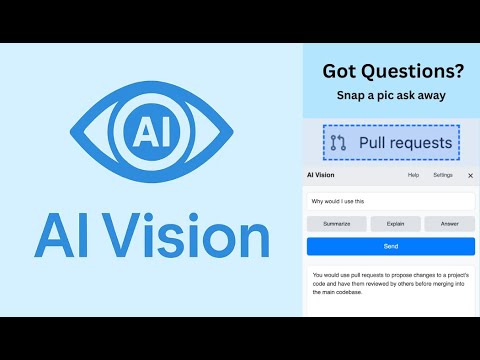
AI Vision is an AI screenshot assistant for Chrome. Select part of a chart, image, error message, or document, ask Gemini what it means, and keep the answer ready for a follow-up. Use it to: • Explain charts, diagrams, interfaces, and error messages • Copy text from screenshots and other images • Summarize a readable webpage while you browse • Compare useful details across supported tabs Get started 1. Install AI Vision from the Chrome Web Store. 2. Create a Gemini API key in Google AI Studio, open AI Vision Settings, and save it. 3. Open an ordinary webpage, choose Capture, select an area, and ask a question. Follow up from the answer; labels may vary in the public v2.5 listing. Browser tasks (Beta) are optional and approval-gated, with a visible Stop action. AI Vision is free to install, but Google controls Gemini access, quotas, and any billing. Gemini can misread small or blurry text, so check important facts. Chrome internal pages, the Chrome Web Store, and other restricted pages cannot be analyzed. Your key and preferences stay in Chrome's local storage. Your prompt and the screenshot or page context needed for a request go directly to Google's Gemini API over HTTPS; there is no developer proxy or analytics. See the privacy notice and source at github.com/stiwarilbj/AI_Vision. AI Vision is an independent project and is not affiliated with Google.
5 out of 55 ratings
Details
- Version2.11
- UpdatedSeptember 25, 2026
- Offered byGitchub
- Size1.07MiB
- LanguagesEnglish
- DeveloperShantanu Tiwari
Arthur St Framingham, MA 01702 USEmail
gitchub@gmail.com - Non-traderThis developer has not identified itself as a trader. For consumers in the European Union, please note that consumer rights do not apply to contracts between you and this developer.
Privacy

AI Vision: Gemini Screenshot, Webpage & Multi-Tab AI Assistant for Chrome has disclosed the following information regarding the collection and usage of your data. More detailed information can be found in the developer's privacy policy.
AI Vision: Gemini Screenshot, Webpage & Multi-Tab AI Assistant for Chrome handles the following:
This developer declares that your data is
- Not being sold to third parties, outside of the approved use cases
- Not being used or transferred for purposes that are unrelated to the item's core functionality
- Not being used or transferred to determine creditworthiness or for lending purposes
Support
For help with questions, suggestions, or problems, please open this page on your desktop browser