


Overview
Translate manga & manhwa on any site. 50+ languages, vertical/horizontal OCR, layout-preserving typesetting, PDF & batch.
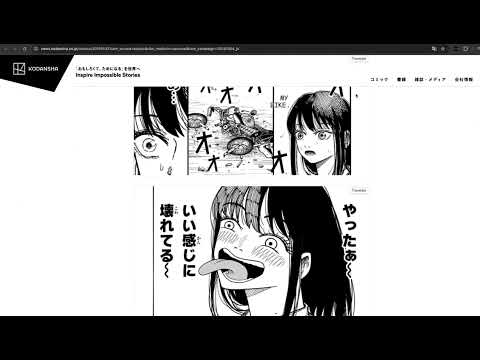
AI Manga Translator — In-Page, Layout-Preserving Translate manga and manhwa directly on the websites you already read. AI Manga Translator adds a “Translate” button overlay to images on the page, so you can view translations in place without switching tabs or downloading files. Choose your Language, Model, OCR, and Text orientation from a simple popup, save once, and then click the overlay button on each page to translate. What makes it different In-page translation: See translations where the comic lives. No copy-paste or manual cropping. Layout-preserving typesetting: Keep the reading flow and bubble shapes for a natural result. Robust OCR: Works with vertical and horizontal text commonly used in manga and manhwa. Flexible models: Select a model that fits your language pair or style (set in the popup). One-time setup: Pick Language / Model / OCR / Text orientation, then toggle the “Display a translation button on the web page” option. Account & credits: Sign in, check credits, and open billing from the popup. How it works 1、Open the popup Click the extension’s icon to open the popup. Choose: Translation language (target language) Model selection Text orientation (Auto / Horizontal / Vertical) OCR model (Optional) Display a translation button on the web page 2、Save settings Click Save settings. The extension will inject the necessary scripts into the current tab only after you save. 3、Translate on the page A “Translate” overlay/button appears on images that look like comic pages. Click it to translate in place. On some sites you may see more than one overlay—choose the one at the top-right of the comic. 4、Manage your account Use Account in the popup to sign in or sign up, refresh your status, and open Recharge / Subscription if you need more credits. Why in-page is better Keeps context: Reading order, panel grouping, and local visual cues matter in comics; in-page viewing preserves context you’d lose in a separate viewer. Fewer steps: No exporting images, no juggling extra tools or tabs, no manual stitching. Faster iteration: Switch target language, OCR, or orientation and retry instantly. Features at a glance In-page translate button overlay on supported images Layout-preserving text replacement and typesetting OCR that supports vertical and horizontal writing systems Model selection to tailor output quality and style Text orientation: Auto, Horizontal, or Vertical Popup controls for quick setup and a Save action Account & credits panel with Sign In/Sign Up, Refresh, and Recharge / Subscription links Note: Some advanced capabilities (such as bulk/PDF translation) are available on the website. This extension focuses on in-page translation on the sites you browse. Designed for privacy and user control Runs only when you act: The extension injects its scripts into the current tab after you click Save settings or otherwise interact. No browsing history collection: The extension does not read or store your browsing history. Scope-limited: It operates on the active page you choose; it does not passively crawl other tabs. Transparent settings: Your Language/Model/OCR/Text orientation and the “Display translation button on the web page” toggle are stored with chrome.storage to keep your preferences. Permissions explained (from the manifest) activeTab — Allows working on the current active tab after you interact (e.g., Save settings). scripting — Injects the extension’s scripts needed to show the in-page “Translate” button and process images. storage — Saves your preferences (Language, Model, OCR, Text orientation, and the “Display translation button on the web page” toggle). tabs — Opens or focuses tabs when you click help, account, or billing links in the popup. Host access (https://aimangatranslate.com/*) — Connects to the service for account and credit checks and to perform translations. We keep permissions minimal and aligned with what the extension actually does. Getting started (1 minute) Install the extension. Open the popup → choose Language, Model, OCR, Text orientation. Enable Display a translation button on the web page if you want in-page overlays. Click Save settings. On the comic page, click the Translate overlay button on the image. Tip: If you don’t see the overlay on a site after you save, refresh the page once. Common questions Q: Will this work on every site? A: The extension is designed to work on standard web pages (HTTP/HTTPS). Browser-internal pages (like chrome://), local files (file://), or sites with strict content security policies may restrict injection or overlays. If a site blocks overlays, try another page or open the comic in a standard viewer tab. Q: Does it read or store my browsing history? A: No. The extension does not collect your browsing history. It only runs on the page you’re viewing after you interact (save settings or click), and it stores only your feature preferences using chrome.storage. Q: Do I need an account? A: You can open the Account section in the popup to sign in or sign up. Some translation features require credits; your status and billing links are available in the popup. Q: What languages and models are supported? A: The popup allows you to select a target Language, a Model, and OCR options including Text orientation (Auto/Horizontal/Vertical). Choose what fits your content and try again if needed. Q: Can I translate entire chapters or PDFs? A: The extension focuses on in-page translation for the websites you visit. For bulk/PDF workflows, use the features provided on the website. Tips & troubleshooting Refresh after saving: If overlays don’t appear right away, refresh the page after Save settings. Site has multiple overlays: Some pages render multiple images per panel or lazy-load assets. Click the overlay at the top-right of the comic image. Restricted pages: The extension does not run on browser-internal pages (e.g., chrome://) or some special protocols (file://). Use a standard web URL instead. Try different orientation/OCR: Manga/manhwa often use vertical text; if recognition looks off, set Text orientation to Vertical (or Auto) and retry. Model choice matters: Some models do better with certain language pairs or styles. If results aren’t what you expect, switch Model and try again. Account & credits: If translation doesn’t start, check your sign-in state and credits in the Account section, then Refresh. What’s inside the popup Translation Settings Translation language (select) Model selection (select) Text orientation: Auto / Horizontal / Vertical (select) OCR Model (select) Display a translation button on the web page (checkbox) Save settings (button) with a status hint Account Sign In/Sign Up (button) Refresh (button) Recharge / Subscription (link) The popup UI is intentionally simple: configure once, then focus on reading. Accessibility & UX details Overlay buttons are placed where they’re easy to find (often the top-right of the image). The popup uses clear labels and consistent control sizes for quick scanning. Footer links (Privacy Policy, Terms of Service, Home/Support) are grouped and spaced for readability. A one-time notice clarifies that overlays are injected only after you enable them and save. Data handling summary Purpose: Provide in-page translation for images you choose to translate. Stored locally: Feature preferences via chrome.storage (Language, Model, OCR, Text orientation, display overlay toggle). Not collected: Browsing history is not collected or stored by the extension. Network: Interacts with the service endpoint under the declared host permission to check account/credits and perform translation when you ask it to. User control: You can disable overlays at any time by unchecking the option and clicking Save settings. For full details, see the Privacy Policy and Terms of Service linked from the popup footer. Updates & reliability We aim for a stable in-page experience: Resilient overlay injection on typical manga/manhwa pages Clear user feedback via the popup’s Save hint and Account status Minimal permissions and small, readable code modules If you run into an issue on a specific site, try refreshing after saving, adjusting Text orientation, or selecting a different Model/OCR. You can also contact support for help. Start reading smarter Install AI Manga Translator to bring quick, context-aware, in-page translations to the sites you already use. Configure once, click the overlay, and keep reading—no extra steps required.
0 out of 5No ratings
Details
- Version0.1.4
- UpdatedOctober 21, 2025
- FeaturesOffers in-app purchases
- Size54.9KiB
- Languages3 languages
- DeveloperPLANVAWebsite
71-75 Shelton Street London WC2H 9JQ GBEmail
planvaofficial@gmail.comPhone
+44 7713 766956 - TraderThis developer has identified itself as a trader per the definition from the European Union and committed to only offer products or services that comply with EU laws.
- D-U-N-S232775863
Privacy

AI Manga Translator — In-Page, Layout-Preserving has disclosed the following information regarding the collection and usage of your data. More detailed information can be found in the developer's privacy policy.
AI Manga Translator — In-Page, Layout-Preserving handles the following:
This developer declares that your data is
- Not being sold to third parties, outside of the approved use cases
- Not being used or transferred for purposes that are unrelated to the item's core functionality
- Not being used or transferred to determine creditworthiness or for lending purposes