

Accessible Earth

Overview
Adds an accessible assistant overlay to Google Earth with voice control, geocoding, and AI enhancements
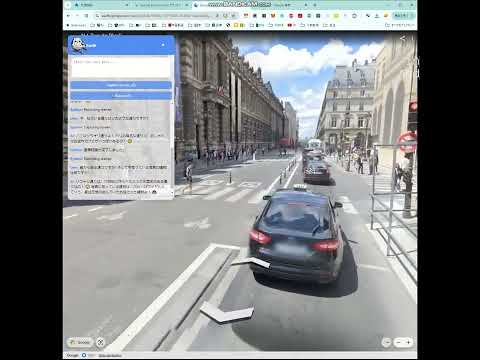
Accessible Earth User Guide This document explains how to set up and use the Chrome extension “Accessible Earth,” and includes a short primer on basic Google Earth / Street View operations. 1. Overview Accessible Earth transforms your Google Earth journey into an exciting AI-assisted experience. Start a conversation with a single phrase, capture the scenery you’re viewing, and enjoy chatting with the AI about what you see. Tell the AI “Take me to …!” and it will jump to landmarks around the globe in real time. - A floating semi-transparent overlay stays out of your way while you explore the globe. - Simply asking “Where is …?” triggers a seamless flow from speech to text to AI chat. - When a place name is detected during the conversation, Google Earth immediately jumps to that destination. - Drag-select a screenshot and OpenAI instantly provides a report of the captured area. 2. Installation and Initial Setup #2.1 Install from the Chrome Web Store 1. Open the Chrome Web Store listing for “Accessible Earth.” 2. Click **Add to Chrome** → **Add extension** to enable it right away. 3. Pin the extension from the browser’s extensions menu for one-click access to the overlay. #2.2 🔑 API Key Setup and Usage Notes 1. Right-click the extension icon and choose **Options**, or enter `chrome-extension://<extension-id>/options.html` in the address bar. 2. Enter your OpenAI API key (the string that starts with `sk-`) and click **Save**. Configure the character name, persona, and custom icon if desired. - Because the extension is still in an early stage, you need to obtain and register your own OpenAI API key. If you do not have one, generate it from [OpenAI API Keys](https://platform.openai.com/api-keys). - Use **Auto-stop recording after (seconds)** to control how long recordings run automatically. The default is 10 seconds; set it to 0 to disable auto-stop. - Configure rate limits in the OpenAI dashboard to prevent unexpected charges or third-party misuse. > ⚠️ **Important Notes About the API** > - OpenAI API usage is billed per request; any fees accrue to your OpenAI account. > - Do not share your API key with others. If a leak is suspected, regenerate the key immediately from the OpenAI dashboard. 3. How to Use #3.1 Toggle the Overlay - Open Google Earth (`https://earth.google.com/web/`) to display a round icon in the top-left corner. Click it to show or hide the overlay. - Use keyboard shortcuts: `V` to start/stop recording, `C` to capture a region. #3.2 Voice Input and Chat 1. Click **🎙️ Record (V)** or press `V` to begin recording. 2. Speak into the microphone; your speech is transcribed and sent to the AI. 3. Replies appear in the chat log and are read aloud automatically. 4. If you stop with no audio detected, nothing is sent and the status shows “No speech was detected.” 5. Recordings stop automatically after the configured duration (10 seconds by default). To record continuously, increase the value or set it to 0. #3.3 Jump to a Place - If your request contains a place name (e.g., “Take me to …”), the extension geocodes it and moves Google Earth to that location. Landmarks and building names are supported. - If you are already at the requested location, it informs you with “Already at this location.” #3.4 Text Input - Type into the overlay’s text box and press Enter to send. Messages that are empty or only symbols are ignored. #3.5 Region Screenshot & Image Description 1. Click **📸 Capture Screen (C)** or press `C` to enter selection mode. 2. Drag to select an area; it is saved via the download dialog to your Downloads folder. 3. The captured image is sent to OpenAI Vision, and the description feeds into the next AI response while also appearing as a status message. #3.6 Conversation History & Text-to-Speech - Up to 50 recent messages are stored locally. - AI replies are automatically read aloud; you can play or pause them from the overlay’s audio player. 4. Google Earth Basics | Action | How to Perform | | --- | --- | | Move the viewpoint | Drag with the left mouse button to rotate; drag with the right button to tilt/pitch | | Zoom | Mouse wheel or the “+ / –” buttons in the lower-right corner | | Search | Enter a place name in the left sidebar’s search field and press Enter | | Switch 2D / 3D | Use the “2D/3D” icon in the lower-right corner | | Map layers | Switch via the left sidebar (Projects, Style, Photos, etc.) | #4.1 View Street View 1. Drag the Pegman (yellow figure) in the lower-right corner onto a blue-highlighted road. 2. While in Street View, click the return icon at the top-left to go back to the aerial view. 3. Drag to look around, double-click to move forward, or use arrow keys for navigation. 5. Troubleshooting | Symptom | Resolution | | --- | --- | | “No speech was detected.” | Check your microphone settings and make sure you didn’t stop the recording without speaking. | | Screen capture failed | Confirm that the `<all_urls>` permission is granted. Re-authorize via the badge next to the Chrome address bar. If the issue persists, reinstall the extension. | | AI doesn’t move to a location | The place name might be ambiguous. Include details such as country, city, or landmark. | | Image description is missing | Check your network status and the OpenAI API response. Ensure your API key still has quota remaining. | 6. Support & Contact - Email: your-contact@example.com We hope Accessible Earth enhances your virtual travels on Google Earth!
0 out of 5No ratings
Details
- Version1.2.0 - Accessible Earth integrated features
- UpdatedSeptember 30, 2025
- Offered bymasao.nishimoto
- Size362KiB
- LanguagesEnglish
- DeveloperPrompthing株式会社
西区古江西町26−53 広島市, 広島県 733-0874 JPEmail
contact@prompthing.co.jpPhone
+81 90-3373-4594 - TraderThis developer has identified itself as a trader per the definition from the European Union and committed to only offer products or services that comply with EU laws.
- D-U-N-S691911945
Privacy

Accessible Earth has disclosed the following information regarding the collection and usage of your data. More detailed information can be found in the developer's privacy policy.
Accessible Earth handles the following:
This developer declares that your data is
- Not being sold to third parties, outside of the approved use cases
- Not being used or transferred for purposes that are unrelated to the item's core functionality
- Not being used or transferred to determine creditworthiness or for lending purposes